

Clockify Review: We Tested It for Weeks, Here’s Our Honest Verdict
By Jacob Tyler
July 24, 2026 14 min readEvery time-tracking tool promises the same things: quick setup, flexible billing, detailed reports, and automation that stays out of your team’s way. Whether a tool actually delivers on that once real projects, invoices, and teams are involved is a different question, and it’s the one this Clockify review sets out to answer.
We have spent four weeks testing Clockify hands-on: running timers across a five-person project team, pushing a test invoice through its billing flow, setting up shift-based clock-ins on a shared kiosk device, and comparing what actually changes as you move between its five pricing tiers.
The Clockify Verdict in One Minute
| Category | Clockify Specification |
| Overall Rating | 8.2/10 |
| Core Purpose | Project time tracking, timesheets, client billing, and attendance management |
| Compatibility | Windows, macOS, Linux, Android, iOS, Chrome, Firefox, and Edge |
| Setup Complexity | Easy for individual tracking; moderate when configuring teams, rates, approvals, and policies |
| Free Trial | Yes – 7 days with access to paid features |
| Free Plan | Up to 5 active users, unlimited tracking, and PDF exports; reports are limited to 31-day periods |
| Pricing | Basic: $3.99; Standard: $5.49; Pro: $7.99; Enterprise: $11.99 per user/month (when billed annually) |
| Tracking Methods | Timer, manual entries, timesheets, Calendar, Kiosk, browser extensions, and offline apps |
| Report Exports | PDF on Free; CSV and Excel from Basic onward |
| Cloud Syncing | Entries sync across platforms; offline records upload after the device reconnects |
| Strengths | Flexible time entry, detailed project organization, useful reports, offline tracking, approvals, and broad device support |
| Limitations | Key tools are split across paid tiers; payroll and accounting remain limited; scheduling lacks advanced shift-management controls |
How We Put Clockify Through Our Rigorous Testing Process
We, a team of five reviewers, tested Clockify for four weeks to understand how it performs during typical individual, project, and team workflows.
Our test workspace included six user accounts with employee, manager, administrator, and workspace-owner roles. We created 8 clients, 14 projects, 26 tasks, and 12 tags, then recorded approximately 120 hours of test data.
Clockify was assessed through its:
- Web dashboard
- Windows and macOS desktop apps
- Android and iOS mobile apps
- Chrome browser extension
- Kiosk mode
We also connected Clockify with Google Calendar, Gmail, Trello, Asana, and Jira. Where plan restrictions applied, we tested the feature on the lowest subscription tier that included it.
Our testing was divided into the following five areas.
Time-Tracking Accuracy and Reliability – 30%
We completed 42 timed sessions ranging from five minutes to more than three hours. Each session was measured against an independent stopwatch.
The timer was started and stopped through the web app, desktop apps, mobile apps, and browser extension. We also created 18 manual entries and used the weekly Timesheet and Calendar views to reconstruct completed work.
To assess offline tracking, we completed eight sessions without an internet connection and reviewed the entries after reconnecting.
Project, Billing, and Reporting Performance – 25%
We organized test data across 8 clients, 14 projects, and 26 tasks. Projects included billable client work, non-billable internal work, fixed estimates, and hourly engagements.
Four rate configurations were tested:
- Workspace rate
- User rate
- Project rate
- Task rate
Using several rate levels allowed us to examine how Clockify prioritizes overlapping rates, a particularly important issue for agencies that charge differently by employee, service, or project.
We generated 36 reports, split equally across Summary, Detailed, and Weekly views. Reports were grouped and filtered by client, project, user, task, tag, date, and billable status.
Available reports were exported in PDF, CSV, and Excel. We also created 10 invoices using tracked time, different rates, taxes, manual line items, and varying levels of entry detail.
Feature Performance in Everyday Workflows – 20%
Clockify includes several features intended for managers, so we tested them using separate employee and administrator accounts. This was necessary because the experience of submitting information can differ considerably from reviewing and controlling it.
We completed 12 timesheet approval cycles, including submissions, rejections, corrections, and resubmissions. These scenarios were used to evaluate whether Clockify could maintain a clear review process when an employee’s timesheet required changes.
Ease of Use and Administration – 15%
We timed both the initial account setup of the Clockify desktop app and the preparation of a complete team workspace. Moreover, our UX specialist analyzed the flow and hierarchy of the screen and menus as well.
The process included creating projects, inviting users, assigning permissions, configuring rates, establishing approval rules, adding time-off policies, preparing Kiosk access, and enabling monitoring controls.
This distinction was important because starting a personal timer requires considerably less setup than preparing Clockify for a multi-user business.
We also recorded how often external documentation was needed and how many menus or screens were involved in common tasks. This allowed us to assess not only whether a feature could be configured, but how much administrative effort it required.
Cross-Platform and Integration Behavior – 10%
Clockify desktop app was tested on Windows 11 and macOS, while the mobile app was tested on both Android and iOS. Moreover, for the browser extension, we chose Chrome to examine how well its core workflows carried across platforms.
We completed 30 cross-platform checks by starting or editing an entry on one device and reviewing it from another. These tests were designed to assess whether employees could move between workplace computers, personal devices, and mobile apps without disrupting their records.
The Chrome extension was used for 16 tracking sessions inside Gmail, Trello, Asana, and Jira. We selected these platforms to represent communication, task management, and software-development workflows.
We also imported 18 Google Calendar events and converted them into time entries. This allowed us to test whether Clockify could help meeting-heavy users reconstruct their day without entering every appointment manually.
What Is Clockify?
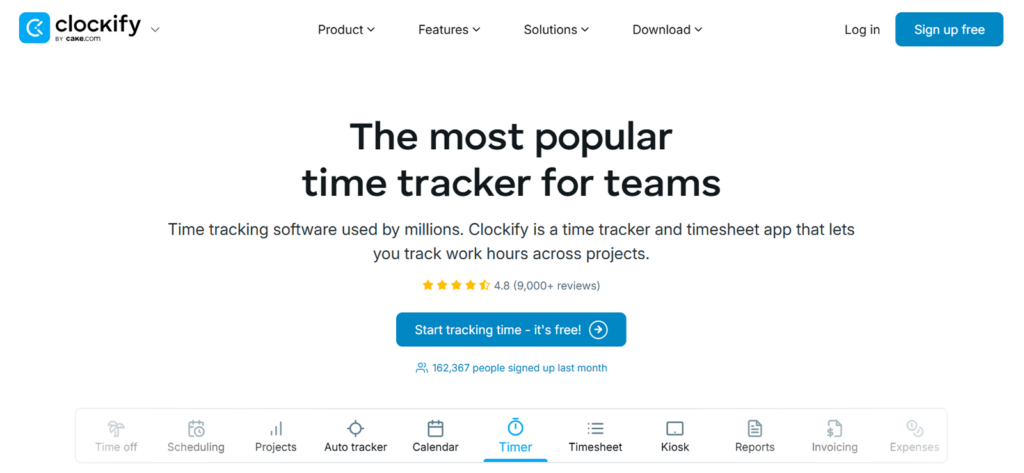
Clockify is a cloud-based time tracker and timesheet platform. Individuals can record time against projects and tasks, while managers can review hours, calculate billable amounts, generate reports, approve timesheets, and, on higher plans, manage invoicing, expenses, scheduling, location records, screenshots, attendance, and time off.
Clockify sits between three product categories:
- Personal and team time tracking
- Professional-services project accounting
- Light workforce administration
However, its core purpose remains time tracking. The additional administration and monitoring features are useful, but buyers should not mistake their presence for the depth of a dedicated workforce-management platform.
How Does Clockify Work?
A Clockify account contains one or more workspaces. Within a workspace, administrators create clients, projects, tasks, tags, users, permissions, rates, and approval rules. Users then record time using a running timer, manual entry, weekly timesheet, calendar block, mobile application, browser integration, or shared kiosk.
Those time entries become the underlying dataset for:
- Project and client reports
- Billable-hour calculations
- Project estimates and budgets
- Timesheet approval
- Invoices
- Attendance records
- Payroll exports
- Productivity or monitoring controls
This structure works because Clockify asks users to categorize time at or shortly after the point of capture. When the project, task, billable status, and description are entered consistently, the reports become useful without extensive cleanup.
The model weakens when users run timers without assigning projects or tasks. Clockify provides Time Audit controls on Basic and higher plans to locate incomplete or suspicious entries, but administrators still need clear naming conventions and required-field rules.
Clockify Compatibility
When it comes to compatibility, Clockify supports a wider range of platforms than many time trackers. The software is available through Windows, macOS, Linux, Android, and iOS apps. It also offers browser extensions for Chrome, Firefox, and Edge.
During our testing, it worked on:
- Windows laptop
- macOS device
- Android smartphone
- iPhone
- Chrome browser extension
We performed 30 cross-platform checks by starting timers on one device and reviewing or editing them from another. In 26 tests, the changes appeared within 10 seconds. Three updates took between 20 and 35 seconds, while one mobile entry required us to refresh the web dashboard manually.
However, working across all these platforms does not mean every app offers the same features. The web dashboard gave us the most complete access to reports, projects, team settings, and administration controls. The mobile apps were more suitable for tracking time, adding expenses, requesting leave, and using GPS. Screenshots, meanwhile, are tied to supported desktop apps rather than the mobile versions.
We also tested offline tracking during 8 disconnected sessions. All entries synchronized once the connection returned, although two had to be assigned to the correct project afterward. Clockify time tracker officially supports offline tracking on Windows, macOS, Linux, Android, and iOS.
Overall, Clockify’s compatibility is strong, and its core timer remained consistent across the platforms we tested. Still, the web, desktop, and mobile apps serve slightly different purposes, so users may need to switch between them to access the complete feature set.
Clockify Integrations & Setup
Setting up Clockify for individual tracking took our team about 9 minutes. Preparing the full six-user workspace took closer to 55 minutes, mainly because rates, roles, approvals, and required fields needed separate attention.
The setup followed six steps:
- Add your Clockify login credentials.
- Create the workspace.
- Add clients, projects, tasks, and tags to the Clockify dashboard.
- Invite users and assign roles.
- Configure rates, permissions, and approvals.
- Install the required apps or browser extension.
From Clockify download to creating projects and inviting users was straightforward. The main friction came from overlapping rate settings and role-based permissions. We had to check Clockify’s documentation twice to confirm which rate took priority and which users could edit or approve time.
Another issue was the automatic paid trial. Several advanced features were available during setup but disappeared when the workspace returned to Free. Teams should therefore confirm plan limits before building workflows around billable rates, exports, or approvals.
We also tested the Clockify integrations inside Gmail, Trello, Asana, and Jira. Installation took under five minutes, and the timer appeared directly inside supported tasks and messages. Gmail and Trello worked with little configuration, while Jira required manual project selection when naming did not match Clockify.
Google Calendar took around 6 minutes to connect. We imported 18 events and used them to create time entries. The process was convenient for meeting-heavy days, although all-day events were excluded.
Clockify also supports QuickBooks Online on eligible paid plans, while Xero requires a paid add-on. These integrations are useful for transferring time and invoice data, but setup depends heavily on correct customer, project, and account mapping.
Overall, Clockify was easy to configure for basic use. However, as per our user experience expert, the experience became less intuitive once we added multiple rates, approval rules, and accounting integrations.
Clockify Interface
Clockify dashboard is simple at first glance. The left-hand menu gives quick access to the Timer, Timesheet, Calendar, Projects, Reports, and Team sections. Moreover, our UX researcher noticed that the navigation through the features was not confusing at first.
During testing, our team started recording time within 2–3 minutes of opening the dashboard. The timer was the easiest part to use, while reports, permissions, and rate settings required more navigation.
The Calendar view was particularly helpful for spotting gaps and adjusting entries visually. However, the interface became noticeably busier once we enabled approvals, expenses, scheduling, Kiosk, and monitoring tools.
Across 20 common tasks, we completed most without consulting the help center. The main friction came from switching between the web, desktop, and mobile apps, as some controls were not available in the same place.
Overall, Clockify is easy to use for basic tracking, but managing a larger team involves a steeper learning curve.
Clockify Pricing
Clockify has a Free plan and four paid subscriptions. Paid plans are charged per active user, with lower monthly rates when billed annually. The main issue is not the starting price but how features such as approvals, invoicing, expenses, and monitoring are divided across tiers.
The complete breakdown of Clockify pricing is as follows:
- Free: $0. Includes core time tracking, projects, timesheets, and basic reports for up to five active users.
- Basic: $3.99 per user/month annually or $4.99 monthly. Adds billable rates, Kiosk, Time Audit, bulk editing, and CSV/Excel exports.
- Standard: $5.49 annually or $6.99 monthly. Adds invoicing, approvals, locked timesheets, attendance, overtime, and time off.
- Pro: $7.99 annually or $9.99 monthly. Adds expenses, scheduling, budgets, profitability reports, GPS, and screenshots.
- Enterprise: $11.99 annually or $14.99 monthly. Adds SSO, account controls, a custom subdomain, and the Audit Log.
We used the Pro plan for most of our four-week test because it included the features needed to examine expenses, scheduling, GPS, screenshots, budgets, and project profitability. The first seven days were covered by Clockify’s automatic Pro trial, after which we continued testing on the paid Pro tier.
Make Every Tracked Hour More Valuable With TimeBee
Learn More
Clockify Features
Time Tracking and Timesheets
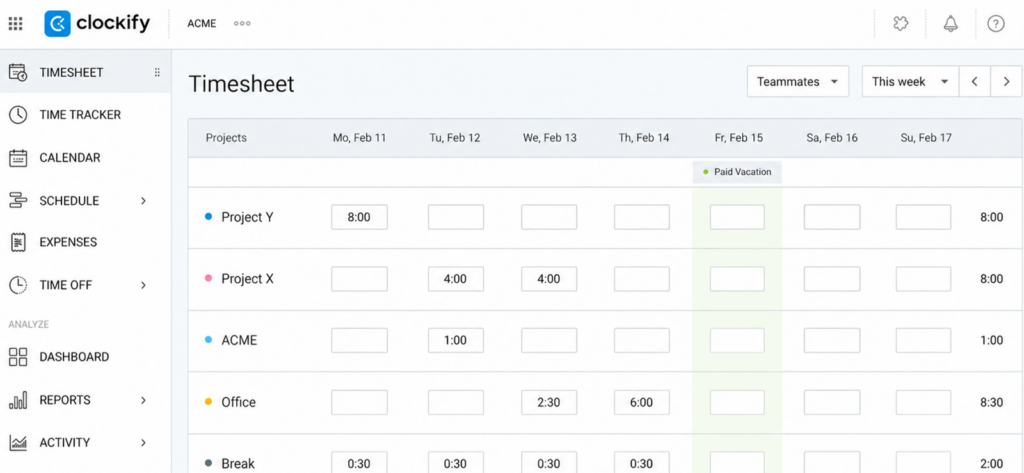
After Clockify download, the first thing we did was to complete 42 timer sessions across the web, desktop, mobile, and browser-extension versions. Recorded durations remained consistent across devices, although two mobile updates required a manual refresh before appearing in the web dashboard.
We also added 12 manual entries and reconstructed three workdays through the Calendar view. Editing start times, projects, tasks, and billable status was straightforward. Offline tracking worked across four disconnected sessions, but two entries had to be assigned to projects after reconnecting.
Across six approval cycles, submitted timesheets were correctly locked after approval. Additional hours entered afterward required separate approval.
Projects, Billable Hours, and Reports
For this domain, we created 10 projects across five clients and tested workspace, user, project, and task rates. Clockify app applied the expected rate in most cases, although we initially had to check the rate hierarchy when project-level settings overrode workspace defaults.
We generated 18 Summary, Detailed, and Weekly reports and filtered them by client, project, user, and billable status. Reports were easy to refine, and exports retained the main entry details. However, more advanced profitability comparisons still required spreadsheet work.
Invoicing and Expenses
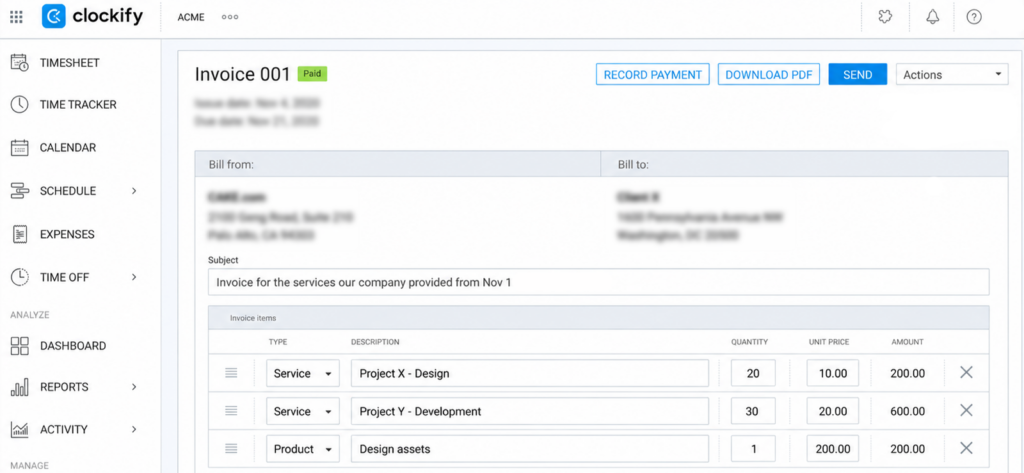
During testing, we created six invoices using tracked time, different hourly rates, taxes, and manual line items. Importing billable entries was quick, and previously invoiced time was clearly marked.
Two invoice totals differed slightly from the related reports because of entry-level rounding. We also submitted eight expenses, including five receipt attachments. Expense recording worked well, but the overall workflow remained too limited to replace dedicated accounting software.
GPS and Screenshots
GPS was tested during five mobile sessions, while screenshots were enabled for six desktop sessions. Both worked under the required plan and device conditions. GPS produced periodic location points rather than a continuous route, while screenshot frequency depended on how long the desktop timer remained active.
Kiosk and Attendance Tracking
Our team completed 16 Kiosk clock-in and clock-out cycles, including breaks, overtime, and one missed clock-out. PIN-based access was quick, and the shared-device setup worked without dedicated hardware.
Attendance reports made it easy to review worked hours and breaks. However, the missed clock-out required an administrator to correct the entry manually, which shows that Kiosk still depends on regular attendance checks.
Time-Off Management
Once our Clockify login stage was completed, we created three leave policies and submitted eight time-off requests to cover vacation, sick leave, and public holidays. Employees could view their balances, while managers approved or rejected requests from the dashboard.
The process worked well for basic leave administration. However, Clockify did not provide the broader employee records and HR workflows available in a dedicated HR system
Approvals and Time Auditing
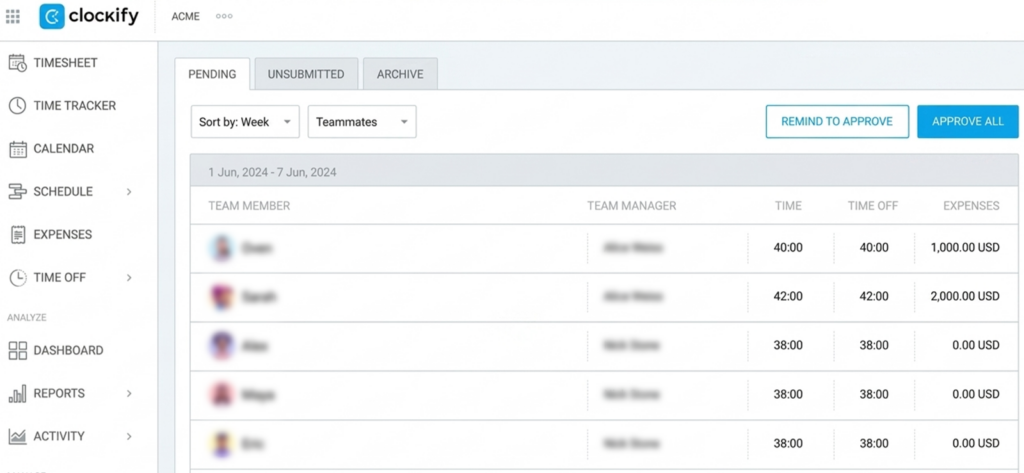
We tested six timesheet submissions, four corrections, and two rejected entries. Approved time remained locked, while corrected or newly added hours required fresh approval.
We also ran 10 Time Audit checks for entries without projects or tasks and for unusually long sessions. The filters surfaced incomplete records quickly and made cleanup easier.
Clockify time tracker also offers an Audit Log that records actions such as changes to time entries, projects, users, and expenses. However, this feature requires the Enterprise plan, so it was not included in our Pro plan testing.
Clockify Pros and Cons
From our thorough testing, we noticed the following pros and cons:
Clockify Pros
- Flexible time tracking across multiple platforms: Users can record time through web, desktop, mobile, calendar, browser extensions, integrations, offline mode, or Kiosk.
- Strong project and billable-hour organization: Client, project, task, tag, rate, estimate, and billable-status controls provide a useful structure for professional services.
- Practical reporting and export options: Summary and Detailed reports cover most operational questions, with CSV and Excel available from Basic.
- Good fit for freelancers and agencies: The platform connects tracked work to client reporting and, from Standard, invoicing.
- Formal administrative workflows: Standard adds approvals, locked timesheets, leave, attendance, and overtime.
- Optional field and monitoring controls: Pro supports expenses, budgets, scheduling, GPS, screenshots, and profitability analysis.
- Accessible kiosk deployment: A shared time clock can run in a browser without dedicated hardware.
Clockify Cons
- Clockify Free Plan features have material restrictions: It is limited to five active users, 31-day report windows, PDF-only report exports, public projects, and no billable-rate controls.
- Advanced tools are distributed across paid tiers: Rates and exports begin on Basic, invoicing and approvals on Standard, and expenses, scheduling, GPS, and screenshots on Pro.
- Scheduling is project-oriented rather than an advanced rostering system: Its documented emphasis is team capacity and assignments.
- Advanced profitability analysis may require external tools: Clockify itself directs buyers toward spreadsheet exports for more customized reporting.
- Accounting capabilities remain limited: Invoices and payment statuses do not provide a complete accounting ledger.
- Payroll is primarily an export or integration workflow: Clockify is not a native full-service payroll engine.
- Offline context is restricted: Entries can be recorded, but project, task, and tag data may not be available during disconnection.
- Monitoring data has device and retention constraints: GPS is mobile-only with seven-day location retention; screenshots require Windows or Mac.
Clockify Reviews: What Other Customers Have to Say
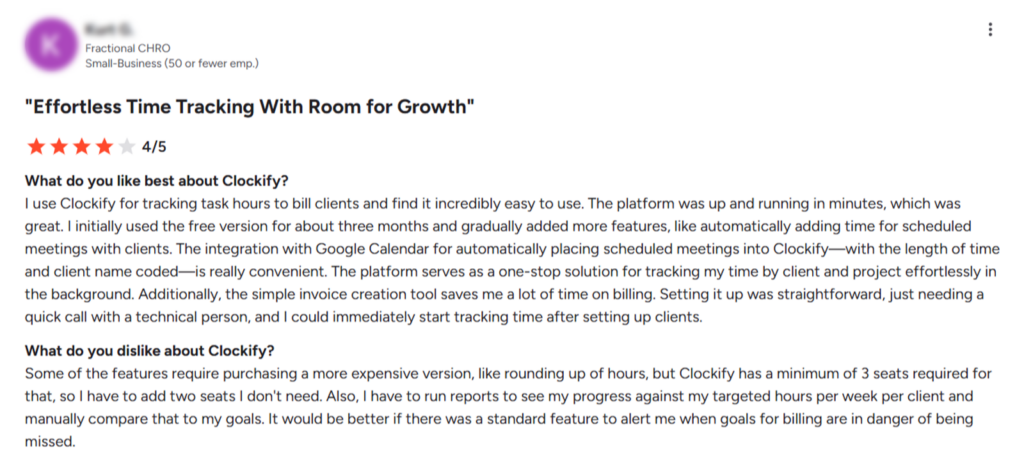
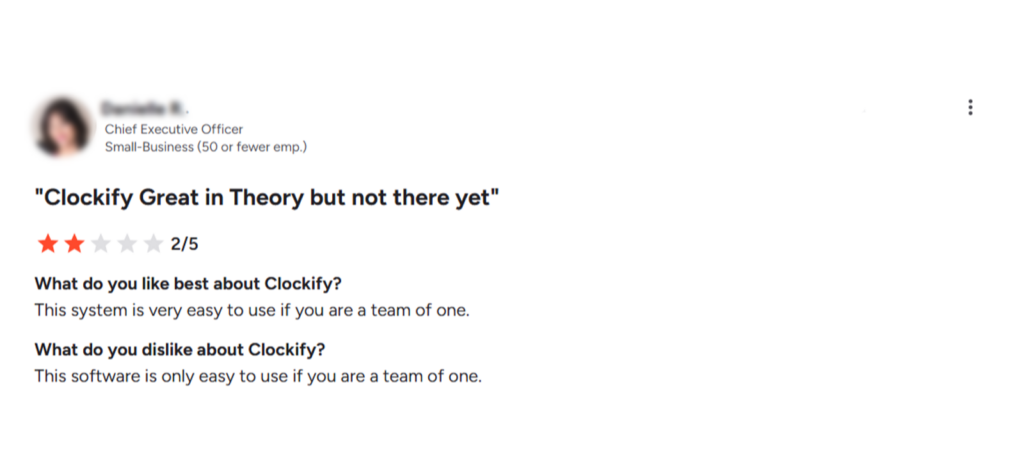
Now that you know what Clockify is and how our experience went with it, here’s what the online Clockify reviews have to say:
When Clockify May Not Be Enough
The Clockify app handled time tracking, project reporting, approvals, expenses, and billable-hour management well during our testing. However, its main focus remains recording and organizing time. Businesses seeking more detailed employee-activity data, broader productivity reporting, or payroll-oriented workforce oversight may need additional software.
TimeBee is one option that is designed around these requirements. Managers can review individual users, teams, attendance, activity, project progress, payroll, and profitability from separate reporting views.
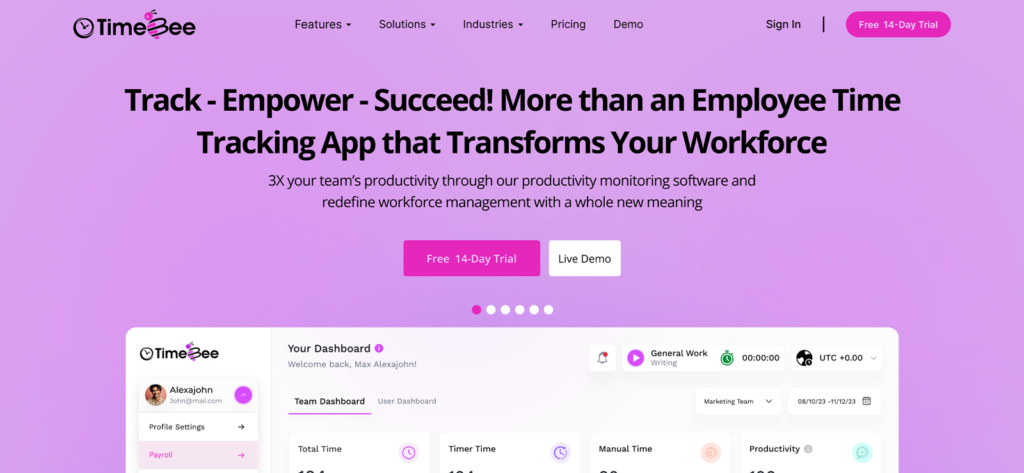
Its key capabilities include:
- Team and individual dashboards: TimeBee gives managers a clear view of tracked, manual, productive, unproductive, neutral, unrated, and idle time across teams or individual employees.
- Website and application analysis: It shows which websites, applications, pages, and window titles employees used, along with the time spent and assigned productivity rating.
- Screenshots and activity evidence: The app also captures timestamped screenshots with keyboard and mouse activity indicators, which managers can filter by employee, project, date, or archive status.
- Operational and financial reporting: TimeBee includes reports for logged hours, activity, web and app usage, project costing, progress, quarterly performance, profitability, and attendance.
- Flexible timesheet controls: It lets users add or correct time manually, import CSV timesheets, assign projects and tasks, and submit entries for approval.
- Project and workforce administration: The platform also brings projects, tasks, teams, users, clients, shared kiosks, and audit records into one management area.
- Attendance management: TimeBee lets administrators define working days, required hours, shifts, lateness margins, early-leave rules, and leave workflows.
- Payroll calculations: It uses verified hours, hourly rates, currencies, and adjustments to calculate each employee’s total pay.
- Administrative controls: The app also gives administrators control over data retention, time zones, timer deletion, notifications, attendance policies, and permitted tracking platforms.
These features may make TimeBee worth considering when workforce visibility is as important as project time tracking.
Other than this, TimeBee also supports 40+ integrations, including tools such as Slack, Asana, Jira, ClickUp, GitHub, Zoho, Trello, etc. Its desktop application currently supports Windows, macOS, and Linux, while activity and reporting data are managed through the online dashboard.
When it comes to the cost, TimeBee’s pricing is custom. A 14-day free trial is available, so businesses can assess the interface and feature set before selecting a plan.
Final Verdict: Is Clockify Worth It?
Overall, Clockify is worth choosing for freelancers, agencies, consultants, and project teams that need flexible time capture, clear client/project organization, and practical reports without a heavy implementation.
As for the pricing, Standard is the best-value plan for most service businesses because it adds approvals, invoicing, time off, attendance, and accounting integration; Pro is justified only when scheduling, expenses, budgets, GPS, or screenshots are operational requirements.
Its strongest feature is the breadth of ways users can record and categorize time across devices. However, tier fragmentation is a key limitation. Clockify free plan features are now restrictive, while workforce and profitability tools are spread across higher subscriptions.
So, it might be wise to choose another option when you require complex shift scheduling, native payroll, full accounting, advanced profitability analytics, or deeper employee-activity monitoring.
FAQs
1. Does Clockify detect idle time?
Yes. Clockify’s browser extension can detect inactivity while a timer is running. The user can keep the time, discard it, start a new timer, or move the idle period to a separate entry. The default inactivity threshold is 15 minutes, but it can be changed.
2. Can Clockify start and stop the timer automatically?
Yes. The Mac and Windows apps can start or stop timers in response to events such as the computer waking, unlocking, sleeping, locking, or shutting down. The browser extension can also start tracking when the browser opens and stop it when the browser closes or at a specified time.
3. Can I import old timesheets into Clockify?
Yes, on Basic and higher plans. Clockify can import time entries from a prepared CSV file and create missing clients or projects during the process. Imports should be checked carefully before completion because historical data can contain inconsistent naming or duplicated records.
4. Can a client view a Clockify report without editing it?
Clockify’s paid shared-report feature provides a read-only report link. Viewers can change an unlocked date range, sort results, and export permitted formats, but they cannot edit entries or change the report’s grouping structure.
5. Can Clockify track time directly inside Jira, Trello, or Asana?
Yes. Clockify’s browser extension adds timer controls to many project-management, development, CRM, and communication applications. Jira also has a dedicated plugin. Project and task names can be matched or, where permissions allow, created from integrated applications.
TimeBee: See What Happens Between Clock-In and Clock-Out
Try TimeBee Now


Jacob Tyler
Member since July 2, 2026
Jacob Tyler
Member since July 2, 2026
Jacob Tyler is a B2B technology journalist specializing in workplace software, employee monitoring platforms, productivity technology, HR systems, data privacy, and the changing role of technology in modern organizations.
He holds an MSc in Information Systems from the University of Manchester. His professional qualifications include the CompTIA Data+ certification.
With more than 10 years of experience covering B2B software and digital transformation, Jacob focuses on translating complex product capabilities into clear guidance for business readers.
His work examines how software functions in practice, which operational problems it is designed to address, what data it collects, and what organizations should consider before implementation.
Through his writing, Jacob helps HR leaders, operations teams, founders, managers, and IT decision-makers understand workplace technology and make informed purchasing decisions.