

8 Best Time Tracking Software for Developers: Top Options Tested for Remote, Onsite & Hybrid Teams
By Jacob Tyler
September 4, 2026 17 min readDevelopers rarely work in neat, uninterrupted blocks. A normal day can mean moving from a Jira ticket into VS Code, debugging an issue, checking a GitHub pull request, joining a meeting, and then returning to a repository you left two hours earlier.
That makes conventional time tracking surprisingly difficult.
We therefore tested the best time tracking tools for developers around comparable developer workflows during a 4-week testing period.
Let’s walk you through our process and discuss our findings in detail.
Your Shortlist of the 8 Best Time Tracking Software for Developers
- TimeBee: Best overall for developer teams that need project and work-time records across remote, hybrid, and onsite environments.
- WakaTime: Best for developers who want coding activity captured automatically inside their IDE.
- Toggl Track: Best for developers who want a lightweight conventional timer with low workflow friction.
- Everhour: Best for teams organizing development work primarily through Jira, GitHub, and other project systems.
- Clockify: Best free option for developers starting with conventional time tracking.
- Memtime: Best for private automatic desktop tracking with user-controlled activity records.
- 7pace Timetracker: Best for engineering organizations centered on Azure DevOps.
- Hubstaff: Best for distributed teams that specifically require detailed work records and configurable monitoring.
How We Chose the Best Time Tracking Apps for Developers
We tested all eight shortlisted tools over four weeks, using the same core developer workflows wherever each product allowed it.
Across approximately 96 structured test runs, we tracked coding sessions, switched between projects and repositories, worked through meetings and idle periods, tested temporary connection loss, corrected missed or inaccurate entries, and checked how records synchronized across supported platforms.
Moreover, we focused on how well each tool handled the parts of time tracking that matter during actual development work.
We then scored every product from 1 to 10 across the six criteria below and applied the assigned weighting to calculate its final rating.
Developer Workflow and Integration Depth — 30%
We looked at IDE support, GitHub, GitLab, Jira, Azure DevOps, browser extensions, APIs, and task-level attribution. However, we did not treat every listed integration equally.
For example, a connection scored better when tracked time remained meaningfully tied to the relevant issue, task, project, or work item instead of simply adding another timer button.
In practical terms, we wanted to know how much developers had to leave their existing workflow just to keep their time records accurate.
Tracking Reliability and Accuracy — 20%
Next, we examined whether the resulting time records could actually be trusted.
That included timer behavior, automatic capture, manual entries, edits, idle handling, offline work, synchronization, and project attribution.
We also checked what happened when normal mistakes occurred, such as forgetting to stop a timer or switching devices during the day.
Coding-Flow Friction — 15%
Here, we looked at how much effort was required to start tracking, change tasks or projects, recover forgotten time, and correct records afterward.
We also considered whether developers could interact with the tracker from the tools they were already using rather than repeatedly returning to a separate dashboard.
Monitoring Controls — 15%
For tools that go beyond basic time records, we assessed how monitoring could be configured and what information became visible to administrators.
This included screenshots, app and website activity, URLs or window titles, keyboard and mouse activity, editing permissions, and the ability to turn off individual monitoring functions.
Remote, Hybrid & Onsite Team Fit — 10%
We also considered platform coverage, offline behavior, device switching, home-to-office continuity, team visibility, and whether key functionality depended on a particular device or work setup.
Reporting and Overall Value — 10%
Finally, we looked at what happened after the time had been recorded.
We considered timesheets, project-level hours, billable tracking, approvals, exports, reporting, invoicing where relevant, and the overall usefulness of the resulting data.
After Testing the Best Time Tracking Tools for Developers, These 8 Led the Pack
| App Name | Pricing | Compatibility | Best For | Main Limitation |
| TimeBee | 14-day trial; custom pricing | Web, Windows, macOS, Linux, iOS, Android, Chrome, kiosk | Broad developer team tracking | Requires more setup and deliberate project/task attribution |
| WakaTime | Free; Basic from $8.25/mo annually | Major IDEs/editors, desktop and browser tools | Automatic IDE activity tracking | IDE activity does not represent the complete developer workday |
| Toggl Track | Free; Starter from $9/user/mo annually | Web, Windows, macOS, Linux, iOS, Android, browser extensions | Low-friction developer time tracking | Cross-platform records and synchronization need verification |
| Everhour | Free; Team from $8.50/seat/mo annually | Web, browser extension, Jira, GitHub, and supported PM tools | Jira and GitHub development workflows | Work generally needs to be structured before tracking |
| Clockify | Free; paid from $3.99/seat/mo annually | Web, Windows, macOS, Linux, iOS, Android, browser extensions | Free developer time tracking | Free-plan restrictions and record consistency need consideration |
| Memtime | From $14/mo annually; 14-day trial | Windows, macOS, Linux | Private automatic desktop tracking | Local activity histories do not sync across devices |
| 7pace Timetracker | Free for up to 3 users; paid from $8/user/mo annually | Web, Windows, macOS, Azure DevOps, Jira, monday.com | Azure DevOps development teams | Strongest workflow advantages depend on supported ecosystems |
| Hubstaff | Starter from $4.99/seat/mo annually | Web, Windows, macOS, Linux, iOS, Android | Remote teams requiring detailed work visibility | Monitoring data can be overinterpreted, and time records need verification |
8 Best Time Trackers for Developers for Remote, Hybrid & Onsite Teams
1. TimeBee — Best Overall for Developer Teams (8.8/10)
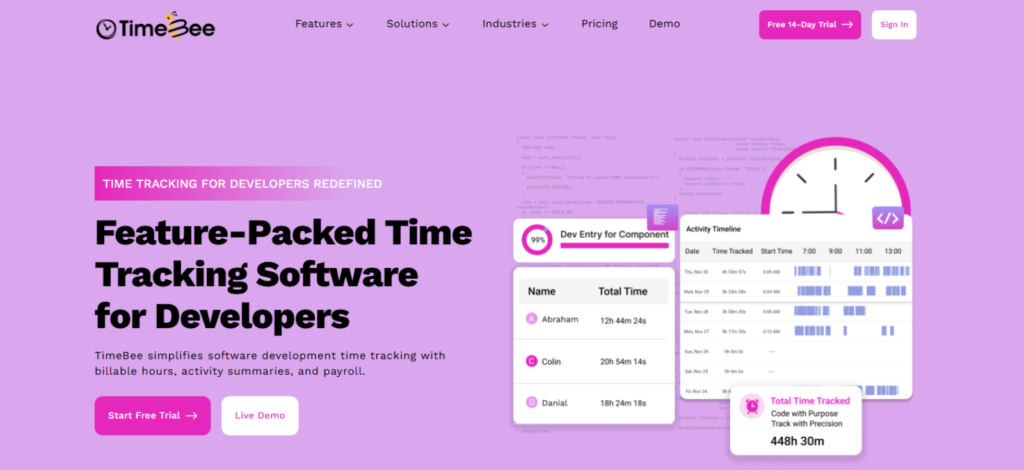
TimeBee ranked first because, across the workflows we tested, it gave us the most complete record of a developer’s working day without making coding activity, project time, attendance, corrections, and team reporting separate processes.
Across 12 standardized testing sessions, we used the desktop timer for coding, code review, documentation, meetings, browser-based work, project changes, idle periods, and temporary connection loss.
In 11 of the 12 sessions, we were able to produce the final timesheet without reconstructing the entire session from memory.
That recoverability was one of the main reasons TimeBee scored well.
Moreover, when we deliberately introduced two missed periods and three entries assigned to the wrong project, we were able to correct all five using manual entries and timesheet adjustments. Plus, TimeBee also flagged any overlapping entries during these corrections.
Then, to test offline handling, we repeated the desktop offline-to-online workflow six times after starting the timer while connected. In five of the six sessions, the recorded time synchronized after connectivity returned without us making a correction.
Only the sixth session took longer to appear in the web dashboard, although the locally recorded time was not lost.
TimeBee also scored well because the record remained useful after the developer day moved outside the IDE.
However, during testing, TimeBee measured the working period but did not independently identify the repository, branch, file, or development issue behind the work. Its higher ranking therefore came from the quality of the overall team time record, not from deeper coding telemetry.
For distributed teams, the scheduling controls added another layer that helped since we could structure attendance around different time zones, customizable schedules, and defined shift start and end times.
Moreover, integrations with Jira, GitHub, GitLab, and Bitbucket kept tracking closer to development work, although project and task attribution still depended on our selection.
Plus, to use the tool optimally, we had to configure projects, attendance, permissions, activity settings, and monitoring controls before the system reflected the workflow we wanted.
TimeBee Pricing
- Free trial: 14 days
- Paid plans: Custom pricing
TimeBee Compatibility
TimeBee works across Windows, macOS, Linux, web, iOS, Android, Chrome, and kiosk workflows. Desktop tracking was the more complete development workflow, while mobile was better suited to time and location records.
TimeBee Pros and Cons
| Pros | Cons |
| Combines tracked time with manual corrections and timesheet adjustments. | Developers still need to select the correct project or task. |
| Supports developer workflows around Jira, GitHub, GitLab, and Bitbucket. | Requires more setup than a lightweight timer. |
| Covers project time, attendance, schedules, reporting, and costing in one system. |
Verdict
We believe TimeBee is strongest for development teams that need one system to manage project and task time, attendance, corrections, offline work, reporting, and configurable monitoring. However, if developers mainly need passive IDE activity and automatic repository-level context, TimeBee is not a good fit.
2. WakaTime — Best for Automatic IDE Time Tracking (8.5/10)
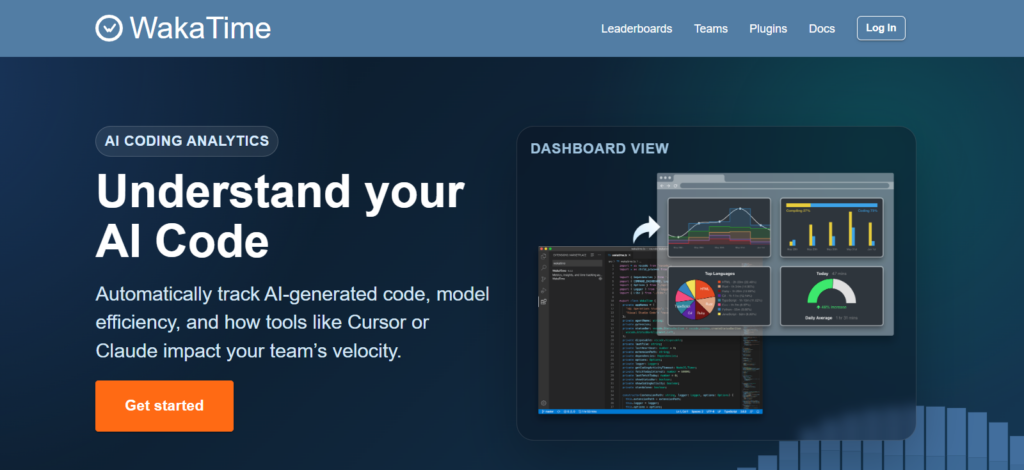
WakaTime felt noticeably different from the other best time tracking software for developers because, once we had configured the IDE integration, WakaTime required very little attention while we were coding.
Across 12 IDE-focused sessions, 10 were captured and reflected the expected coding period without us making a manual correction, which was one of its clearest advantages.
We noticed the same advantage while switching repositories. For example, during one 90-minute test involving five repository changes, WakaTime followed the changes and separated the activity by project without us restarting the tracker.
When we reviewed the session afterward, the project, language, editor, and file-level breakdown gave us considerably more coding context than the general-purpose trackers.
However, during the four-week testing period, we also encountered instances of overcounting and activity not appearing as expected. Of the 12 IDE-focused sessions, one showed roughly 18 minutes more activity than the coding period we had recorded independently, while another was missing approximately 14 minutes of activity when we first checked the dashboard.
These inconsistencies did not outweigh WakaTime’s low-friction tracking in our tests, but they changed how we interpreted its data. We treated the figures as a detailed record of detected development activity, rather than assuming every displayed minute represented exact worked time. That distinction became particularly important when we considered using the records for billing and payroll.
The second limitation became clearer when we moved outside the IDE. During a three-hour mixed-work session, we spent 1 hour 52 minutes coding, 38 minutes reviewing work in the browser, and 30 minutes in a team meeting. WakaTime gave us detailed context for the coding portion, but the rest of the session did not carry the same level of developer-specific attribution.
WakaTime Pricing
- Free: One week of dashboard history
- Basic: $8.25/month when billed annually, with two weeks of dashboard history
- Premium: $12.83/month when billed annually, with complete coding history
WakaTime Compatibility
WakaTime works with popular IDEs and editors, including VS Code, along with supported desktop and browser tools. However, on Linux and Remote SSH setups, extra configuration is needed for a better tracking experience.
WakaTime Pros and Cons
| Pros | Cons |
| Passive IDE tracking reduces reliance on manual timers. | IDE tracking does not cover the full developer workday. |
| Breaks coding activity down by project, file, language, and editor. | Activity records can overcount or fail to appear as expected. |
| Gives detailed coding-history data for developer-specific analysis. |
Verdict
WakaTime is the strongest choice here when coding activity itself is what you want to measure. However, it is less appropriate when the time record needs to account equally for coding, meetings, documentation, client communication, planning, and other work.
3. Toggl Track — Best for Low-Friction Developer Time Tracking (8.0/10)
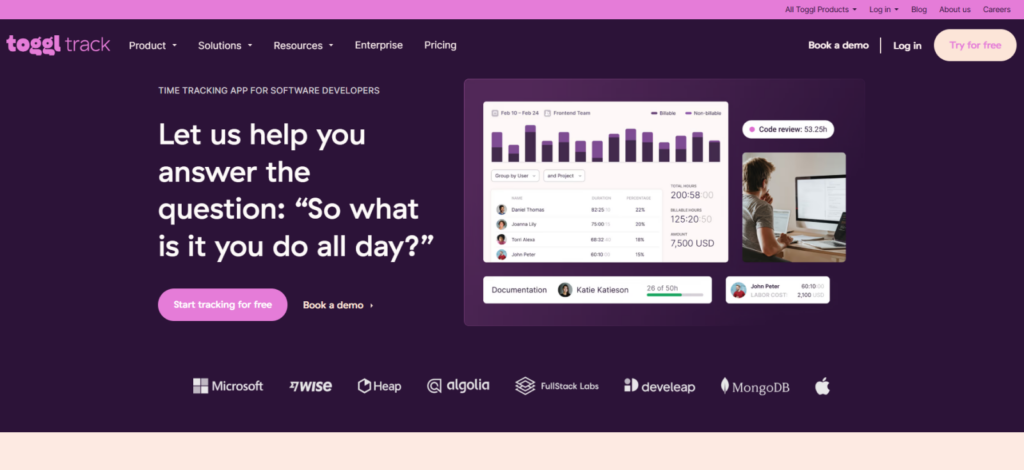
Toggl Track was one of the easiest conventional timers for us to keep running during development work. It still required deliberate start, stop, and project-selection actions, but those actions were short enough that the tracker rarely became the main interruption.
Across 12 standardized sessions, starting a new entry generally took us two interactions, while moving an active timer to another project or work description took around three.
Moreover, we could start recording first and add or correct the project and description afterward, which worked better when a support task interrupted the work we had planned.
However, Toggl’s structure felt less developer-specific once we tried to represent individual work items in more detail. That is because while projects worked well as the main container, descriptions often had to carry the context we would normally associate with an issue or task.
Regardless, its forgotten-time recovery was stronger since reminders and existing activity helped us reconstruct three of four deliberately missed timer actions, while all four 10-25-minute idle periods prompted us to review unattended time.
Where our confidence in the tool dropped was when we moved between Toggl’s different interfaces.
We performed six cross-interface checks, moving between desktop, web, mobile, and browser-based tracking. Four reflected the expected active or completed entry when we checked them, while two required us to refresh the record before the interfaces agreed.
That distinction mattered during testing because start time was rarely the problem; confirming the final record still had the right time and context was.
Toggl Track Pricing
- Free: $0
- Starter: $9/user/month, billed annually
- Premium: $18/user/month, billed annually
- Enterprise: Custom
Toggl Track Compatibility
Toggl Track works across web, Windows, macOS, Linux, iOS, Android, and supported browser extensions. However, features and synchronization differ between platforms.
Toggl Track Pros and Cons
| Pros | Cons |
| Fast timer and manual-entry workflow. | Requires deliberate timer management rather than passive developer tracking. |
| Manual editing supports missed starts, stops, and project corrections. | Synchronization is inconsistent across some interfaces and devices. |
| Idle detection and reminders address common timer mistakes. | Browser integrations provide less developer context than deeper IDE integrations. |
Verdict
Toggl Track is strongest when developers need a low-friction timer that can cover the full working day. However, we would not use the resulting timesheet without verification, nor would we rely on Toggl to understand repositories, branches, or development issues automatically.
4. Everhour — Best for Jira & GitHub Development Workflows (7.7/10)
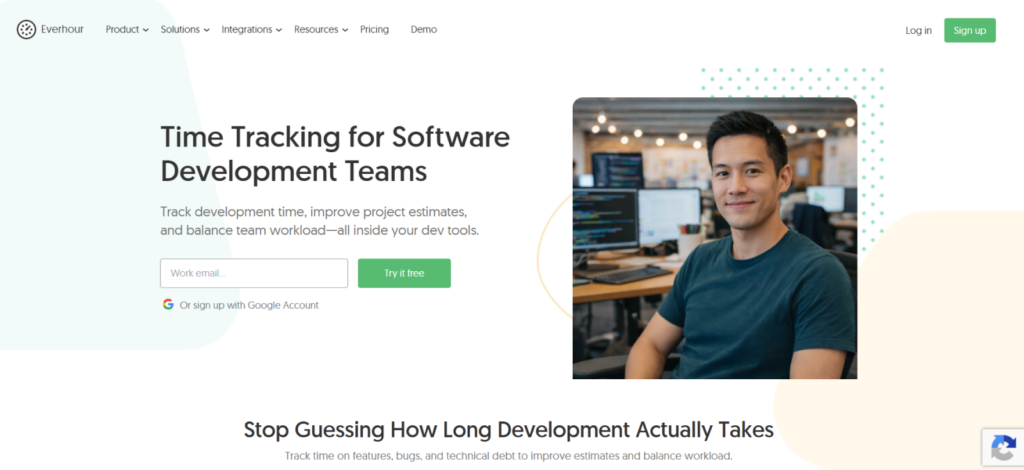
Everhour worked best when our development work was already organized inside Jira or GitHub.
Instead of opening a separate tracker, we could start time against the issue we were already using, which kept tracking close to the actual development workflow.
Across 12 Jira/GitHub-based sessions, we started 10 directly from an existing work item without first opening Everhour separately.
However, we must mention that the structure became much less convenient when the work was not planned in advance.
To test this, we introduced four unplanned tasks, including an unexpected bug, a short production investigation, and two pieces of unscheduled support work. In three of the four cases, we had to create or organize the project/task context before the time record was properly classified, which was Everhour’s biggest limitation for developers.
Synchronization added another layer of friction. Across six sync checks, changes appeared after an average of roughly 22 minutes. The quickest update appeared after about 15 minutes, while the slowest took just over 30 minutes.
While that delay is manageable for day-to-day tracking, it is more noticeable for teams reviewing live project allocation or expecting immediate synchronization between systems.
Everhour Pricing
- Free: $0 for up to five seats
- Team: $8.50/seat/month when billed annually, with a five-seat minimum
- Custom: Contact Everhour
Everhour Compatibility
Everhour works primarily through the web and browser extension, with embedded tracking inside supported platforms such as Jira and GitHub. However, it works best with a stable internet connection, while mobile and offline workflows are more limited.
Everhour Pros and Cons
| Pros | Cons |
| Keeps time tracking close to Jira and GitHub work items. | Unplanned work takes more effort to classify and start tracking. |
| Reduces context switching when development work is already structured. | Synchronization is not immediate for all project and task changes. |
| Works well for browser-centered development teams. | Forgotten timers still require manual attention and correction. |
Verdict
Everhour is strongest when developers already work from Jira tickets and GitHub work items.
However, we would not choose it for a highly interrupt-driven development team that regularly starts urgent work before creating a ticket.
TimeBee: Track Every Developer Hour Across Projects, Tasks, and Teams
Learn More
5. Clockify — Best Free Time Tracker for Developers (7.4/10)
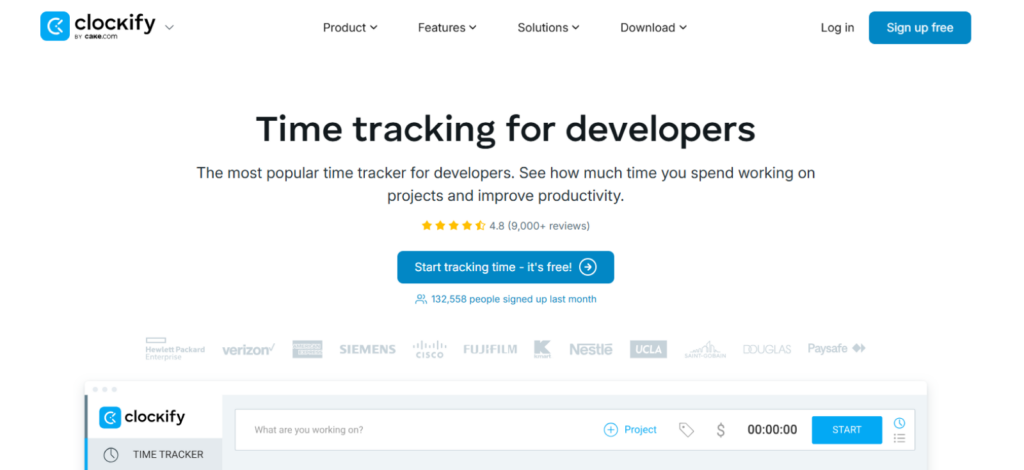
Clockify gave us the most usable free starting point for conventional developer time tracking.
To start, we could record coding, meetings, code reviews, documentation, and other work against projects and tasks without paying.
Across 12 standardized sessions, we recorded 38 separate time entries across four development projects using a mix of the browser timer, desktop app, manual entries, and calendar-based workflows.
For straightforward browser-based tracking, we completed 10 of the 12 sessions without needing to reconstruct missing time. The project structure also gave us enough separation for basic development work.
However, that context still depended on us selecting the right project and task since Clockify did not automatically understand the repository, branch, development stage, or issue behind the work.
Its Jira and browser connections brought the timer closer to the task, but we treated them as convenient tracking entry points rather than deep developer telemetry.
We saw more friction when we deliberately increased task switching. Across 24 project and task changes, 21 retained the context we expected, while three required us to correct the project and task afterward.
While that was manageable for a small project list, the dropdown-based hierarchy became noticeably less efficient once we added more clients, projects, and tasks.
Cross-device tracking was another major concern. In six desktop-to-mobile or mobile-to-web checks, four reflected the expected timer state immediately, while two required us to stop and reconcile the entry.
Date handling gave us another reason to review the final timesheet. That is because, across eight calendar and automatic-activity checks, two entries initially appeared against a different date than we expected. Not only that, but we also encountered missing and duplicated entries.
Clockify Pricing
- Free: $0
- Basic: $3.99/seat/month, billed annually
- Standard: $5.49/seat/month, billed annually
- Pro: $7.99/seat/month, billed annually
- Enterprise: $11.99/seat/month, billed annually
Clockify Compatibility
Clockify has broad desktop, web, mobile, and browser coverage, although we found cross-device records required more verification.
Clockify Pros and Cons
| Pros | Cons |
| Strong free starting point for basic developer time tracking. | Cross-device synchronization requires verification. |
| Covers coding and non-coding work across the full developer day. | Does not automatically understand repositories, branches, or development issues. |
| Supports projects, tasks, manual entries, timers, and calendar workflows. | Free reporting, exports, and billability are restricted. |
Verdict
Clockify is our top free choice in this list of best time tracking apps for developers for its basic project time tracking. However, we would not use its timesheets without verification, particularly after device switching or calendar-based tracking. Further note that teams can easily outgrow the Free plan once they need reliable exports, billable classifications, longer reporting periods, or deeper administrative controls.
6. Memtime — Best for Private Automatic Time Tracking (7.2/10)
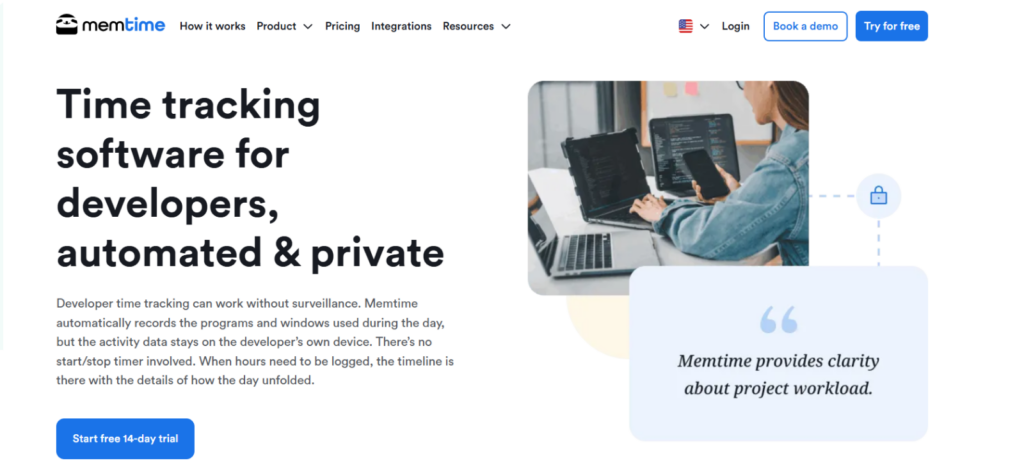
Memtime created fewer interruptions during coding because we did not have to decide where every block of work belonged before starting. We could move between the IDE, Jira, documentation, browser research, and meetings, then reconstruct the day afterward.
To put this into perspective, during one five-hour mixed-work session, Memtime gave us approximately 4 hours and 47 minutes of reconstructable desktop activity. Not only that, but across 23 switches between development tools and work contexts, 21 left enough context for us to understand what we had been doing without relying on memory alone.
The trade-off became apparent, though, when we tried to turn that activity into a clean timesheet. While working with Memtime, it became clear that the tool was better at telling us which application or browser activity occurred than at automatically deciding which project or client should receive the time.
To exemplify this, in our five-hour session, we had to manually reclassify six activity blocks because the underlying application was recognizable but the correct project context was not.
Most of these involved browser activity where Jira, documentation, research, and other web-based work happened inside the same browser.
Overall, we recognized that while Memtime removed most of the need to interrupt coding just to operate a timer, it shifted some of that effort to the end of the session.
Further, we noted that Memtime’s integration experience varied substantially for us. While Jira, Teamwork, calendars, and some ClickUp workflows worked well, we encountered synchronization and reliability problems in some other connected workflows.
Memtime Pricing
- Free trial: 14 days
- Starting price: $14/month when billed annually
Memtime Compatibility
Memtime supports Windows, macOS, and Linux, but its local-first design means activity histories remain separate between computers.
Memtime Pros and Cons
| Pros | Cons |
| Captures development activity without repeated timer actions. | Project and client attribution still requires manual checking. |
| Jira and calendar connections can add useful task and meeting context. | Reporting suits basic timesheets better than deeper team analysis. |
| Raw activity remains local to the developer’s computer. | Activity histories do not synchronize between computers. |
Verdict
Memtime is strongest for developers who want to stay focused while working and reconstruct their time afterward without exposing their raw activity history to a centralized monitoring system. Overall, it works particularly well on a primarily single-computer workflow, but we would choose something else for developers who regularly move between several machines and require automatic ticket-level attribution.
7. 7pace Timetracker — Best for Azure DevOps Teams (7.0/10)
7pace made the most sense once we tested it inside an Azure DevOps-centered workflow. Rather than treating time tracking as a separate process, it kept the timer close to the work item the developer was already using.
Across 10 Azure DevOps work-item tests, we started nine directly from the relevant task without first opening a separate tracking interface.
As a result, moving from the work item into time tracking added very little interruption when the development task already existed in Azure DevOps.
This close relationship between work items and recorded time was 7pace’s strongest developer-specific advantage. Because hours remain attached to tasks, stories, and features, the same structure also gave us a useful basis for comparing estimated effort with actual time.
However, the benefit weakened as soon as our work moved outside that structure.
During three scenarios involving work that did not already belong to an Azure DevOps item, all three required additional classification before the final record contained the context we wanted.
While the desktop application helped us capture this miscellaneous time, it did not provide the same direct work-item relationship.
For that reason, we found 7pace much more compelling for teams that consistently turn development work into Azure DevOps items before or during execution.
Overall, our experience with 7pace depended heavily on how much of the development lifecycle already lived inside Azure DevOps.
7pace Pricing
- Free: Up to three users
- Start: $8/user/month, billed annually
- Team: $13/user/month, billed annually
- Ultimate: $17/user/month, billed annually for the first 100 users
7pace Compatibility
7pace is strongest on desktop/web within Azure DevOps; mobile support is comparatively limited.
7pace Pros and Cons
| Pros | Cons |
| Keeps recorded time directly connected to Azure DevOps work items. | Loses much of its advantage outside supported project ecosystems. |
| Covers non-coding work as well as development tasks. | Reporting requires additional Azure DevOps administration. |
| Offers work-item, manual, timesheet, calendar, and desktop entry methods. | Less flexible for ad hoc work outside structured work items. |
Verdict
7pace is a strong option if Azure DevOps already structures most of your engineering team’s work. Its main limitation is its dependence on the surrounding ecosystem. Once developers work outside Azure DevOps and need more flexible tracking, 7pace loses much of the simplicity that makes its work-item workflow effective.
8. Hubstaff — Best for Remote Developer Teams That Need Monitoring (6.2/10)

In comparison to the other best time trackers for developers, Hubstaff gave us more visibility into a developer’s working day through project time, screenshots, keyboard/mouse activity, apps and websites, and other records.
However, the more closely we tested those signals against actual development work, the more important their limitations became.
Across 12 standardized developer sessions, we compared typing-heavy coding with quieter work such as reading code, reviewing pull requests, inspecting logs, researching documentation, and attending meetings.
The same amount of legitimate working time produced very different activity percentages depending on how much keyboard and mouse input the task required.
For example, during one pair of 20-minute blocks, a typing-heavy coding session produced approximately 74% activity, while a code-review session involving mostly reading and occasional comments produced only 27%.
Time-record reliability was a separate concern too. Of our 12 standardized sessions, three required us to correct the final record because the resulting timesheet did not cleanly match the sequence we had recorded independently.
Synchronization further reinforced the need for verification. Across six desktop-to-web checks, four reflected the expected data immediately, while two took roughly 8-12 minutes to appear consistently.
As far as integration is concerned, Jira, GitLab, Asana, ClickUp, and other connectors displayed delayed synchronization and unresolved connection problems.
Overall, the monitoring controls gave us substantially more work evidence than a conventional timesheet, but remember that those signals required careful interpretation.
Hubstaff Pricing
- Starter: $4.99/seat/month, billed annually
- Grow: $7.50/seat/month, billed annually
- Team: $10/seat/month, billed annually
- Enterprise: $25/seat/month, billed annually
Hubstaff Compatibility
Hubstaff works across web, desktop, and mobile, with desktop providing the fullest screenshot and activity-monitoring workflow. However, mobile has fewer monitoring capabilities.
Hubstaff Pros and Cons
| Pros | Cons |
| Provides detailed work-evidence options for distributed teams. | Activity percentages do not represent developer productivity reliably. |
| Combines project time with screenshots, app/URL usage, and activity data. | Time records require verification before payroll or billing. |
| Supports desktop, web, mobile, and remote-team workflows. | Synchronization and integrations can require reconciliation. |
Verdict
Hubstaff makes the most sense for remote developer teams that have a specific, clearly communicated requirement for detailed work evidence beyond ordinary project hours.
Its main drawback, however, is that the extra visibility is easy to overinterpret.
Remote vs Hybrid vs Onsite: The Best Time Tracking Solutions for Developers by Work Setup
Remote, hybrid, and onsite teams usually need different things from a time tracker, which is why each tool’s suitability varies by use case.
Best for Remote Developer Teams
- TimeBee: TimeBee is a strong fit for geographically distributed developer teams because administrators can manage different time zones, customizable attendance schedules, shift start and end times, attendance, overtime, and project assignments from the same system. For day-to-day visibility, managers can also review application and website use, activity levels, screenshots, project/task time, and timesheets.
- Hubstaff: Hubstaff is a strong fit when a remote organization specifically requires detailed evidence around tracked hours. Its desktop workflow can combine project time with screenshots, keyboard/mouse activity, application and URL records, schedules, attendance information, and managerial reports.
Best for Hybrid Developer Teams
- TimeBee: TimeBee works well for hybrid teams because its attendance and workforce controls can account for developers working under different schedules, shifts, locations, and time zones, while desktop, web, mobile, browser, and kiosk options provide several ways to record time. Offline desktop tracking also helps preserve work when a developer moves between locations with inconsistent connectivity.
- Clockify: Clockify is particularly practical for hybrid teams that want broad platform support without a high initial software cost. Developers can use timers, manual entries, projects, tasks, tags, timesheets, calendar workflows, and automatic activity capture.
Best for Onsite Developer Teams
- WakaTime: WakaTime is particularly well suited to onsite engineering teams that want developer-specific coding visibility. Moreover, its IDE integrations automatically attribute development activity to projects, files, languages, editors, branches, and other coding context.
- 7pace Timetracker: 7pace is a natural fit for onsite engineering departments whose development process already revolves around Azure DevOps work items. Using it, developers can record time directly against tasks, stories, and features, while managers can connect actual hours with estimates, costs, and work-item reporting.
Final Verdict
There is no universal first choice when it comes to time tracking software for developers.
Instead, the right choice depends on what your team actually needs to measure. A tracker built around one requirement will not necessarily suit a team with different priorities.
For that reason, feature lists and rankings should only narrow your shortlist. Before committing, test each option against the way your developers actually work, including coding, meetings, task switching, missed timers, corrections, offline periods, and device changes.
Simply put, choose the tool that records the information your team genuinely needs without adding unnecessary friction.
FAQs
What time tracker works best with GitHub and Jira?
Everhour is one of the strongest options when time needs to sit directly beside existing Jira or GitHub work. TimeBee also connects with developer/project systems while providing broader team reporting.
What is the best free time tracker for developers?
Clockify is our strongest free starting point for developers who mainly need timers, manual records, and project organization. However, teams may outgrow Free once they need longer reporting periods, billability, exports, or deeper administration.
Is automatic time tracking better for developers?
It can be, particularly for developers who forget timers or switch contexts frequently. However, the trade-off is that automatic records still require interpretation since IDE telemetry can miss non-coding work, while automatic classifications can misidentify activity. Therefore, a hybrid approach often works best.
Does developer time tracking disrupt coding flow?
Yes, it can, since requiring developers to reopen a timer every time they switch issues creates unnecessary context switching. However, IDE integrations, issue-level timers, keyboard shortcuts, passive capture, and reliable forgotten-timer recovery can reduce that burden.
What should remote developer teams look for in time tracking software?
To find the best time tracking solutions for developers, remote teams should prioritize dependable synchronization, offline handling, project attribution, Windows/macOS/Linux support, transparent monitoring controls, and correction workflows.
Turn Tracked Time Into Clearer Work Records With TimeBee
Try TimeBee



Jacob Tyler
Member since July 2, 2026
Jacob Tyler
Member since July 2, 2026
Jacob Tyler is a B2B technology journalist specializing in workplace software, employee monitoring platforms, productivity technology, HR systems, data privacy, and the changing role of technology in modern organizations.
He holds an MSc in Information Systems from the University of Manchester. His professional qualifications include the CompTIA Data+ certification.
With more than 10 years of experience covering B2B software and digital transformation, Jacob focuses on translating complex product capabilities into clear guidance for business readers.
His work examines how software functions in practice, which operational problems it is designed to address, what data it collects, and what organizations should consider before implementation.
Through his writing, Jacob helps HR leaders, operations teams, founders, managers, and IT decision-makers understand workplace technology and make informed purchasing decisions.