

8 Jibble Alternatives Tested and Compared: Which One Is Worth Switching To?
By Jacob Tyler
October 5, 2026 17 min readJibble is difficult to beat on price since its free plan includes several clock-in methods and a handful of features.
But during testing, we found several reasons a team might start looking for a Jibble alternative anyway.
We ran into unreliable time records, uneven mobile behavior, facial-recognition and geofencing issues, rigid scheduling and PTO workflows, and extra workarounds for reporting.
So we tested eight alternatives to Jibble against the same five-user setup, three projects, two clients, and repeatable tracking scenarios.
TimeBee gave us the broadest replacement for connected workforce and project reporting, while Clockify, Toggl Track, Harvest, Everhour, Hubstaff, TimeCamp, and Connecteam each addressed a more specific gap in Jibble.
This guide breaks down where each replacement performed better and where it fell short.
The Best Jibble Competitors: A Minute-Long Breakdown
- TimeBee: Choose it when Jibble feels too attendance-focused, and you need tracked time tied to activity, project costs, payroll, billing, and profitability.
- Clockify: Consider it when client and project tracking matters more than shift-based attendance.
- Toggl Track: It is a better fit when you want a faster, lighter project timer without Jibble’s heavier workforce framing.
- Harvest: Look at it when your main gap with Jibble is turning approved hours into invoices and client payments.
- Everhour: It makes more sense when your team already works inside tools like Asana or Jira and wants time tracking embedded there.
- Hubstaff: Consider it when Jibble does not provide enough screenshots, app usage, URL history, or desktop activity context.
- TimeCamp: It suits teams that lose time to forgotten timers and need background activity to reconstruct work afterward.
- Connecteam: It is the stronger alternative when teams want to cover the wider deskless workflow around schedules, tasks, and forms.
Why Consider Other Apps Like Jibble?
Jibble’s free-first approach remains one of its clearest advantages, so switching only makes sense when a specific part of the workflow causes enough friction to justify it. In our review, six areas stood out.
1. Time-Tracking Reliability Requires Repeated Verification
Time tracking becomes business-critical once recorded hours feed attendance, payroll, project costs, or client billing. That is why the reliability problems we ran into with Jibble mattered.
During testing, we saw sessions end shortly after clock-in, timers stop while work was still underway, clock-outs appear later than expected, and recorded time fluctuate between views.
At one point, 2 of our testing group members were clocked out within one minute of starting their sessions. That immediately raised a reliability concern for us.
A timer is supposed to reduce the effort involved in recording time. If employees have to reopen the app several times during the day just to confirm that it is still tracking, part of that administrative burden comes straight back.
2. Mobile and Cross-Device Execution Is Uneven
Jibble offers plenty of ways to track time across web, desktop, mobile, browser extensions, and shared devices. However, the problem we noticed was consistency.
During our mobile and cross-device checks, we ran into:
- Unresponsive controls,
- Installation friction on some phones,
- Facial-recognition problems on tablets,
- Slow GPS locking,
- Increased battery use, and
- Noticeable device heat when location tracking stayed active.
3. Facial Recognition and Geofencing Require Real Validation
Jibble can verify who is clocking in and where the punch is happening.
While on paper, facial recognition and geofencing sound like strong controls, our testing showed why you still need to validate both before relying on them.
During our facial-recognition checks, we ran into wrong-person matches, missing-face-data errors, failed enrollment, and inconsistent recognition between phones and tablets.
Setup was not always smooth either. In one sequence, we attempted the selfie enrollment about six times and still reached an error state, and in another workflow, face-based clock-in took up to 10 minutes.
Geofencing created a different set of problems.
We experienced slow location locks, weaker behavior in low-signal environments, stale coordinates, and project/site mismatches. In one test, the location was more than a mile away from the actual position.
4. Scheduling, Break Rules, and PTO Are Too Rigid for Complex Workforces
Jibble covers work schedules, leave, breaks, overtime, and paid workforce controls for straightforward attendance rules, which is useful.
However, once we tried to model more complicated workforce policies, the limitations became much easier to see.
The free setup gave us one work schedule, so supporting several distinct working patterns required moving beyond that basic configuration.
Break rules were another sticking point. When we tried to recreate schedules involving recurring paid and unpaid breaks, we found the structure too rigid for more complicated compliance scenarios.
PTO presented similar friction. When we tried to reproduce more detailed leave policies, we ran into limitations around accrual logic, calendar visibility, blackout dates, minimum notice, etc.
How We Tested the Jibble Alternatives
We used the same five-user workspace across the products.
Each setup included three projects, two clients, identical task names, equivalent user roles, and the same reporting period wherever the software supported it.
Then we ran 30 controlled tracking sessions per product, 10 correction scenarios, 20 missed-timer or automation scenarios, 5 reporting tasks, plus the same billing or integration workflow.
After testing, we calculated each software’s score from the five weighted areas below.
Time-Data Reliability and Synchronization — 30%
This received the largest weighting because every downstream workflow depends on the time record being trustworthy.
We tested:
- Timer start and stop behavior,
- Missing records,
- Duplicate records,
- Timers continuing on another device,
- Incorrect project or date assignment,
- Mobile-to-web synchronization,
- Offline recovery,
- Manual corrections.
For every platform, we compared 30 timed sessions against a reference stopwatch and followed those records through final reporting.
User Experience and Consistency — 20%
Time tracking is repetitive, so small points of friction in these tools matter.
Therefore, to check each tool’s user experience and performance, we tested:
- Initial setup,
- Configuration,
- Project switching,
- Manual correction,
- Feature parity,
- Administrator navigation,
- Employee navigation,
- General responsiveness.
Reporting, Billing, and Project Financials — 20%
Next, we followed the time record into actual business work.
We reviewed employee reports, attendance records, project and client totals, billable and non-billable time, rates, budgets, labor cost, project profitability, invoices, filters, and approval workflows.
Automation and Workflow Efficiency — 15%
Automation received its own score because different products automate different parts of time tracking.
To gauge their capabilities, we tested:
- Forgotten-timer scenarios,
- Background activity capture.
- Idle detection,
- Calendar connections,
- Project-management integrations,
- Payroll/accounting integrations,
- Synchronization speed,
- Number of interactions required for corrections.
Overall, the goal was to check whether it actually transferred the information needed to complete the workflow.
Workforce Controls — 15%
Finally, we reviewed what managers and administrators need around the tracker.
That included:
- Roles and permissions,
- Approvals,
- Audit records,
- Screenshots and attendance configuration,
- Monitoring transparency,
- Admin versus employee controls.
This prevented a product from scoring highly when the controls were difficult to administer.
A Quick Look at Our Jibble Competitors
| Tool | Rating | Pricing | Main Strength | Better Than Jibble At | Main Limitation |
| TimeBee | 9.2/10 | 14-day free trial; custom paid pricing | Connecting time data with workforce and financial reporting | Linking tracked time with activity, attendance, project costs, payroll, billing, and profitability | Broader setup than a basic attendance tool |
| Clockify | 8.6/10 | Free for up to 5 users; paid plans from $3.99/user/month annually | Browser-based client and project tracking | Organizing project time, billable work, and simple client workflows | Cross-device consistency and data reliability became weaker outside browser-based use |
| Toggl Track | 8.4/10 | Free for up to 5 users; Starter from $9/user/month annually | Fast, simple project timers | Keeping project-based time tracking quick and lightweight | Synchronization, correction, and data-trust issues |
| Harvest | 8.2/10 | Free for 1 user and 2 projects; Teams from $9/user/month annually | Converting approved time into client billing | Moving project hours through approval, invoicing, and client payment | Reporting depth, fixed-fee profitability, and permissions are limited |
| Everhour | 8.0/10 | Free for up to 5 users; Team $8.50/user/month annually | Time tracking embedded in project-management tools | Tracking work directly inside Asana, Jira, Trello, GitHub, ClickUp, Basecamp, and similar systems | Synchronization, mobile, and offline use are weaker |
| Hubstaff | 7.8/10 | 14-day trial; Starter from $4.99/seat/month annually | Configurable desktop activity monitoring | Screenshots, app and URL records, and detailed activity context | Time-record reconciliation adds management work |
| TimeCamp | 7.7/10 | Free plan; Starter from $2.49/user/month annually | Automatic activity capture and forgotten time reconstruction | Recovering desktop work when employees forget to start a timer | Manual corrections and cross-device synchronization are inconsistent |
| Connecteam | 7.5/10 | Free Small Business Plan; Operations Basic from $29/month annually for the first 30 users | Consolidating deskless workforce operations | Combining scheduling, time tracking, tasks, forms, and employee communication | Complex admin setup, punch inconsistencies, and delayed notifications |
The Best Alternatives to Jibble: Detailed Test Results
In our in-depth reviews of the best Jibble competitors, the following came through.
1. TimeBee — Best Overall Jibble Alternative
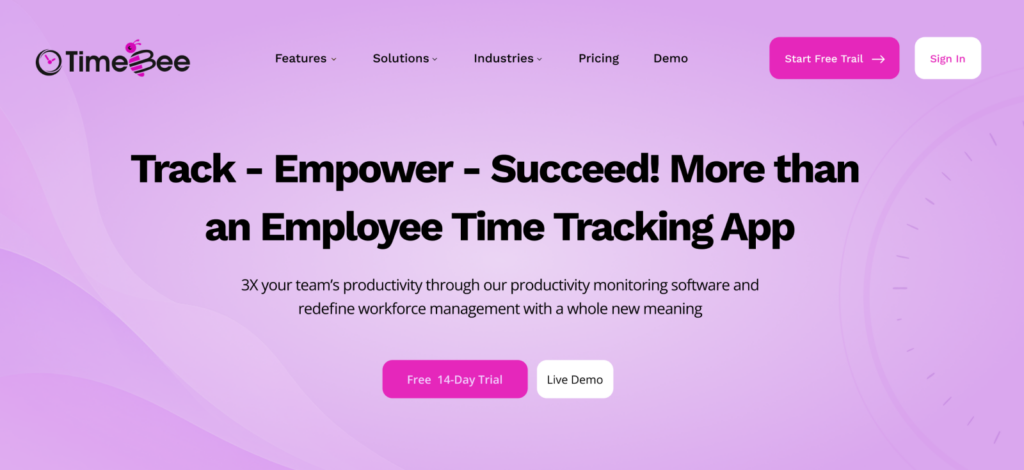
TimeBee ranked first because its workflow extends further beyond the time record than Jibble’s attendance-led model.
TimeBee combines live project/task timing with manual corrections, activity classification, screenshots, website and app records, attendance, leave, project costs, payroll, billing, profitability, audit logs, and more.
For our test workspace, we created three projects, assigned the same five user profiles, set internal hourly rates, and tracked 30 timed sessions.
29 of the 30 sessions remained matched to the intended project through the final report, while one required correction after we deliberately switched project context mid-session.
Moreover, during five planned offline sessions, all five continued recording locally and synchronized correctly after reconnection.
The correction workflow was more structured than a basic manual edit, too. TimeBee validated manually entered and imported records before submission and checked for overlaps. Approval settings also separated employee entry from administrator acceptance.
That matters when timesheets feed payroll or invoices.
We also tested what happened after a session ended. The same time record fed project costing, attendance, productivity views, payroll calculations, billing, and profitability reports. This was TimeBee’s clearest advantage over Jibble, i.e., we spent less time rebuilding the meaning of an hour after the tracker had already recorded it.
The trade-off, however, is scope. Teams looking only for a free attendance clock will find TimeBee broader than necessary. Moreover, since its monitoring layer processes screenshots and website/app activity, implementation requires a clear monitoring policy.
TimeBee Compatibility
TimeBee works across Windows, macOS, Linux, iOS, Android, web browsers, Chrome, kiosk setups, and offline tracking environments.
TimeBee Pricing
- Free trial: 14 days;
- Paid plans: Custom pricing.
TimeBee Pros and Cons
| Pros | Cons |
| Connects tracked time with attendance, activity, project cost, payroll, billing, and profitability | Broader setup than a basic attendance clock |
| Validates manual and imported time before submission | Detailed monitoring requires clear privacy and retention policies |
| Supports offline capture and later synchronization | Mobile administration is narrower than the full browser experience |
| Includes audit logs, approval workflows, and role controls | – |
How TimeBee Outperformed Jibble
Jibble is strongest when the job is clocking people in and out with optional location and biometric controls. However, TimeBee goes further after the session ends. It ties the hour to project cost, activity evidence, attendance, payroll calculations, client billing, and profitability in one management workflow.
Turn Tracked Hours Into Business Insight With TimeBee
Learn More
2. Clockify — Best for Browser-Based Project Time Tracking
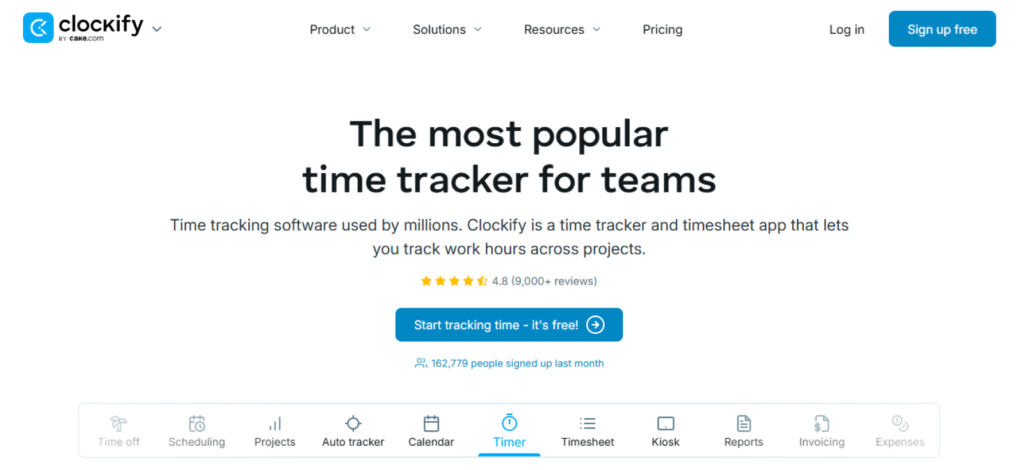
Clockify is the better fit when your working day is organized around clients and projects.
During testing, we found that its feature set included timers, manual timesheets, client/project categorization, billability, invoicing, attendance, scheduling, reports, and team visibility.
The strongest part of the experience, however, was simpler, with straightforward browser-based tracking.
Within the three projects, we asked users to start, switch, stop, and correct time across 30 sessions. Initial browser tracking took three interactions from project selection to an active timer.
28 of them reached the final report without correction, while two showed delayed synchronization and project-assignment differences that required review.
The project model worked best when our hierarchy stayed simple, but as the number of dimensions increased, the workflow became less clean.
An even bigger concern was data integrity, since during testing we noticed missing, duplicated, delayed, incorrectly dated, continuously running, and unsynchronized entries.
Clockify Compatibility
Clockify covers web, Windows, macOS, Linux, iOS, Android, browser extensions, desktop apps, widgets, and offline time entry.
Clockify Pricing
- Free: Up to five users;
- Basic: $3.99 per user/month annually;
- Standard: $5.49 per user/month annually;
- Pro: $7.99 per user/month annually;
- Enterprise: $11.99 per user/month annually.
Clockify Pros and Cons
| Pros | Cons |
| Straightforward browser-based timer | Missing, duplicate, delayed, and misdated records |
| Clear client/project structure for simple service work | Mobile and cross-device behavior is less consistent |
| Billable/non-billable categorization | Advanced reporting is limited compared with specialist tools |
How Clockify Outperformed Jibble
Clockify feels more natural than Jibble when the project is the center of the workflow. With Clockify, freelancers, consultants, and desk-based agencies can move from client to project to billable time without the strong attendance framing required by Jibble. Therefore, if your main question is “How much time did we spend on this client’s work?”, Clockify provides the cleaner starting point.
3. Toggl Track — Best for Simple Project Time Tracking
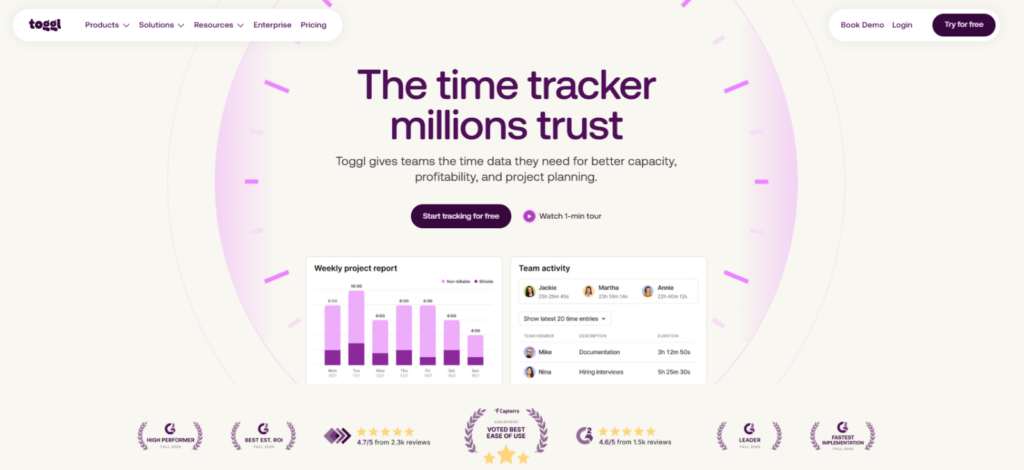
Toggl Track gave us the cleanest experience when we kept the job simple: start a timer, assign the work to a project, and stop it when the task was done.
That was where the platform felt most natural during testing.
We used its web, desktop, mobile, and browser-based tracking options and worked through ordinary project sessions, forgotten timers, idle periods, manual corrections, and exports.
While doing so, reminders helped us catch sessions we had not started, while idle detection flagged periods where the computer had been left unattended.
For our main test, we completed 30 tracking sessions and recorded how long it took to select the correct project, start the timer, switch context, correct a forgotten stop, and export the final records.
The median start workflow took about seven seconds and two interactions. By the end of the test, 29 of the 30 records reached the final report without requiring a correction.
However, once we tried to represent complicated client structures, the workflow became less flexible and required more workarounds.
The second gap we noticed was data trust. During our broader testing, we encountered disappearing entries, synchronization faults, editing friction, login problems, and difficulty recovering account information.
While those issues did not define every session, they were serious enough that we had to check important entries again before using them for billing or other reports.
Toggl Track Compatibility
Toggl Track is available through its web app, desktop applications, iOS and Android apps, browser extensions, keyboard shortcuts, and supported integrations.
Toggl Track Pricing
- Free: $0 for up to five users;
- Starter: $9/user/month billed annually;
- Premium: $18/user/month billed annually;
- Enterprise: Custom pricing.
Toggl Track Pros and Cons
| Pros | Cons |
| Multiple timer-control methods give users flexibility | Synchronization is not consistently dependable |
| Idle prompts and tracking reminders reduce common timer mistakes | Manual corrections introduce friction |
| The project model suits uncomplicated client work | Complex client structures require workarounds |
How Toggl Track Outperformed Jibble
Jibble places more emphasis on attendance and workforce verification. In comparison, Toggl Track keeps the interaction centered on the project timer. That is why Toggl Track is the stronger Jibble alternative for straightforward time tracking where speed and simple timer control matter more.
4. Harvest — Best for Agencies and Client Billing
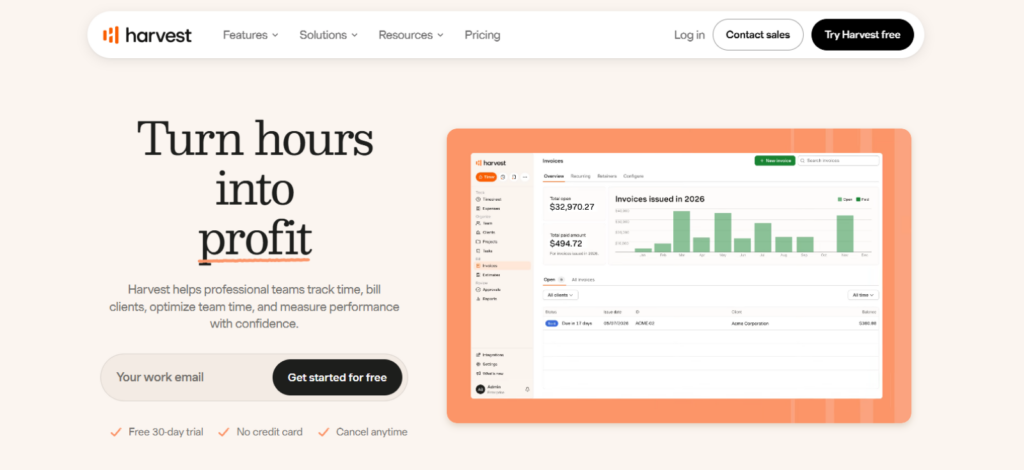
We used Harvest’s timers, timesheets, project budgets, approval workflow, expenses, invoices, payment features, reports, and integrations. To test them, we followed the same client work from the timer through billing.
During testing, Harvest’s workflow was straightforward when we kept the commercial setup simple.
When we tracked client work, submitted the completed timesheet for approval, and then moved those approved hours into an invoice, the process took six distinct steps and 2 minutes 11 seconds.
Out of 20 billable entries, 19 transferred with the expected rate and project context. Only one entry carried the wrong rate, which we corrected manually so the invoice total matched the source timesheet.
To add to it, its invoice-duplication tools also reduced repeated setup when we worked with an ongoing client. We simply created the billing structure once and reused more of it during the next cycle.
Per-person and per-project rates worked well in the same scenario. For example, when we assigned different rates to different contributors, Harvest kept those commercial differences attached to the project work.
However, we started to see the limits once we pushed beyond straightforward hourly work. In that case, the financial workflow became less complete. We ran into shallower reporting and audit detail, weaker fixed-fee profitability analysis, limited role depth, basic expense handling, and more friction around imports and payment administration.
Harvest Compatibility
Harvest runs on the web, desktop, iOS, Android, and Chrome, with additional timer access through supported third-party integrations.
Harvest Pricing
- Free: One user and two projects;
- Teams: From $9 per user/month annually;
- Enterprise: From $14 per user/month annually;
- Enterprise Plus: Custom pricing.
Harvest Pros and Cons
| Pros | Cons |
| Recurring and duplicate invoices reduce repeated billing setup | Reporting and audit depth is limited |
| Per-person and per-project billing rates support different commercial roles | Fixed-fee profitability is underdeveloped |
| Formal timesheet approval keeps billing tied to reviewed hours | Expense functionality is basic for accounting-heavy teams |
How Harvest Outperformed Jibble
Harvest provides a more direct workflow from tracked project time to approved client billing than Jibble. That means an hourly agency or service business can spend less time rebuilding approved hours into something the client can actually be billed for.
5. Everhour — Best for Project-Management Integrations
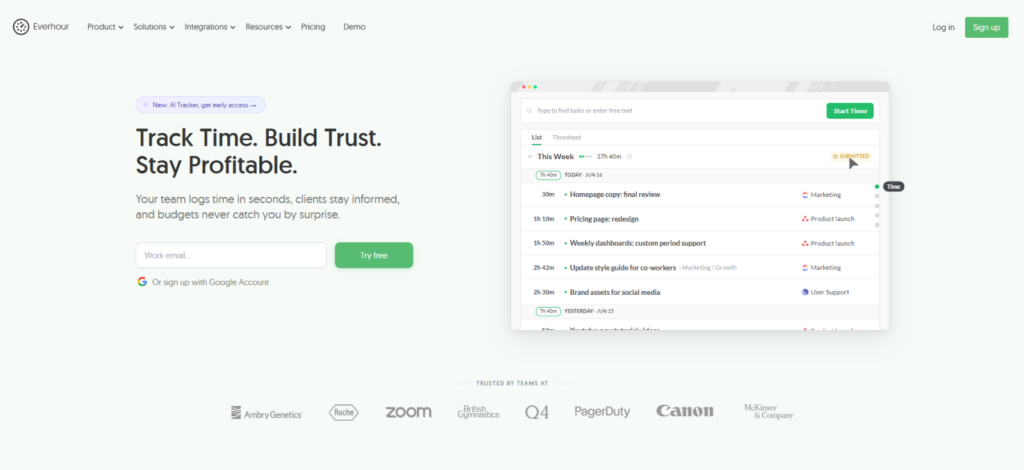
With Everhour, we spent less time in the time tracker itself since most of our testing happened in Asana, which was the point of the product.
For testing, we connected our Asana workspace, imported the same projects used throughout the comparison, and assigned the existing tasks to our test users.
Once everything was in place, starting a timer felt noticeably more immediate. From an existing Asana task, we needed two interactions to begin tracking. The equivalent Jibble workflow took four instead.
The bigger question, however, was whether the information stayed synchronized. To answer that, we ran 20 synchronization checks after changing tasks and project information.
The median update reached Everhour in 4 minutes 35 seconds, but three of the 20 checks took more than 15 minutes.
That was where the experience became less predictable. While we could work around a short delay, a 15-minute delay was significant.
Then, instead of starting with a neatly prepared task, we introduced unplanned work, which exposed Everhour’s biggest workflow limitation. We could not treat the timer as a temporary holding place and organize the work later as naturally as we wanted.
We first had to give the work somewhere to belong. This can create friction for support calls, urgent requests, ad hoc meetings, and other interrupt-driven work when teams want to start tracking quickly.
Everhour Compatibility
Everhour is primarily browser-based and extends directly into platforms such as Asana, Jira, Trello, GitHub, ClickUp, and Basecamp, although its mobile and offline options are more limited.
Everhour Pricing
- Free: Basic tracking for up to five users;
- Team: $8.50 per user/month billed annually;
- Custom pricing available.
Everhour Pros and Cons
| Pros | Cons |
| Embedded timers keep time tracking close to supported PM tasks | Unplanned and interrupt-driven work is less convenient |
| The workflow suits teams with well-structured project-management systems | Synchronization quality differs across integrations |
| Billable and non-billable time stays connected to project records | Mobile and offline workflows are weaker than the browser experience |
How Everhour Outperformed Jibble
Everhour keeps time tracking closer to the task when a team already manages its work inside a supported project-management platform. Regardless, Jibble remains more suitable when the main requirement is attendance, location, schedules, or workforce clock-ins.
6. Hubstaff — Best for Configurable Employee Monitoring
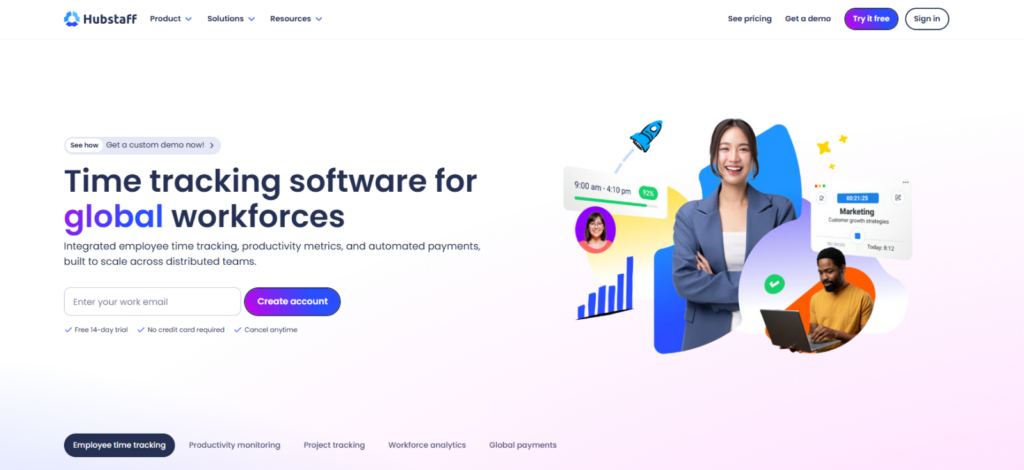
Hubstaff stood out because it gave us much more visibility into what happened during a tracked session than a conventional time tracker.
During testing, we worked with screenshots, application and URL history, keyboard and mouse activity, projects, schedules, payroll connections, and workforce controls.
The activity score was the first feature we wanted to challenge.
We ran 20 tracked sessions that mixed regular keyboard-heavy work with reading, planning, meetings, and calls. One session, in particular, made the limitation clear.
We spent 45 minutes researching and planning. That block included reading documentation, writing notes by hand, and joining a 12-minute call. The assigned work continued throughout the session, but Hubstaff recorded an activity rate of just 18%.
That was because Hubstaff based the percentage on keyboard and mouse input.
Screenshots gave us a different kind of visibility.
We adjusted the capture settings, changed screenshot frequency, and disabled monitoring for selected workflows. While it gave us more control, it also had a privacy trade-off.
A full-screen capture could include personal messages, confidential client information, financial records, or anything else visible at that moment. For us, that meant screenshot monitoring only made sense when the organization had already decided what it needed to capture and why.
The bigger operational concern, however, came from the time records themselves. That is because during our tests, we encountered lost clock-ins, incorrect time logs, mixed project assignments, missing work records, tracker crashes, and incorrect billable totals.
Hubstaff Compatibility
Hubstaff supports Windows, macOS, Linux, iOS, Android, web access, and a range of third-party integrations for desktop and field-based teams.
Hubstaff Pricing
- Free Trial: 14 days;
- Starter: $4.99/seat/month;
- Grow: $7.50/seat/month;
- Team: $10/seat/month;
- Enterprise: $25/seat/month.
Hubstaff Pros and Cons
| Pros | Cons |
| App and URL records add context to tracked sessions | Activity percentages measure device input, not productivity |
| Adjustable activity and idle controls support different workflows | Screenshots create privacy and confidentiality risks |
| Role-based administration supports layered access | Time records require reconciliation before high-stakes use |
How Hubstaff Outperformed Jibble
Hubstaff is the stronger Jibble alternative for organizations that need configurable screenshots, app and website records, and detailed desktop activity context alongside tracked hours.
7. TimeCamp — Best for Automatic Activity Capture
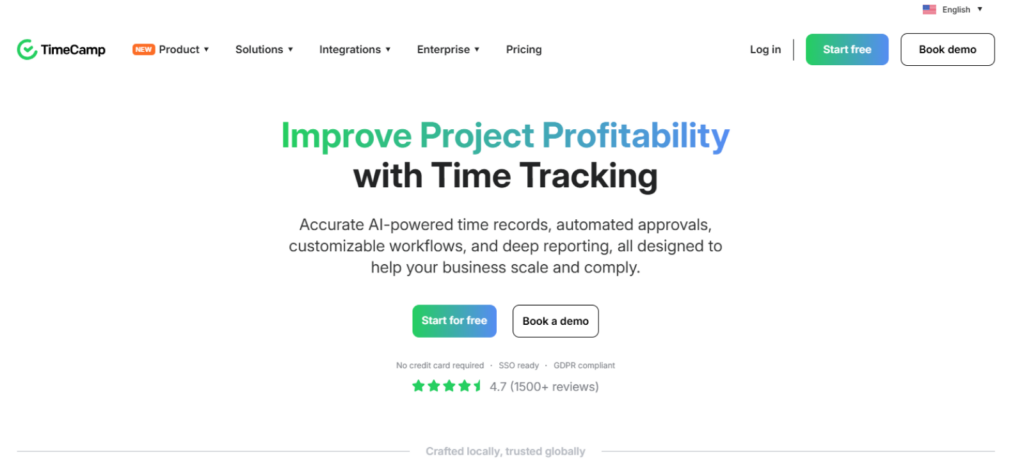
TimeCamp became useful when we deliberately stopped behaving like perfect timer users. Instead of starting and stopping the clock every time we changed tasks, we wanted to see how much of the working day the software could reconstruct on its own.
So we ran 20 desktop work sessions without manually starting the timer. TimeCamp gave us enough activity history to identify what had happened in 18 of those 20 sessions. The history included a chronological record of applications and computer activity.
On the other hand, its automatic project assignment was less complete, but still useful due to its rules and keyword-based automation. With that functionality, fifteen sessions landed under the project we expected without any further editing.
The other five, though, needed either manual reclassification or additional reconstruction before the timesheet was ready.
However, during our correction tests, we ran into inconsistent behavior when editing manual entries, moving time between projects, and deleting records.
Some changes took longer to appear across devices, and we also saw instances where an application needed to be refreshed before the updated total became visible.
TimeCamp Compatibility
TimeCamp is accessible through web browsers, Windows, macOS, Linux, iOS, Android, desktop applications, browser extensions, and connected integrations.
TimeCamp Pricing
- Free: Unlimited users and projects;
- Starter: $2.49 per user/month annually;
- Premium: $3.99 per user/month annually;
- Ultimate: $4.99 per user/month annually;
- Enterprise: Custom pricing.
TimeCamp Pros and Cons
| Pros | Cons |
| Timer, manual, and automatic capture methods support different tracking habits | Manual corrections are not consistently smooth |
| Detailed desktop activity history helps reconstruct forgotten work | Cross-device synchronization is uneven |
| Rule- and keyword-based automation reduces some manual project-assignment work | Important records still need review before billing or payroll use |
How TimeCamp Outperformed Jibble
TimeCamp activity history gives employees a way to reconstruct work after a timer was forgotten, while rule- and keyword-based automation helps assign part of that activity to the correct project. In contrast, Jibble focuses more heavily on deliberate attendance events.
8. Connecteam — Best for All-in-One Deskless Workforce Management
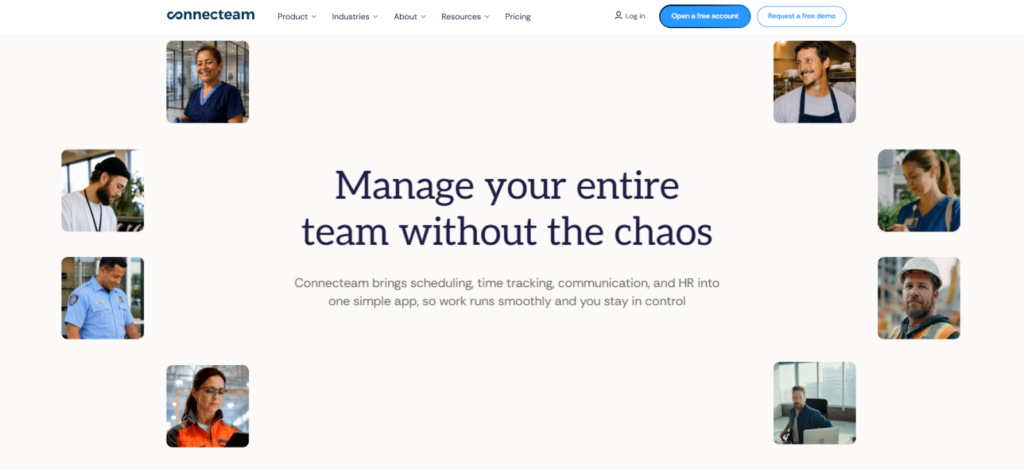
To test Connecteam, we built a field-work scenario around a scheduled shift. A user received the shift, clocked in, opened an assigned task, completed a checklist, received an operational update, and left a record for the administrator to review.
Inside Connecteam, that sequence took 11 actions, and recreating it with Jibble, Slack, and Google Forms took 18.
The difference was not just seven fewer actions; it was also the employee’s ability to avoid moving between three separate systems.
That made Connecteam particularly useful for work where employees spent most of the day away from a desk.
The administrative side, however, was less straightforward.
Setting up schedules, permissions, payroll mappings, reports, and the required feature access took more digging than the employee workflow suggested.
Moreover, some controls sat several layers deep, and plan restrictions became more noticeable as we added functions beyond basic scheduling and timekeeping.
We also found consistency issues during the test. For example, a few punches were duplicated, some shift changes did not appear immediately, and mobile data occasionally remained stale until the app refreshed.
The most serious delay involved a shift notification that reached the test device two days late.
Connecteam Compatibility
Connecteam is built mainly around iOS and Android for employees in the field, while managers handle scheduling, reporting, and administration through its web interface.
Connecteam Pricing
- Small Business Plan: Free for less than 11 employees;
- Basic: $29/month billed annually for the first 30 users;
- Advanced: $49/month billed annually for the first 30 users;
- Expert: $99/month billed annually for the first 30 users;
- Enterprise: Custom pricing.
Connecteam Pros and Cons
| Pros | Cons |
| Scheduling and time tracking sit in the same workforce system | Punch records are not always consistent |
| Tasks connect directly with assigned shifts | Scheduling can suffer from duplication and delayed updates |
| Built-in communication reduces reliance on separate messaging tools | Notifications are not always immediate |
How Connecteam Outperformed Jibble
Connecteam is the stronger Jibble alternative for deskless teams that want scheduling, time tracking, tasks, forms, and workforce communication in one platform.
Final Verdict
After putting all eight tools through the same test, one thing became clear: replacing Jibble only made sense when you knew exactly what part of Jibble was getting in your way.
Jibble still held up well for straightforward attendance. Its free plan covered a lot, and for teams that mainly needed clock-ins, schedules, basic leave, GPS, and payroll-ready time records, there was no strong reason to switch.
TimeBee came out ahead overall because it carried tracked time further. We were able to connect the same records with attendance, activity, project costs, payroll calculations, billing, and profitability without rebuilding the data in separate workflows.
The other tools made more sense for narrower problems:
- Clockify and Toggl Track suited project-based work better.
- Harvest was the better fit when approved hours needed to turn into invoices.
- Everhour worked best when tasks already lived inside a project-management platform.
- Hubstaff went much deeper into screenshots and desktop activity.
- TimeCamp was more useful when forgotten timers were the problem.
- Connecteam made the strongest case for deskless teams.
So the real decision is what you want to fix.
FAQs
What are the common complaints about Jibble in reviews?
Common complaints about Jibble center on timer reliability, uneven mobile performance, GPS and facial-recognition accuracy, rigid scheduling and PTO rules, and extra work around reporting or integrations. In addition, some users raise concerns about paid-feature restrictions, support responsiveness, and refund terms. As a result, Jibble often works well for basic attendance, while more complex workforce workflows expose its limitations.
What are the key differences between Clockify and Jibble?
Clockify is more project-focused, while Jibble is more attendance-focused. Clockify organizes time around clients, projects, billable work, reports, and service-based workflows, while Jibble emphasizes clock-ins, schedules, GPS, facial recognition, leave, and workforce attendance. Therefore, Clockify generally suits freelancers and project teams better, while Jibble fits businesses that primarily need employee attendance controls.
Is Jibble actually free?
Yes. Jibble offers a free plan with core time-tracking and attendance features, including multiple clock-in methods, projects, clients, GPS-related functionality, leave, and basic reporting. However, the free tier has limits around areas such as schedules, locations, and more advanced workforce controls.
Which apps like Jibble are best for employee monitoring?
TimeBee is the strongest Jibble alternative for employee monitoring when you want activity data connected with wider workforce management. It combines screenshots, website and app usage, activity levels, attendance, projects, payroll, billing, and productivity reporting. Hubstaff is another strong option, particularly for teams that want deeper desktop monitoring through screenshots, URL history, and input-based activity metrics.
What should you test before switching from Jibble?
Before switching from Jibble, check timer reliability, mobile performance, synchronization, manual corrections, reporting, and the exact integrations your business uses. Field teams should also verify GPS, geofencing, and offline behavior, while businesses with complex policies should reproduce their scheduling, break, and PTO rules. Finally, compare permissions, pricing, seat limits, cancellation terms, and privacy controls so the replacement matches both operational and administrative requirements.
Stop Rebuilding Records Across Different Tools, Replace Them With TimeBee
Try TimeBee
Jacob Tyler
Member since July 2, 2026
Jacob Tyler
Member since July 2, 2026
Jacob Tyler is a B2B technology journalist specializing in workplace software, employee monitoring platforms, productivity technology, HR systems, data privacy, and the changing role of technology in modern organizations.
He holds an MSc in Information Systems from the University of Manchester. His professional qualifications include the CompTIA Data+ certification.
With more than 10 years of experience covering B2B software and digital transformation, Jacob focuses on translating complex product capabilities into clear guidance for business readers.
His work examines how software functions in practice, which operational problems it is designed to address, what data it collects, and what organizations should consider before implementation.
Through his writing, Jacob helps HR leaders, operations teams, founders, managers, and IT decision-makers understand workplace technology and make informed purchasing decisions.