

Hubstaff Review: We Put Its Features to Work and Here’s What We Found
By Jacob Tyler
September 9, 2026 16 min readMost time trackers answer a narrow question: how long did someone work? Hubstaff extends that record into a much broader workforce-management system.
That additional visibility can be useful, but it also raises the stakes. When the same recorded time feeds monitoring and other reports, errors can travel further than a simple timesheet mistake.
To see how those workflows held up in everyday use, we tested the Hubstaff desktop app alongside its web and mobile environments.
We focused on whether time remained dependable across surfaces and whether monitoring data reflected the work actually being performed without requiring excessive reconciliation.
The result was that Hubstaff offers substantial workforce visibility and functional depth, but several of its most important workflows still depend on careful configuration and regular verification.
Read on for a closer look at what we found.
The Hubstaff Verdict in One Minute
| Category | Verdict |
| Overall score | 7.6/10 |
| Best for | Distributed, field, agency, and project-based teams |
| Not ideal for | Knowledge-heavy, mobile-first, or simple clock-in/clock-out teams |
| Core purpose | Time tracking combined with workforce monitoring, project oversight, attendance, and labor-cost visibility |
| Setup difficulty | Moderate: Installation was quick, but admin configuration and policy setup required more work |
| Platforms tested | Windows, macOS, web, iOS, and Android |
| Best capability | Connecting tracked time with projects, budgets, labor costs, attendance, payroll-related calculations, and invoicing |
| Biggest weakness | Reliability and consistency across time tracking, syncing, mobile, and location-based workflows |
| Monitoring depth | High: Screenshots, activity levels, apps, URLs, project time, and optional GPS/geofencing |
| Value for money | Fair: Good breadth, but higher tiers and add-ons can make advanced workflows expensive |
| Our recommendation | Recommended for teams that genuinely need detailed time, project, and workforce visibility, but only with review processes for tracked data |
How We Evaluated Hubstaff in Different Working Conditions
To properly test Hubstaff, our testing group included a B2B technology reviewer, UX reviewer, operations reviewer, and field-work tester.
Over the duration of a week, we used five accounts across owner, manager, and employee roles, created eight projects, and recorded approximately 70 hours across desktop, web, and mobile environments.
We also checked the Hubstaff login and onboarding flow from both administrator and employee perspectives.
In addition, we considered the following factors when scoring the app, each with different weightings.
Time-Tracking and Day-to-Day Reliability — 25%
For testing timer starts and stops, manual entries, project and task changes, and idle periods, we completed 24 reference-timed sessions and compared Hubstaff’s recorded duration with an independent stopwatch.
Employee Monitoring and Activity Data — 25%
Activity monitoring received the same weight as time-tracking reliability because, on supported desktop clients, Hubstaff can also associate tracked sessions with detailed activity logs.
Moreover, to better understand how the software works, we designed a knowledge-work experiment.
To conduct it, we carried out a test that covered 30-minute periods of continuous writing, spreadsheet work, research, document reading, a video meeting, a phone call, and planning with little computer input.
The purpose of the experiment was to see how accurately an activity percentage represents the work actually being performed.
Geofencing and Mobile GPS Tracking — 20%
To see how well Hubstaff’s geofencing and GPS tracking worked, we created two job sites and completed repeated entry/exit journeys using a mobile device. We then recorded when we physically crossed each boundary and when the event appeared in Hubstaff.
Reporting and Admin Controls — 15%
This category tested what happens after data is collected.
We reviewed reporting, approvals, productivity views, project budgets, schedules, attendance, time off, permissions, payroll-related workflows, and management controls.
In doing so, we assessed whether managers can turn collected information into an operational decision without spending excessive time reconstructing what happened.
Setup and Cross-Platform Consistency — 15%
Finally, we evaluated the work required to get Hubstaff operating properly.
That included organization creation, invitations, project assignment, role configuration, desktop/mobile installation, navigation, and documentation requirements.
What Is the Hubstaff App?
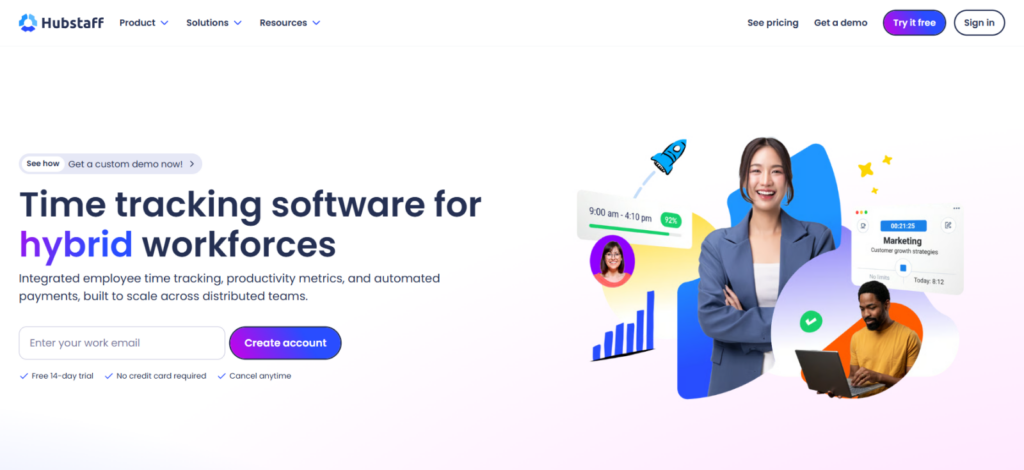
Hubstaff is a workforce time-tracking and productivity-monitoring platform that connects recorded hours with projects, activity signals, screenshots, app and URL usage, location data, and workforce reporting.
Its purpose is therefore to give managers an operational view of how working time is being used.
The Hubstaff official website positions the platform across time tracking, productivity monitoring, workforce analytics, and global payments.
However, in practice, while that breadth is useful, buyers should still avoid treating Hubstaff as a complete substitute for every adjacent system.
How Does Hubstaff Work?
Hubstaff works through a combination of its web environment and tracking applications.
Administrators create an organization, add projects and people, establish roles and policies, and decide which data should be recorded.
Employees then track work against assigned projects or tasks.
Afterward, depending on the client and configuration, Hubstaff associates that session with time, computer activity, screenshots, apps, URLs, or location information before synchronizing the resulting records to the web environment.
Hubstaff Compatibility
Hubstaff supports desktop tracking on Windows, macOS, and Linux, as well as mobile applications for iOS and Android.
However, note that monitoring functionality varies by client. For example, desktop applications provide the richest activity-monitoring environment, while the mobile app focuses primarily on time and location.
Hubstaff Download and Setup
In our Hubstaff review, the employee-side setup was quicker than the admin configuration.
Overall, downloading the desktop app, installing it, signing in, and reaching a usable timer took us 6 minutes 40 seconds on Windows and 7 minutes 15 seconds on macOS.
Once logged in, assigned projects appeared without us having to configure anything on the employee side.
However, the admin setup took more work. Creating the workspace, setting team limits, and adding five employees plus one admin took about 20 minutes.
Then configuring permissions, time off, breaks, overtime, activity tracking, and other settings added another 15 minutes.
Therefore, what slowed us down was not installation but configuration.
In totality, when downloading Hubstaff, we noticed that some settings required several steps and the flexibility was uneven, particularly when configuring time zones and more specialized monitoring options.
Hubstaff Dashboard Interface
The Hubstaff dashboard felt much simpler from the employee side than from the manager side.
Employees mainly need to select a project, start or stop the timer, and review their own records. When we tested this flow, starting a timer took 3 clicks and about 12 seconds, so we deemed it easy to learn.
Alternatively, the manager interface was considerably busier. Reports, activity, screenshots, projects, people, timesheets, schedules, and financial controls were spread across different areas, and some tasks took more navigation than we expected.
Not only that, but switching between reports was so slow that we preferred having eight separate Hubstaff windows open over moving between them within a single window.
We also found smaller interface problems that added friction. For example, historical hours were not always easy to locate, the web timer partially covered dashboard information, and some mobile dashboard values required horizontal scrolling because they did not fit cleanly on screen.
Overall, the employee interface was relatively straightforward, but the management dashboard felt crowded and inefficient once we moved beyond basic time tracking.
Hubstaff User Roles
Hubstaff’s role system clearly separated everyday employee access from administrative control, but the permission experience was not always clean.
To properly test its user controls, we took 12 common actions across employee, manager, and owner accounts, including editing time, viewing reports, managing users, changing settings, and accessing monitoring data.
That is when we found that Hubstaff covered the basics of user access controls particularly well. Within the dashboard, employees were largely confined to their own time and assigned work, while higher-level accounts could access progressively more administrative information.
However, we also found that some restricted options remained visible even when the signed-in account could not actually use them.
For example, during one permission test, selecting an unavailable administrative option showed a “Permission Denied” message rather than simply hiding the control.
That made Hubstaff’s permissions feel functional but not polished.
Hubstaff Data Capture
After the Hubstaff login, what stood out in our testing was how heavily the platform relied on the same recorded time data across the rest of the system.
Once Hubstaff captured a work session, that record did not stay isolated in the timer. It became the basis for timesheets, activity views, project hours, attendance records, budgets, payroll calculations, and invoices.
The clear advantage of this is that one time record can feed several management functions. However, the drawback is equally important; i.e., if the underlying time record is incomplete or incorrect, that discrepancy can carry into the other reports built from it.
Hubstaff Syncing Behavior
Syncing was one of the less consistent parts of our Hubstaff test.
We found that the Hubstaff desktop app did not update the web dashboard continuously since data uploads occurred at roughly 10-minute intervals. That delay was particularly noticeable when switching between desktop, mobile, and web because the same account sometimes temporarily showed different information.
The bigger concern was consistency rather than speed alone.
We encountered cases where mobile-recorded time did not appear correctly in the web console, desktop and web options did not always match, and recently changed project information took time to propagate.
This meant we occasionally had to verify the same record on more than one surface before assuming it had synchronized correctly.
Hubstaff Pricing
According to the Hubstaff official website, pricing currently starts at $4.99 per seat/month on annual billing, with a two-seat minimum on standard paid plans.
- Starter: $4.99/seat/month annually. Covers core time tracking, timesheets, activity levels, client invoicing, and limited screenshots/app/URL monitoring.
- Grow: $7.50/seat/month annually. Adds reporting, idle timeout, project budgets, breaks, and expenses.
- Team: $10/seat/month annually. Adds broader monitoring, approvals, scheduling, attendance, payroll-related functionality, and other workforce-management tools. Locations costs an additional $3.33 per seat/month.
- Enterprise: $25/seat/month annually. Includes Locations, Insights, Silent app functionality, and higher-level administrative controls.
We believe Starter and Grow make more sense for straightforward tracking, while Team is the more realistic tier for attendance, scheduling, approvals, payroll, or deeper monitoring. Lastly, field teams should budget for Team plus Locations, not Team alone.
Bring More Structure to Workforce Tracking With TimeBee
Learn More
Hubstaff Features
| Features | Availability | Collected Data | Requirements |
| Tracked time | Yes | Start/stop time and duration associated with projects/tasks | Active tracking method |
| Keyboard activity | Yes | Whether keyboard interaction occurred, not typed content | Supported desktop/activity tracking |
| Typed content | No | Individual keys and text are not stored | Not supported |
| Mouse activity | Yes | Presence/frequency of interaction, not exact click content | Supported desktop/activity tracking |
| Screenshots | Conditional | Periodic still images | Enabled setting + supported desktop client |
| Continuous screen video | No | Hubstaff states it does not record screen video | Not supported |
| Websites | Conditional | Visited URLs/use duration where enabled | Supported desktop tracking + setting |
| Applications | Conditional | Application usage/duration where enabled | Supported desktop tracking + setting |
| GPS | Conditional | Mobile location points/routes | Locations capability + mobile permissions |
| Webcam | No | Webcam video is not collected | Not supported |
| Microphone | No | Microphone audio is not recorded | Not supported |
Time Tracking
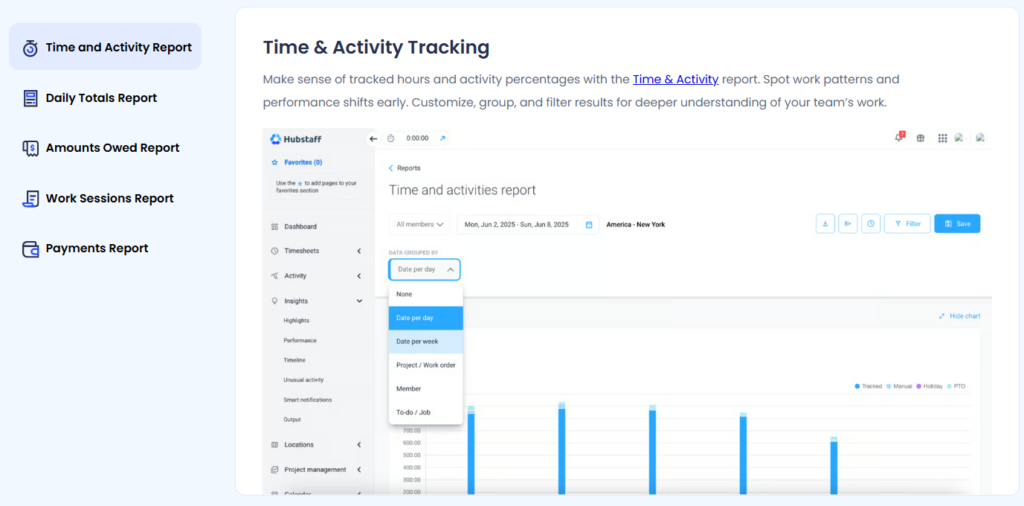
In routine use, Hubstaff’s timer was straightforward, but our testing showed that the real test of the system came when recorded time needed correcting or did not behave as expected.
That happened often enough that we paid as much attention to the timesheet and correction workflow as to the timer itself.
For example, when we needed to amend a record, Hubstaff allowed us to add manual time and specify why the correction was necessary. While that gave us a workable recovery route, the system was not flexible because we could not enter future-dated time for planned work.
We also observed a similar rigidity with work: rather than simply recording additional time and identifying it as overtime, reaching a configured limit prevented further tracking.
That means organizations using Hubstaff for attendance need to think carefully about how they configure limits, particularly where employees may legitimately work beyond scheduled hours.
Lastly, during testing, the need for verification became even clearer when one of our tracked sessions appeared to run from Friday at 2:03 p.m. until Saturday at 2:10 a.m., even though we expected the session to have ended earlier.
For us, the main takeaway from Hubstaff’s time tracking was that the system works best when employees and managers actively review exceptions.
Activity Levels
Hubstaff’s activity score measures keyboard and mouse interaction during tracked time but does not record the actual keys typed.
And that distinction became obvious once we moved beyond continuous computer input. Across three normal workdays, we recorded activity scores of 35%, 40%, and 26%, even though the days included completed work throughout.
The gap then widened during low-input tasks, such as during calls and training periods; activity fell to roughly 8%-12%. Likewise, reading, research, meetings, and planning generated much less activity than typing-heavy work.
The more consequential issue was how that low activity could affect the time record itself.
During one long meeting, an hour of tracked time was removed after Hubstaff detected insufficient keyboard and mouse input. While from the software’s perspective, interaction had stopped; from ours, the work had not.
Screen Visibility
Hubstaff’s screenshot monitoring gave us more context than the activity percentage alone because we could see what was actually on screen during a tracked period.
To customize its settings, we were able to configure the capture rate to one, two, or three screenshots per 10 minutes, blur images for added privacy, and control whether employees could delete captured screenshots.
While higher capture frequencies were also available separately, we found the standard options sufficient to understand the workflow without creating an excessive volume of images.
Regardless, there were practical limitations, such as screenshot monitoring being primarily a desktop function, so we did not get the same visibility from mobile tracking.
We also found the screenshot view slower and less fluid than we would have liked when reviewing larger batches.
Web and App Usage
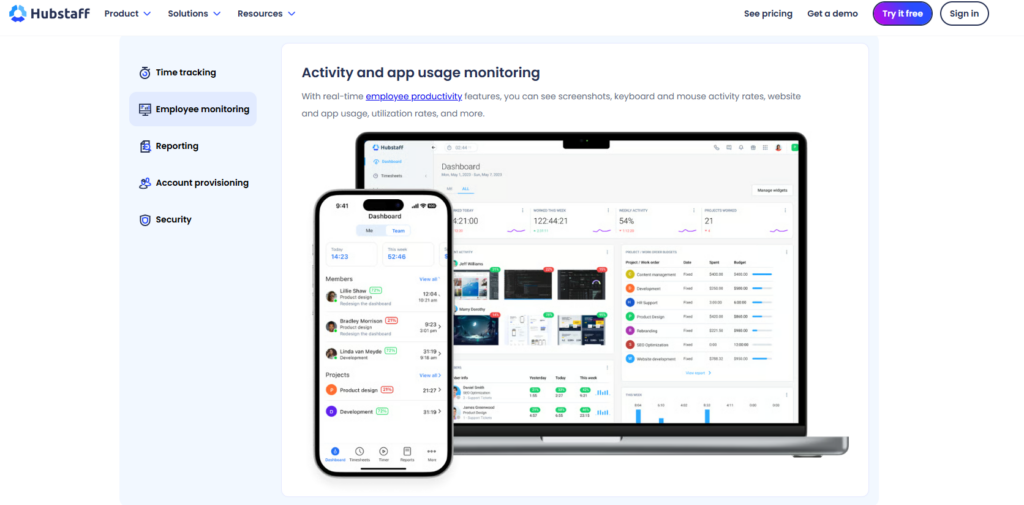
Hubstaff’s web and app tracking gave us a clearer view of how employees spent their tracked desktop time.
In the Hubstaff dashboard, we could review the applications employees opened, the websites they visited, and the time associated with each during tracked sessions.
During one 2-hour research-and-writing test session, Hubstaff attributed 46 minutes to browser use, 58 minutes to our writing app, 11 minutes to communication tools, and 5 minutes to other applications.
That breakdown made it relatively easy to reconstruct how the session had been divided without checking individual time entries.
The limitation, however, was interpretation. Thirty minutes on YouTube, for example, could mean employee training, competitor research, reviewing a client video, or unrelated browsing.
Likewise, having an application open for an extended period does not establish what was accomplished inside it.
We also found the monitoring depth to be desktop-dependent since mobile did not provide the same app and URL visibility.
GPS Tracking and Geofencing
Hubstaff’s GPS and geofencing features, accessed through the mobile app, let us define job-site boundaries and use location events to support automatic clock-ins and clock-outs.
In a controlled route test that looked like this: Base → Site A → Site B → Base, three of four boundary transitions registered within two minutes, while the fourth did not appear until we refreshed the app.
That controlled result looked reasonable, but our broader field testing exposed more serious inconsistencies.
Such as, in one geofence test, Hubstaff generated as many as 20 “entered” and “left” events in a single day, even after we widened the boundary.
We also saw that an automatic field timer remained active for six hours after leaving a job site, while another mobile test produced a 30-minute delay before clock-in became available after arrival.
Those cases make location-based automation difficult to treat as a payroll-ready record without verification.
The practical issue is therefore not whether Hubstaff can detect a location, but how reliably it converts that location into the correct attendance event.
Project Monitoring and Labor Cost
We also tested how Hubstaff carried recorded time into projects. Across three projects containing 11 assigned tasks, we logged 18 hours 35 minutes of work and then compared the task totals with the corresponding project totals.
The hours reconciled correctly in our main test, which gave us a usable starting point for project monitoring.
Nonetheless, the process was less consistent when project data changed. For example, the newly available project information took time to appear, and getting a clean project total sometimes required the correct Time & Activities filters.
Once we had validated the underlying hours, we moved to project budgets.
For testing purposes, we assigned budgets of 40, 60, and 100 hours and deliberately pushed the 40-hour project to 33.5 hours.
We then applied hourly labor rates to see whether the same project data translated cleanly into cost. At a $35/hour internal rate, those 33.5 hours produced $1,172.50 in labor cost against a $1,400 labor budget.
Overall, the dependency was clear throughout the test. Task assignments, project hours, budget limits, and pay rates all have to be correct for the final cost figure to mean anything.
Attendance Reporting
During testing, we created an 8:30 a.m.-5:00 p.m. shift and had a user clock in at 8:28 a.m., record a 32-minute break, finish at 5:06 p.m., and later submit a one-day time-off request.
We then checked whether the schedule, worked time, break, attendance status, and leave record reconciled on the management side.
In the resulting reports, while the basic chain was visible, the attendance logic seemed rigid.
For example, starting one or two minutes early was not always treated as cleanly as we expected, and in another check, Hubstaff showed a shift-not-started warning even though more than 25 minutes had already been logged.
We also found that rest days could appear as non-attendance unless the schedule was configured carefully.
Moreover, time-zone and overtime settings added another layer of complexity. We found that employee time zones were hard to configure from the admin side, and the overtime model did not fit every schedule.
We saw similar friction once we added leave to the sequence.
Payroll and Invoicing
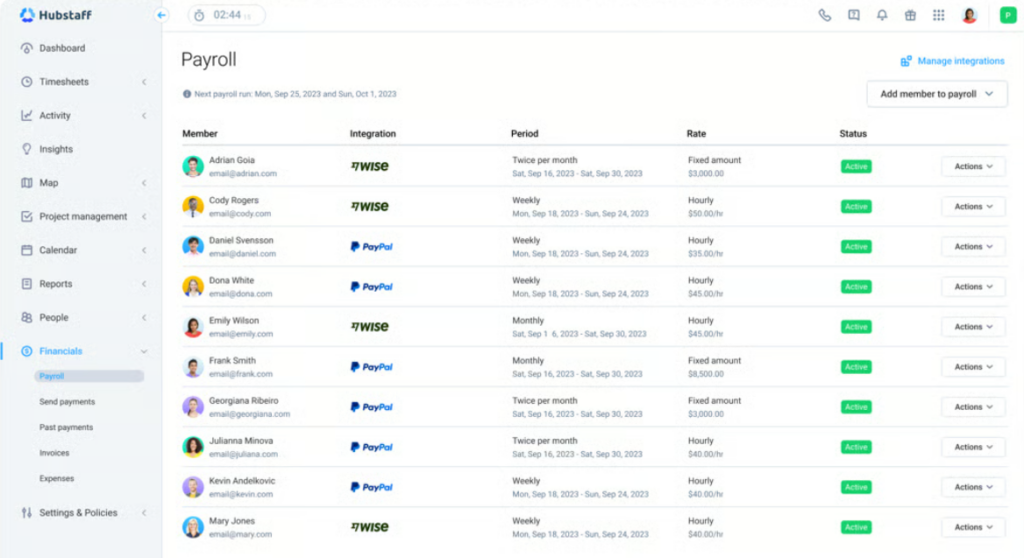
We tested payroll and invoicing as the final stage of the same data chain.
To test, we approved 37.5 hours for a user with a $28 hourly pay rate. Hubstaff calculated $1,050 in gross labor cost, which matched our manual calculation.
We then used the same approved time for client billing at a $52 hourly bill rate, producing $1,950 in billable labor before tax or additional invoice items.
The limitations, however, became clearer when we tested exceptions.
Hubstaff’s payroll functionality is better understood as pay calculation and payment preparation, not a replacement for a full payroll system.
That is because it does not handle payroll taxes itself, and its overtime logic was less flexible than we expected.
Invoicing had the same dependency on clean source data. That is why, during our checks, we still had to reconcile the calculated amount against the approved timesheet before treating the invoice as final.
Hubstaff Pros and Cons
Hubstaff Pros
- Useful project-to-cost connection: Once project and task data is correctly recorded, Hubstaff makes it easier to move from raw hours to budget consumption and labor-cost visibility.
- One-time record supports several workflows: Recorded hours can feed timesheets, project totals, attendance, budgets, payroll calculations, and invoices, reducing duplicate data entry when the source record is accurate.
- Broad desktop visibility: Screenshots, apps, URLs, and input data give managers several ways to review tracked work, while screenshot frequency, blurring, and deletion permissions can be adjusted.
- Helpful role separation: Access levels provide progressively different levels of visibility and control, which helps keep monitoring data restricted to appropriate roles.
- Lower tiers suit simpler tracking needs: From a Hubstaff pricing perspective, Starter and Grow are more practical for teams that mainly need time tracking and lighter monitoring.
Hubstaff Cons
- Time records still require verification: Timer failures, abnormal sessions, crashes, and missing time mean managers should review exceptions before using tracked hours for payroll or client billing.
- Activity percentages can misrepresent legitimate work: Reading, meetings, calls, research, planning, and other low-input tasks can appear less active despite being productive.
- Cross-platform consistency is uneven: After the Hubstaff download, we found that desktop, mobile, and web did not always show the same information at the same time.
- GPS and geofencing can be unreliable: Location events may be delayed, duplicated, missed, or fail to stop tracking correctly, which is a concern when attendance depends on job-site presence.
- Manager-side administration can feel cumbersome: Reporting, permissions, historical time, project totals, PTO, and other controls can require more navigation and configuration than expected.
Which Teams Get the Most and Least Value From Hubstaff
Most Value For
- Agencies and client-service teams: Yes, Hubstaff fits well when tracked time needs to flow into projects, budgets, bill rates, labor costs, screenshots, and client invoicing.
- Distributed operations teams: Yes, the Hubstaff app can give managers a centralized view of monitoring data and reports across employees working in different locations.
- Field-service workforces: Yes, GPS, job sites, geofencing, mobile clock-in, and attendance controls make Hubstaff relevant when physical location genuinely matters to the work.
- Project-based professional-services teams: Yes, teams that manage work against project budgets gain more value from Hubstaff than teams simply recording hours.
Least Value For
- Knowledge-work and creative teams: No, reading, research, planning, meetings, calls, reviewing, listening, ideation, and other legitimate low-input work can look weak in an input-based activity model.
- Teams needing simple clock-in/clock-out records: No, Hubstaff is unnecessarily broad for businesses that only need dependable attendance totals or basic timesheets.
- Organizations with complex attendance rules: No, Hubstaff has rigidity around work limits, shift interpretation, early starts, overtime configuration, time zones, and leave workflows.
- Detail-oriented mobile-first teams: No, Hubstaff’s mobile app is more focused on time and location, so organizations expecting the same monitoring depth across every device will find the experience uneven.
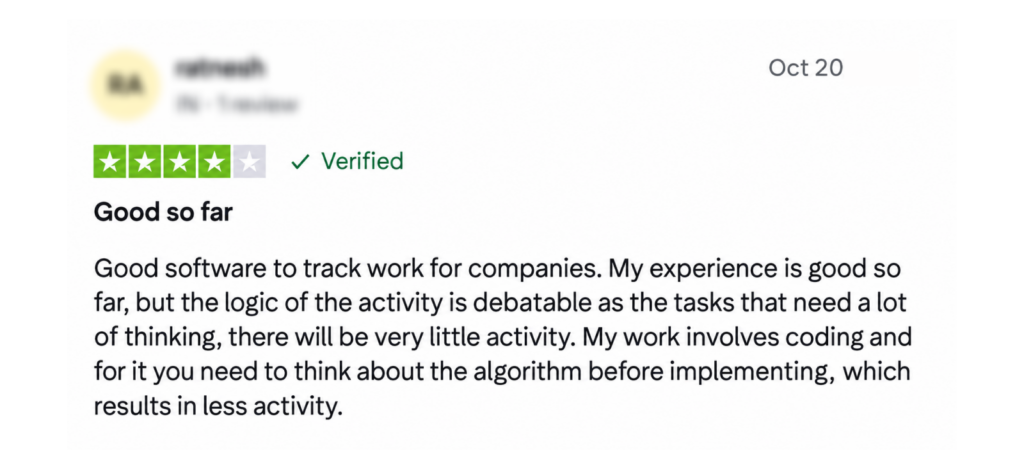
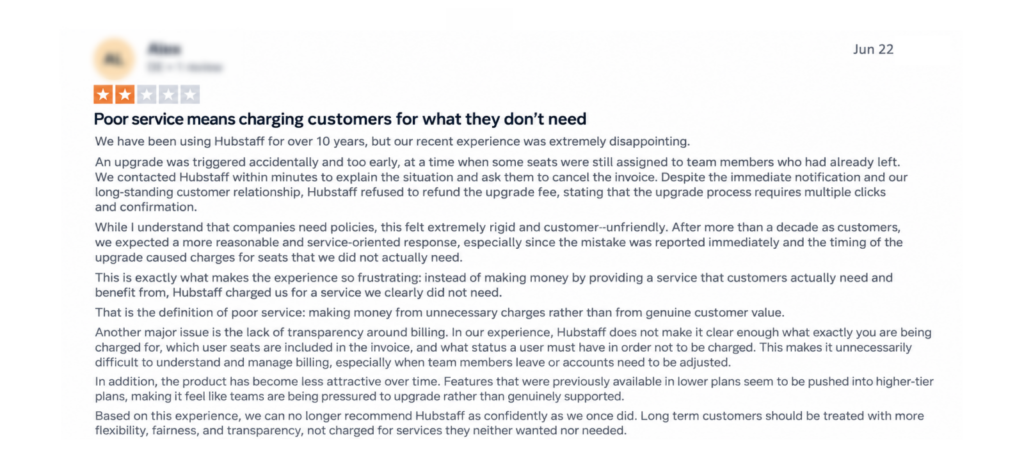
Hubstaff Reviews: What Real Users Say About It
When Your Workforce Needs To Go Beyond Hubstaff
Hubstaff already covers most of the workforce workflows we tested, including time tracking, monitoring, projects, attendance, budgets, payroll-related calculations, and invoicing.
However, several of those workflows came with drawbacks we covered throughout this review, from synchronization inconsistencies to reporting friction, rigid attendance rules, location errors, and administrative complexity.
So, moving beyond Hubstaff is less about finding software with more features and more about finding relatively consistent performance in the areas that matter most to your team.
TimeBee is one possible option among the many workforce-management platforms worth evaluating on that basis.
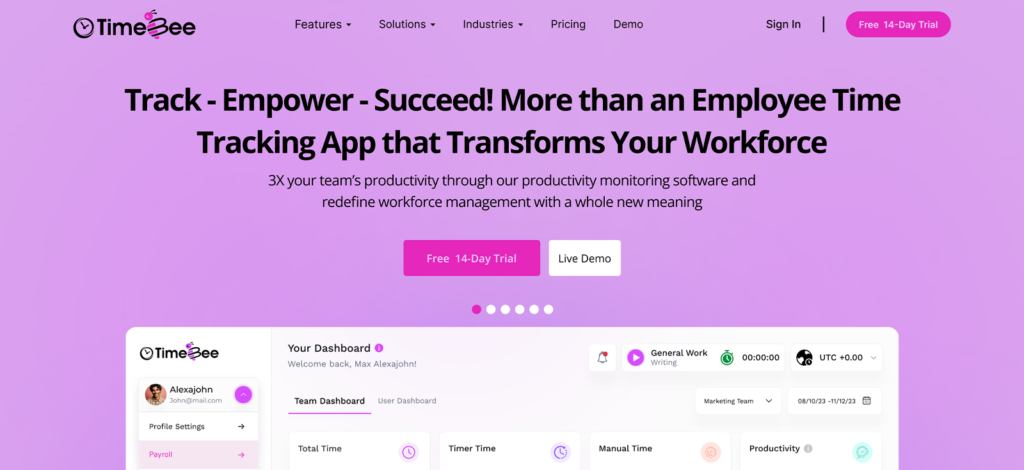
It covers a comparable range of operational needs, with its own approach to time, activity, attendance, costing, and workforce reporting.
- Time and timesheets: Employees can record time against projects and tasks through live tracking, manual entries, or CSV imports.
- Team and individual dashboards: Managers can review team-level and individual information, while employees have access to their own time and activity data.
- Activity classification: Website and application usage can be categorized as productive, unproductive, neutral, or unrated, with classifications configurable at organization, team, or individual-user level.
- Monitoring controls: Screenshot frequency, keyboard and mouse measures, idle behavior, and related settings can be adjusted to suit organizational or user monitoring policies.
- Attendance and leave: Working days, required hours, shifts, lateness margins, early-leave margins, leave policies, and attendance are manageable within the same system.
- Project costing and profitability: Recorded time combines with hourly rates to calculate project cost, progress, client billing, and profitability.
- Payroll calculations: Working-time records feed payroll calculations and adjustments before managers finalize them.
- Reporting and auditability: Reports cover hours, activity, web and app usage, project costing, attendance, profitability, and payroll-related data, while audit logs provide a record of administrative changes.
- Client View: Clients can review relevant activity logs in a separate dashboard view alongside external user rates and billing records.
Final Verdict: Is Hubstaff Worth It?
Yes, Hubstaff is worth shortlisting, but we would not treat it as an automatic choice simply because its feature list is extensive.
After testing Hubstaff features and performance, our view is that the real purchasing decision comes down to how much operational verification your team is willing to accept.
That makes Hubstaff a stronger fit for organizations with structured management processes and a clear reason for collecting detailed workforce data.
It is a weaker proposition when the expectation is that the software should quietly produce dependable records with minimal oversight.
FAQs
Is Hubstaff trustworthy?
Yes, Hubstaff is trustworthy from a security standpoint, but its operational reliability is less consistent. Timer errors, synchronization delays, GPS inconsistencies, and reporting friction can mean some teams need to verify records before relying on them. So, while the platform has established security controls, the dependability of its day-to-day records can vary by workflow.
Can Hubstaff detect a mouse jiggler?
Yes, Hubstaff can detect some software-based jigglers, but not physical ones. The desktop client can record known time-fraud applications even when they run in the background and surface them in app usage activity, including the application name and time detected. However, physical jigglers leave no software signature, so Hubstaff can only infer them from abnormal input patterns and screenshots.
Does Hubstaff track employees when they are not working?
Generally, no, Hubstaff does not continue standard desktop activity tracking after work has ended. However, location tracking is the important exception since, depending on the mobile GPS configuration, location collection can extend beyond a narrow clocked-work period.
Can Hubstaff access your screen and camera?
Hubstaff can access the screen through periodic screenshots when screenshot monitoring is enabled on a supported desktop client. However, it does not provide continuous screen-video recording, and its monitoring model does not include webcam or microphone recording.
Does Hubstaff work offline?
Yes. The desktop app can continue tracking while offline by storing data locally and synchronizing it after connectivity returns. The limitation is that offline-to-online synchronization is not always consistent, so locally recorded work may not appear immediately.
Does Hubstaff record keystrokes?
Hubstaff measures the presence and frequency of keyboard and mouse interaction during tracked time, but it does not store the actual keys typed or the text produced. The activity percentage is therefore an input-intensity measure rather than a record of what an employee wrote.
TimeBee: See the Work Behind Every Tracked Hour
Try TimeBee Now
Jacob Tyler
Member since July 2, 2026
Jacob Tyler
Member since July 2, 2026
Jacob Tyler is a B2B technology journalist specializing in workplace software, employee monitoring platforms, productivity technology, HR systems, data privacy, and the changing role of technology in modern organizations.
He holds an MSc in Information Systems from the University of Manchester. His professional qualifications include the CompTIA Data+ certification.
With more than 10 years of experience covering B2B software and digital transformation, Jacob focuses on translating complex product capabilities into clear guidance for business readers.
His work examines how software functions in practice, which operational problems it is designed to address, what data it collects, and what organizations should consider before implementation.
Through his writing, Jacob helps HR leaders, operations teams, founders, managers, and IT decision-makers understand workplace technology and make informed purchasing decisions.