

How to Detect a Mouse Jiggler: Uncovering What Is Behind Perfectly “Active” Hours
By Frank Oliver
October 14, 2026 12 min readSometimes, the first thing that looks wrong is not inactivity. It is activity that looks too perfect.
A workday with almost no idle time and consistently high activity can look impressive on a monitoring dashboard.
Yet when the same pattern continues through breaks, appears at unusually regular intervals, or shows little change in the work actually being performed, it raises a different question. What is creating all that activity?
That unusual pattern can point to a mouse jiggler, but it can also reflect how someone genuinely works.
In short, detecting a mouse jiggler works best when activity anomalies are checked against technical evidence and the employee’s actual work context.
So, before looking at signals that may expose artificial activity, it helps to understand how does a mouse jiggler work and what trails they leave behind.
Know Everything About Mouse Jiggler Detection in Under a Minute
- Detection depends on the jiggler type. Software, USB, and mechanical mouse jigglers leave different traces.
- Evidence varies in strength. Processes, device records, and endpoint events are generally stronger than behavioral patterns.
- Context still matters. Rule out legitimate work patterns, job requirements, and false positives before treating suspicious activity as misuse.
- Different tools answer different questions. Endpoint security, device management, and workforce monitoring can collectively provide technical, device, and behavioral context.
- Good investigations separate observation from judgment. Managers should distinguish what the data shows, what it may mean, and what action is appropriate.
How Does a Mouse Jiggler Work?
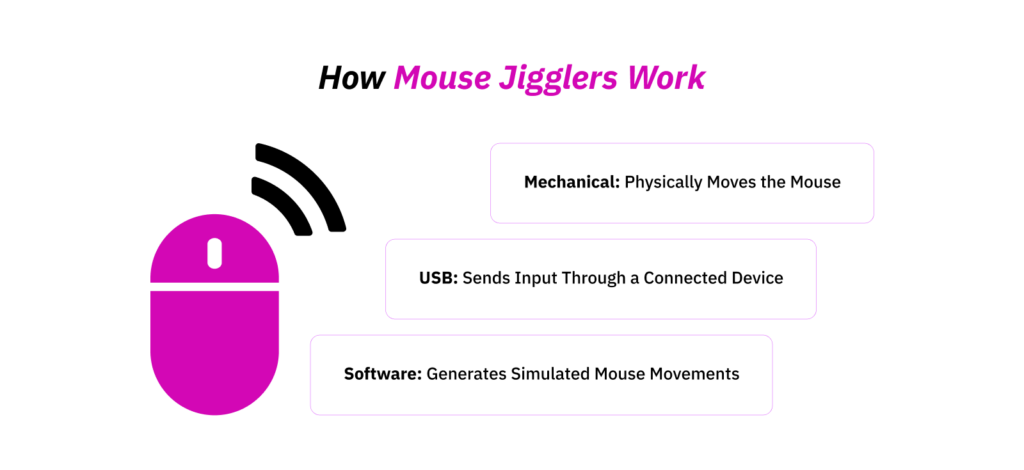
A mouse jiggler is a tool that keeps a computer from appearing idle by causing cursor or input activity without requiring normal, continuous user interaction. The important distinction is how that activity reaches the computer because the mechanism determines which evidence may be available.
Software Mouse Jiggler
Software-based tools generate mouse or input events from a program, script, or similar process running on the computer. They create two evidence layers: the application or process itself and the input it generates.
USB Mouse Jiggler
A USB-based device can present itself to the operating system as a Human Interface Device, or HID. Windows uses the HID model for devices including mice and keyboards.
That makes USB devices different from ordinary software. They do not show up as an obvious application called “mouse jiggler”; instead, they may present to the operating system as an attached pointing device.
Mechanical Mouse Mover
Mechanical movers work outside the computer itself. Instead of sending input as software or attaching another logical pointing device, they physically move an existing mouse.
Are Mouse Jigglers Detectable? 7 Signs Worth Investigating
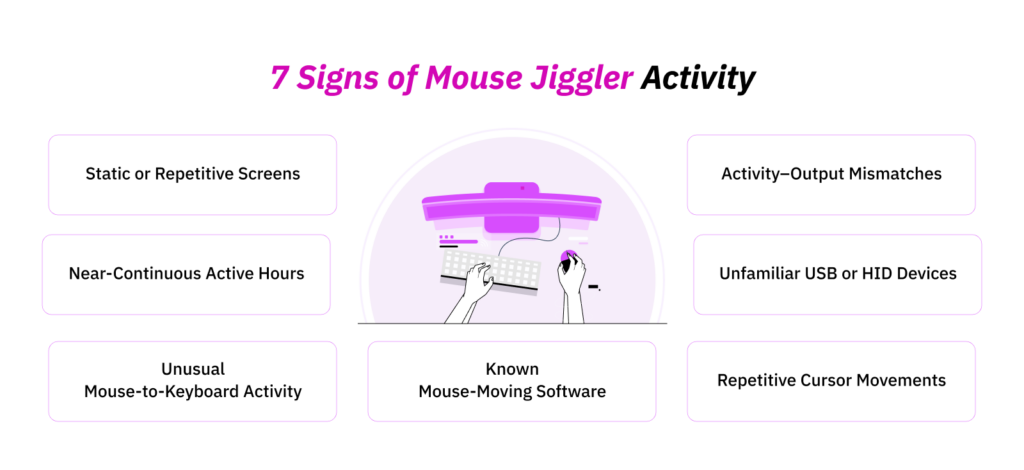
Yes, but detectability varies considerably by type. A known software process can provide relatively direct evidence, while a USB device may require endpoint records and a mechanical mover may leave mainly behavioral clues.
For that reason, I would treat detection as an evidence-strength problem rather than a simple yes-or-no question.
The table below discusses how to detect a mouse jiggler using different signals.
| Signal | Software | USB device | Mechanical mover | Evidence strength |
| Known process/application | Yes | No | No | Strong |
| Software-generated input indicators | Sometimes | No | No | Strong when applicable |
| Unexpected HID/device record | No | Yes | Usually no | Moderate – strong |
| Repetitive cursor movement | Yes | Yes | Yes | Moderate |
| Mouse activity with little typing | Yes | Yes | Yes | Weak – moderate |
| Near-continuous activity | Yes | Yes | Yes | Weak – moderate |
| Static/repetitive screen activity | Yes | Yes | Yes | Contextual |
| Activity does not match work context | Yes | Yes | Yes | Contextual |
1. A Known Mouse-Moving Process or Application Is Running
Finding a recognized activity-simulation application is materially stronger because you are examining a technical artifact.
Depending on your endpoint setup, IT may be able to review installed applications, running processes, scripts, or software inventories.
Some dedicated workforce platforms also identify known simulation software directly.
Even then, organizations should keep attribution separate from intent. The presence of an application can establish that the software existed on a device. It does not automatically establish why it was installed, who initiated it, or whether it was deliberately used to misrepresent work.
2. An Unfamiliar Mouse or HID Device Appears
An additional pointing device is worth investigating when it appears alongside unexplained activity.
Relevant information may include new HID entries, recent peripheral connections, device descriptions, or vendor and product identifiers.
However, a second mouse-class device is not automatically suspicious. Employees may use travel mice, docking equipment, accessibility devices, specialist controls, or replacement peripherals.
Therefore, a more useful question is whether the device is expected, approved, and consistent with the employee’s setup.
3. Cursor Movement Becomes Unusually Repetitive
Automated mouse movement can produce regular intervals, similar travel distances, repeated directions, or much less variation than ordinary computer use. However, the useful signal is not simply that the cursor moved repeatedly. It is how consistently that movement repeated and what generated it.
I tested this by recording mouse events during four 60-minute sessions: ordinary document and browser work, a software-based mouse mover, a USB HID device, and a mechanical mouse mover.
For each session, I compared the timing between movements, movement distance, and direction changes.
The difference was most obvious in the software test. Across 60 automated movement cycles, the median interval between cycles was 60.0 seconds, with 56 of the 60 cycles (93.3%) occurring within ±0.3 seconds of that interval.
During ordinary document and browser work, by comparison, I recorded 1,846 cursor-movement events, with substantially greater variation in timing, distance, and direction and no similarly dominant interval.
| Test note: I ran each test on the same Windows 11 Pro 24H2 endpoint. I recorded mouse-event timestamps, X/Y movement, and the active application throughout each session. The software mover was configured to trigger one movement cycle every 60 seconds, while the USB HID and mechanical-mover conditions ran continuously for the full 60-minute session. |
4. Mouse Activity is Disproportionately High Compared with Other Work
A long period of mouse movement with very little keyboard input, application interaction, or task progression can raise questions. The pattern becomes more meaningful when several of those observations occur together.
However, input ratios depend heavily on the role. A designer, analyst, video reviewer, dashboard operator, or employee reading documents may legitimately use a mouse far more than a keyboard.
That is why I do not recommend establishing a universal “normal” mouse-to-keyboard ratio.
Instead, compare the activity with the person’s actual role and with their own normal working pattern. A sudden change within the same job can be more informative than comparing two employees whose work is fundamentally different.
5. Active Hours Appear Almost Unnaturally Consistent
Perfectly continuous activity can look persuasive on a dashboard, but real work usually includes transitions: reading, calls, thinking, breaks, meetings, task switching, and periods with no input.
Patterns worth reviewing include:
- Virtually no idle time,
- Exceptionally uniform activity day after day,
- Input continuing through normal breaks,
- Very long periods without meaningful screen changes.
However, perfectly active hours are a reason to look deeper, not a diagnosis in themselves.
6. Screen Activity Does Not Show Corresponding Task Progression
Screenshots can add context that an activity percentage cannot. For example, repeated captures may show similar screen state and little visible task progression despite continuous input.
However, a static screen may also reflect training, reading, research, a meeting, reviewing a report, or waiting for a long-running process. Therefore, I would ask whether the screen context is consistent with the employee’s assigned work.
This is also where recurrence matters. A single static period has little evidentiary value compared with the same unexplained pattern appearing repeatedly across several workdays.
7. Activity Patterns Do Not Align With Role-Appropriate Outcomes
Activity becomes more informative when you compare it with the work it is supposed to support.
Depending on the role, that might mean completed tickets, customer interactions, project milestones, documented work, assigned tasks, deliverables, etc.
That comparison still requires caution.
That is because a gap between activity and output can also indicate many things besides artificial input, such as unclear priorities, inefficient processes, excessive meetings, and training needs.
Which Signals Provide the Strongest Evidence?
| Level | Examples | How to interpret it |
| Stronger indicator | Known simulator process Relevant endpoint-security alert, Identified unauthorized device, Multiple independent technical indicators | Directly connects the endpoint to software or hardware that can generate artificial activity |
| Moderate indicator | Highly repetitive input, Recurring abnormal patterns, Unexplained HID changes, Several behavioral anomalies together | Raises confidence but still permits legitimate explanations |
| Contextual indicator | High active time, Low typing, Static screenshots, Little application switching, Output mismatch | Helps explain the situation but should not stand alone |
What Does Not Prove Someone Is Using a Mouse Jiggler?
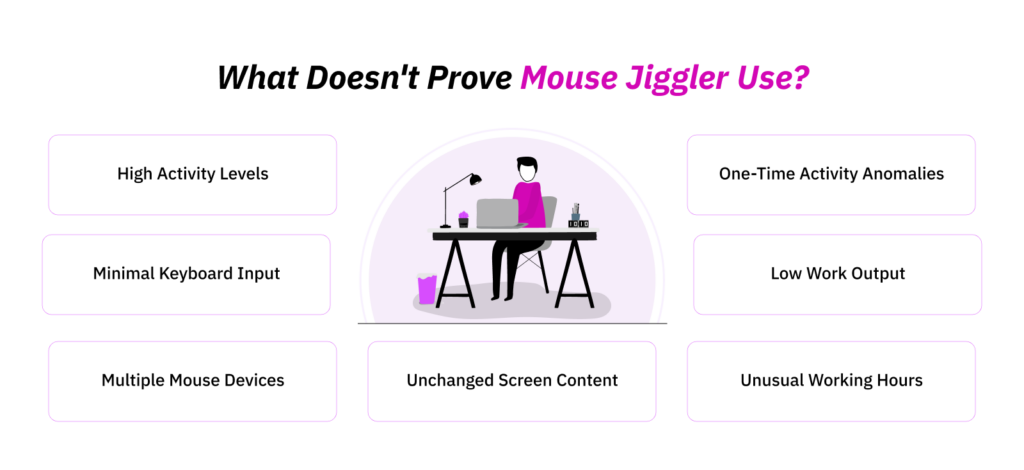
Now you have the answer to “Are mouse jigglers detectable?” but you also need to understand which signals do not directly mean you have detected a mouse jiggler.
- Unusually high or 100% activity: It may be atypical, but activity percentages alone do not identify the source of that input.
- Little keyboard activity: Mouse-heavy jobs and reading-intensive work can legitimately produce this pattern.
- A second pointing device: A peripheral may be approved, necessary, or unrelated to the observed behavior.
- A static screen: Training, research, meetings, reports, and monitoring tasks can all leave a screen relatively unchanged.
- Unusual working hours: Flexible schedules, distributed teams, overtime, and asynchronous work can explain activity outside conventional hours.
- Low work output: That is a performance concern, but it is not automatically evidence of artificial activity.
- One isolated anomaly: A recurring pattern supported by independent evidence has substantially more weight than a single unusual session.
What Tools Can Help With Mouse Jiggler Detection?
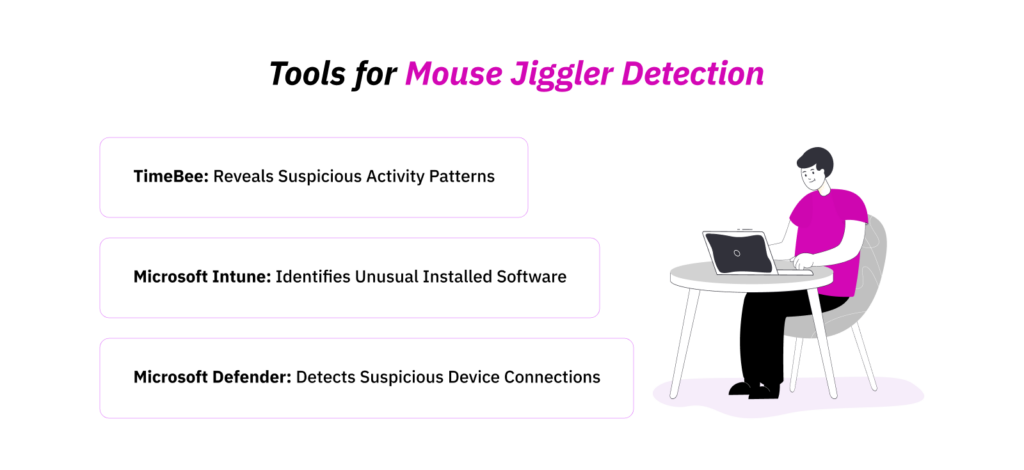
No single tool category answers every part of an investigation.
Endpoint security can expose technical events, device management can establish software and managed-device context, and workforce-monitoring systems can show how activity fits into the working day.
Used carefully, those layers complement one another.
Endpoint Security and Telemetry Tools: Microsoft Defender
Microsoft Defender for Endpoint is primarily a security and endpoint-telemetry platform, not a purpose-built mouse-mover detector. Its relevance here is that it can provide technical evidence about what connects to a managed Windows endpoint.
Microsoft documents a Plug and Play audit capability that surfaces connected-device activity.
Therefore, within Defender’s device-control reporting and Advanced Hunting, IT teams can search for PnpDeviceConnected events and review properties such as the device ID, vendor ID, description, serial number, and bus type.
If unusual workstation activity begins around the same time an unfamiliar pointing device appears, that correlation gives an investigator something more concrete.
An IT team could then determine whether the device is expected, approved, or associated with other endpoints.
However, limitations matter as much as capabilities. A device-connection record establishes that Windows observed hardware; it does not establish who connected it or why.
For that reason, I would use Defender as a source of endpoint evidence, then interpret that evidence alongside role, timing, activity, and policy context.
Device-Management Tools: Microsoft Intune
Microsoft Intune answers a different question: what is known about the managed endpoint and the software installed on it?
Administrators can review managed devices, hardware and operating-system details, reports, discovered applications, and other inventory information from the Intune admin center.
Microsoft currently provides both a Discovered Apps report and a richer Windows app-inventory capability.
The latter can collect properties such as application name, version, publisher, install location, architecture, and uninstall information when the required policy is configured.
This can be relevant when an investigation concerns a software-based activity simulator. Moreover, IT can use it to check whether an unexpected application appears in the managed device’s inventory and whether that information aligns with other endpoint evidence.
Intune can also help establish basic device and user context like which endpoint is managed, its operating-system information, who it is associated with, and what applications are known to be installed.
However, I would not present Intune as a behavioral monitoring product. Its standard inventory views do not tell a manager that artificial cursor movement occurred, nor should you assume they expose every attached HID device.
Workforce Monitoring Tools: TimeBee
TimeBee sits at the workforce-context layer. It records work-time and activity information that can help you understand what the employee’s computer activity looked like around the period you are reviewing.
Relevant TimeBee data includes tracked work time, idle periods, mouse and keyboard activity measures, screenshots, websites or applications, activity timelines, and web/app usage reports.
Its screenshot records include timestamps and the application or website being used, while activity features measure mouse and keyboard interaction during tracked work.
That combination becomes useful when a dashboard shows unusually continuous activity.
Instead of reacting to the percentage alone, you can examine:
- Whether the pattern repeats across several days,
- Whether screenshots show meaningful task progression,
- Whether the user remains in the same application for extended periods,
- Whether recorded activity aligns with the work being tracked.
See What “Active” Hours Really Mean with TimeBee
Learn More
In a controlled test, I used the same workstation across four conditions: ordinary work, a software mouse mover, a USB HID simulator, and a mechanical mouse mover.
I ran three 60-minute trials for each condition while keeping the TimeBee account, inactivity setting, screenshot configuration (one capture every 2 minutes), applications, and workstation unchanged. Each trial therefore produced 30 screenshots for review.
The contrast was clearest between activity and progression. During an ordinary-work trial, TimeBee recorded 72% activity, 11 minutes of idle time, and 24 of the 30 screenshots showed meaningful task or screen progression.
By comparison, the software-mover trial recorded 97% activity and only 1 minute of idle time, yet just 3 of 30 screenshots showed meaningful progression.
In the USB and mechanical-mover trials, activity reached 94% and 91%, while only 4 of 30 and 5 of 30 screenshots, respectively, showed meaningful progression.
However, it is important to note that TimeBee provides behavioral and work-context evidence, not endpoint forensics. If you need to confirm a process or connected device, an endpoint-security or device-management tool is the more appropriate evidence source.
| Note: I counted a screenshot as showing meaningful progression when it reflected a substantive task-related change, such as new document content, navigation to another research source, a changed spreadsheet state, or a move to another work-relevant application. |
A Practical Process for Investigating Suspicious Activity
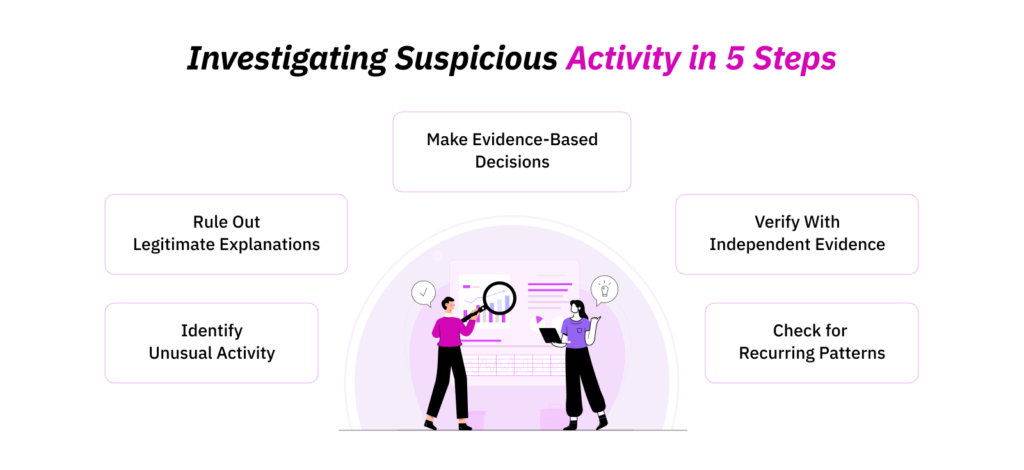
During an operational review of a 10-person remote team, I saw how easily unusual activity data could be mistaken for a performance problem.
Three employees initially stood out: one showed long periods of mouse-heavy activity, another recorded very little keyboard input, and a third remained active for almost four hours with few visible breaks.
Once I looked beyond the headline metrics, two of those patterns had reasonable explanations linked to the work being performed. The third continued to recur across several days and warranted a closer review.
That experience reinforced the principle that you should start with what the data actually shows, then work toward an explanation.
Therefore, I use the following five-step process to keep these two things separate.
1. Define What Actually Looks Unusual
Start with an observable fact. For example, write: “Mouse input occurred at similar intervals for four hours while the application remained unchanged.”
Do not begin with a conclusion like “The employee used a jiggler.”
That wording discipline matters because it separates evidence collection from interpretation.
2. Check Whether the Behavior Repeats
One unusual period can have many explanations, but repetition makes a pattern more meaningful, particularly when it occurs under similar circumstances on several days.
Look at frequency, duration, timing, and whether the same combination of signals recurs.
3. Look for Independent Evidence
Next, add a second evidence layer.
Depending on your systems and policies, that might include:
- Endpoint events,
- Device information,
- Application inventories,
- Activity history,
- Screenshots,
- App or website context,
- Assigned work,
- Schedules or attendance records.
The goal is corroboration, not accumulation. Two independent signals generally tell you more than two versions of the same activity metric.
4. Rule Out Reasonable Alternatives
Before you infer intent, ask what else could explain the pattern.
Consider job design, meetings, training, accessibility requirements, flexible schedules, specialist software, approved devices, long-running technical processes, and the normal input profile of the employee’s role.
This is where responsible monitoring protects both data quality and managerial judgment.
5. Separate Evidence From Management Decision
Finally, distinguish three questions:
- What did the systems record?
- What is the most defensible explanation?
- What response is appropriate under your policy and circumstances?
Conclusion
Different activity simulators leave different kinds of evidence, so a sound investigation should begin by identifying the mechanism you may be dealing with.
Technical artifacts such as processes and endpoint events generally provide stronger evidence too, while behavioral signals become most useful when they recur and align with independent observations.
However, the objective should not be to turn every unusually active period into a misconduct case.
FAQs
Does a mouse jiggler still work after the computer is locked?
Usually not in the same way. A jiggler may prevent inactivity from triggering a lock in the first place. Still, once Windows reaches its secure lock screen, normal user-session software cannot interact with that desktop as it does during an unlocked session.
Can using a mouse jiggler be considered time theft?
If an employee deliberately uses a mouse jiggler to make unworked time appear as worked time, an employer may treat it as falsification of time records. Whether it legally constitutes “time theft” depends on the circumstances, employment agreement, company policy, and applicable law.
Can antivirus or endpoint-security software flag mouse-jiggler software?
Yes, endpoint-security products can inspect processes, files, reputation, and application behavior to identify or flag mouse-jiggler software. However, that depends primarily on how it operates and how the security product is configured.
Can browser-based mouse jigglers be blocked?
Yes, organizations can block access to jiggler websites through web filtering, DNS controls, secure web gateways, or managed-browser policies. Browser-based tools can also be less reliable than installed software because browsers restrict what webpages can do and may throttle JavaScript running in background tabs.
Do mouse jigglers work on macOS as well as Windows?
Physical mouse movers and compatible USB devices can generate mouse activity on a Mac. At the same time, software-based tools require macOS-compatible software and may be affected by system permissions or configuration.
What should an employer do after confirming that a mouse jiggler was used?
After a mouse jiggler detection, first document what was actually confirmed and separate device or software evidence from assumptions about intent. Then review the employee’s work context, monitoring policy, time records, and any reasonable explanation before deciding how to respond. If deliberate misuse is established, apply the organization’s existing disciplinary process consistently.
TimeBee: Get the Bigger Picture of Your Team’s Work
Start Today


Frank Oliver
Member since July 8, 2026
Frank Oliver
Member since July 8, 2026
Frank Oliver is a Principal Consultant in Operations and Transformation, specializing in process improvement, digital transformation, operational performance, and the implementation of workplace technology.
He holds an MSc in Operations, Project and Supply Chain Management from The University of Manchester. He is also a Project Management Professional and a Prosci Certified Change Practitioner.
Overall, with more than 15 years of experience, Frank focuses on helping businesses identify the systems and workflows that influence productivity. His work further examines how processes, technology, management practices, role clarity, and data quality interact to affect organizational performance.