

8 Best Developer Productivity Tools: Our Top Picks After Weeks of Testing
By Jacob Tyler
July 21, 2026 16 min readA developer has a lot more on their plate than just writing code. There is constant context switching between tasks – planning features, reviewing pull requests, updating tickets, documenting decisions, investigating production errors… and the list goes on.
Managing this workload requires more than asking developers to work faster. You have to give teams the right support at each stage of software delivery. Productivity tools for developers serve that purpose in different ways. Some help teams write and review code more efficiently, while others organize work.
However, the question still remains: which tool is the right fit for your organization? The answer depends on the part of your workflow that needs the most improvement.
To identify the strongest options, we assessed 8 leading developer productivity tools based on workflow improvement, reliability, integrations, ease of use, platform support, administrative controls, organizational suitability, and overall value.
The Best Productivity Tools For Developers At a Glance
- The right developer productivity tool depends on the part of your team’s workflow that needs the most support.
- Cursor helps development teams work across large codebases with repository-aware assistance and multi-file editing.
- GitHub Copilot works best for teams that want inline code suggestions and AI assistance inside their existing development environments.
- TimeBee helps organizations track developer hours, monitor project progress, and review productivity, payroll, and profitability data in a single dashboard.
- Linear gives product and engineering teams a fast way to create issues, manage cycles, and connect development work with project planning.
- Sentry helps development teams identify production errors, monitor application performance, and investigate issues with supporting technical context.
- Notion lets organizations centralize technical documentation, project knowledge, decision records, and internal processes in one workspace.
- Jira works best for larger engineering teams that need configurable workflows, detailed permissions, sprint planning, and cross-project reporting.
- Cold Turkey helps developers schedule focused work periods by blocking selected websites and applications.
How We Chose The Best Tools For Boosting Developer Productivity
To shortlist the most efficient software developer productivity tools, we, a team of three reviewers, tested every app against a set of criteria to assess their impact. The following are the key points we took into consideration while reviewing these software tools:
Measurable Workflow Improvement — 35%
First, we assessed whether these best productivity tools for developers reduce avoidable steps, repetitive work, manual administration, or movement between applications.
Reliability and Data Accuracy — 30%
Next, we reviewed the records or suggestions produced by each application. This included AI-generated code, task updates, project-time entries, issue data, production events, documentation history, etc. We also considered how easily you could review, correct, or validate the information before using it for reporting or billing.
Developer Workflow Integrations — 20%
We examined connections with repositories, IDEs, project-management systems, communication platforms, monitoring services, and accounting tools. Deeper integrations received greater consideration.
Setup and Daily Ease of Use — 15%
We looked at how easy each tool was to install, configure, and use during everyday work. This included onboarding team members, adjusting settings, finding key features, correcting entries, and managing the platform as more projects, integrations, repositories, or users were added.
We Tested the Best Productivity Tools For Software Developers, and These 8 Earned Our Recommendation
| Tool | Starting Price | Platforms | Best For | Main Limitation |
| Cursor | Free; Pro from $20/month | Windows, macOS, Linux | Repository-aware coding | Regular agent use may require higher allowances |
| GitHub Copilot | Free; Pro from $10/month | GitHub, IDEs, CLI | In-editor coding assistance | Best results depend on reviewing suggestions |
| TimeBee | 14-day trial; custom pricing | Web, Windows, macOS | Project and task attribution | Wider feature set than a basic personal timer |
| Linear | Free; Basic from $10/user/month | Web, Windows, macOS, iOS, Android | Fast product-development workflows | Business plan suits teams needing wider controls |
| Sentry | Free; Team from $26/month | Web and supported SDKs | Production debugging | Allowances should match application volume |
| Notion | Free; Plus from $10/member/month | Web, Windows, macOS, iOS, Android | Technical wikis and shared knowledge | Workspaces benefit from clear organization |
| Jira | Free; Standard from $7.91/user/month | Web, iOS, Android | Complex engineering teams | Detailed configurations require active management |
| Cold Turkey | Free; Pro is a lifetime purchase at $45 | Windows, macOS | Distraction blocking | Mainly designed for individual focus |
8 Best Tools To Increase Developer Productivity: Top Picks That Lived Up to the Hype
After assessing different tools and their functions, we compiled the following information for you.
1. Cursor — Best AI-Native Code Editor
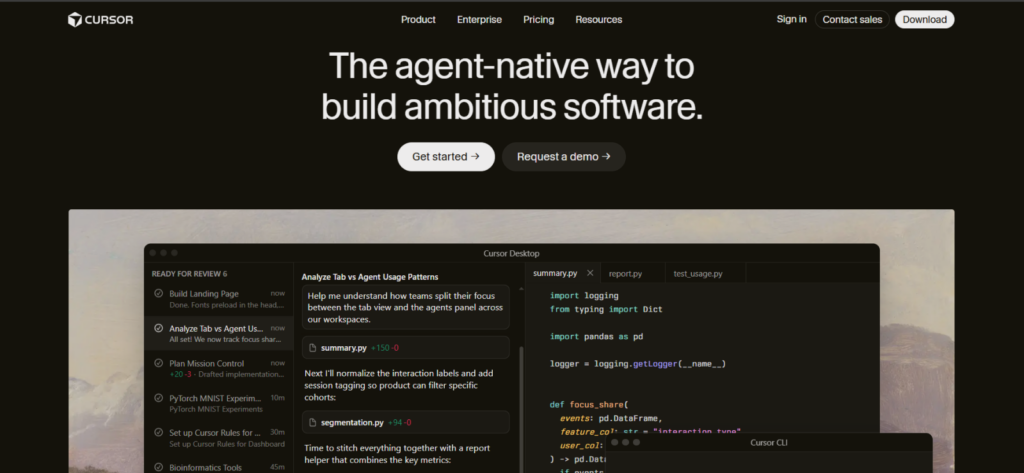
Cursor, one of the best developer productivity tools, gave us a smooth way to understand existing code and prepare new changes. While using the tool, we found it especially useful for updating several related files without leaving the editor.
We reviewed it across four common tasks: explaining unfamiliar code, drafting a feature, updating several related files, and checking the completed changes. Across 12 test tasks involving two to six files, Cursor produced a usable first draft in nine cases. The remaining three required additional adjustments before they matched the project requirements.
It was particularly useful when one task depended on information stored across different parts of the project. Cursor could use that wider context to suggest connected changes instead of treating each file separately.
The review interface also made broader updates easier to manage. We could inspect the changes file by file, then accept, adjust, or reject them before applying the final update.
Therefore, Cursor works best for teams that want to speed up code exploration and drafting while keeping developers responsible for final review and approval.
Cursor Pricing
- Hobby: Free
- Pro: $20/month
- Pro+: $60/month
- Ultra: $200/month
- Teams: $40/user/month
- Enterprise: Custom pricing
Pro includes unlimited Tab completions and an allowance for agent usage, while Pro+ and Ultra provide higher usage for developers who work with agents throughout the day.
Cursor Compatibility
Cursor supports Windows, macOS, and Linux. Its Visual Studio Code foundation also allows you to carry over many familiar themes, extensions, and keybindings.
Cursor Pros
- Understands broader repository context.
- Supports multi-file code generation and refactoring.
- Combines chat, editing, code search, and terminal workflows.
- Lets you review changes before applying them.
- Familiar interface for Visual Studio Code users.
Cursor Cons
- Daily agent users may need a higher usage tier.
- Larger changes still benefit from testing and developer review.
- Team controls are available through the Teams and Enterprise plans only.
Verdict
Cursor is a strong option when you want AI assistance to work across a repository rather than only complete the current line. It is particularly useful for feature development, codebase exploration, debugging, and connected multi-file changes. Developers who mainly need occasional inline suggestions can use only part of Cursor’s wider agent functionality.
2. GitHub Copilot — Best for In-Editor Coding Assistance
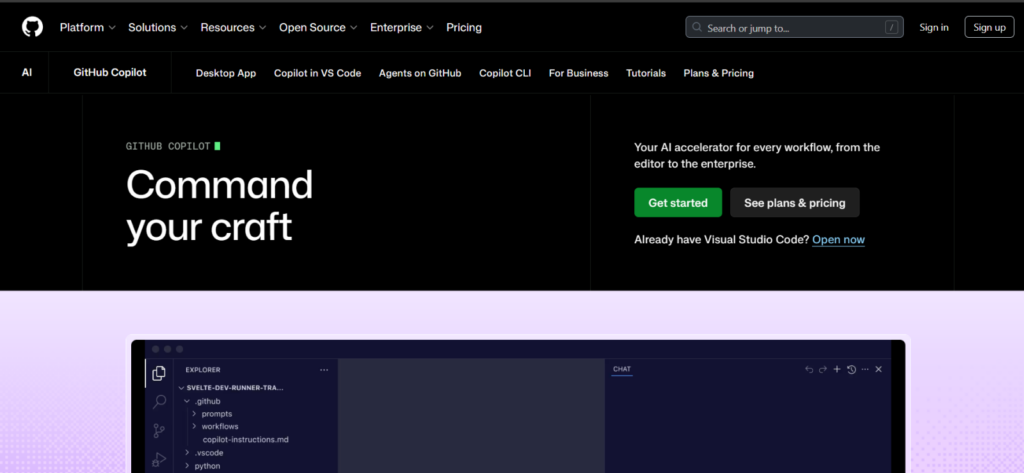
GitHub Copilot kept AI support inside the editor, which made routine coding work faster and reduced the need to search elsewhere for guidance.
We reviewed it across five common tasks: completing repetitive functions, generating standard code structures, preparing initial tests, explaining existing code, and working with an unfamiliar library. Its main advantage was how naturally the suggestions appeared within the existing development workflow.
The inline suggestions were particularly useful for predictable and repetitive work. Developers could accept the full suggestion, use only part of it, or continue typing when another approach was more appropriate. This helped reduce the time spent searching for common code examples in separate browser tabs.
The potential time savings were also measurable. In a published study covering 15 software-development tasks, GitHub Copilot reduced the time required for documentation and code completion by up to 50%.
Our testing followed a similar pattern. Across 12 routine development tasks, GitHub Copilot produced a usable first draft in 10 cases. For repetitive coding and documentation work, the average completion time fell from 18 minutes to 11 minutes, representing a 39% reduction.
During our review, we found that Copilot worked best when developers checked each suggestion before adding it to the project. This kept the workflow efficient while ensuring the completed code still followed the team’s requirements and coding standards.
GitHub Copilot Pricing
- Free: $0 with 2,000 completions per month
- Pro: $10/user/month
- Pro+: $39/user/month
- Max: $100/user/month
- Business: $19/user/month
- Enterprise: $39/user/month
Paid individual plans include unlimited completions, while chat, agent workflows, code review, and other advanced functions use monthly GitHub AI Credits.
GitHub Copilot Compatibility
Copilot works with GitHub, VS Code, Visual Studio, JetBrains IDEs, Xcode, Neovim, Eclipse, Zed, SQL Server Management Studio, Raycast, and the command line.
GitHub Copilot Pros
- Fits into widely used IDEs.
- Provides inline completions and next-edit suggestions.
- Helps prepare repetitive code and initial test drafts.
- Supports chat, CLI, code review, and agents.
- Offers a practical free plan for light use.
GitHub Copilot Cons
- Complex suggestions receive the most value from careful review.
- Agent and premium-model usage is measured through AI Credits.
- Organization-wide controls require a business plan.
Verdict
GitHub Copilot can be one of the best tools for boosting developer productivity when developers want AI assistance inside their existing editor. It supports a gradual adoption process because you can begin with inline completions before using chat, reviews, and agent workflows. It is also a practical option for mixed teams where developers use several IDEs and operating systems.
3. TimeBee — Best for Developer Time Visibility and Project Attribution
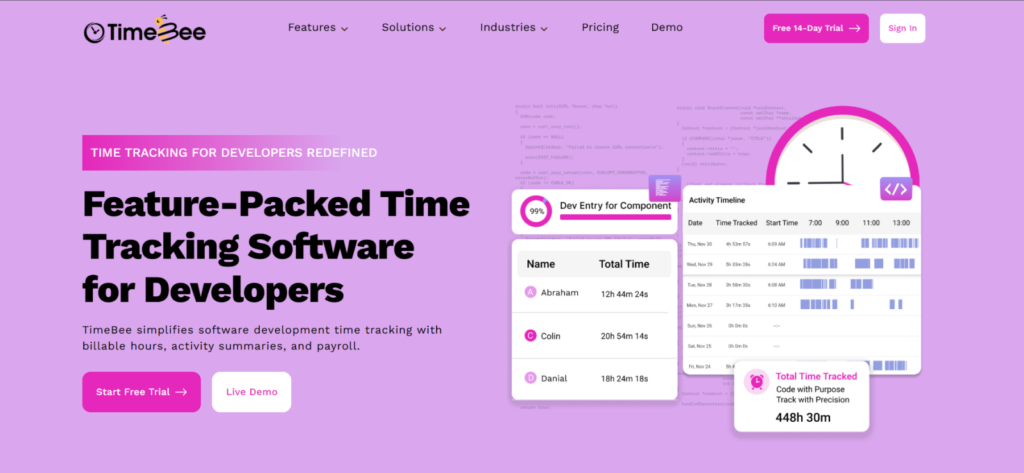
TimeBee gave us a structured way to connect developer hours with specific projects, tasks, and clients. Its hourly breakdown also made it easier to see how time was distributed across coding, meetings, documentation, support, and other work completed during the day.
During our review, we focused on five workflows: automatic time tracking, timesheet imports, project-progress monitoring, activity reporting, and client visibility. The team- and user-level views were particularly useful because they allowed us to move from an organization-wide summary to an individual employee’s records without preparing separate reports.
TimeBee also divides recorded activity into four categories: productive, unproductive, neutral, and unrated. Since the relevance of an application can vary by role, these classifications can be adjusted to reflect each team’s actual work. For example, GitHub may be essential for a developer, while the same platform may have limited relevance to another department.
We tested this TimeBee feature over a week, covering six users; productive activity ranged from 90% to 95%, while neutral and unrated activity each remained between 2% and 6%. Unproductive activity stayed below 1% for all six users.
This pattern reflected the role-based website and application ratings we had configured, as the tools used most frequently by the team were classified as productive.
Its offline tracking was another practical feature for distributed teams. TimeBee continues recording project and task time during a connection interruption, then synchronizes the stored information when internet access returns. It can also send an email notification after a user has remained offline for 10 minutes.
For client-facing work, TimeBee’s client dashboard provides visibility into project progress and recorded hours without requiring managers to prepare updates manually. Moreover, payroll and profitability reports connect tracked time with labor costs and project returns.
What is particularly important for developers is the fact that it offers integrations with more than 40 tools, including Asana, Slack, GitHub, Jira, Trello, etc., to help teams use TimeBee alongside their existing systems.
TimeBee Pricing
- Free trial: 14 days
- Paid plans: Custom pricing
TimeBee also calculates prorated charges when users are added during a billing period.
TimeBee Compatibility
TimeBee works via a web dashboard, desktop application, web extension, kiosk, and mobile application as well to offer flexibility to developers. Moreover, the integrations help in connecting with the app within existing systems.
TimeBee Pros
- Records automatic and manually submitted time.
- Assigns hours to projects and tasks.
- Supports billable and non-billable reporting.
- Synchronizes offline records after reconnection.
- Includes timesheets, attendance, costs, invoicing, and payroll features.
- Connects with more than 40 workplace tools, including GitHub, Slack, Asana, GitLab, Trello, etc.
TimeBee Cons
- Public per-user pricing requires a quote.
- Advanced features are included in higher subscription tiers.
- Activity classifications work best when configured for each role.
Verdict
TimeBee is best suited to agencies, consulting firms, remote teams, and engineering managers who want clearer project attribution without relying entirely on manual timesheets. Its information is most useful for billing, capacity planning, project costs, and understanding how time is distributed.
TimeBee: Turn Developer Hours Into Clear Profitability Insights
Learn More
4. Linear — Best for Fast Issue Tracking
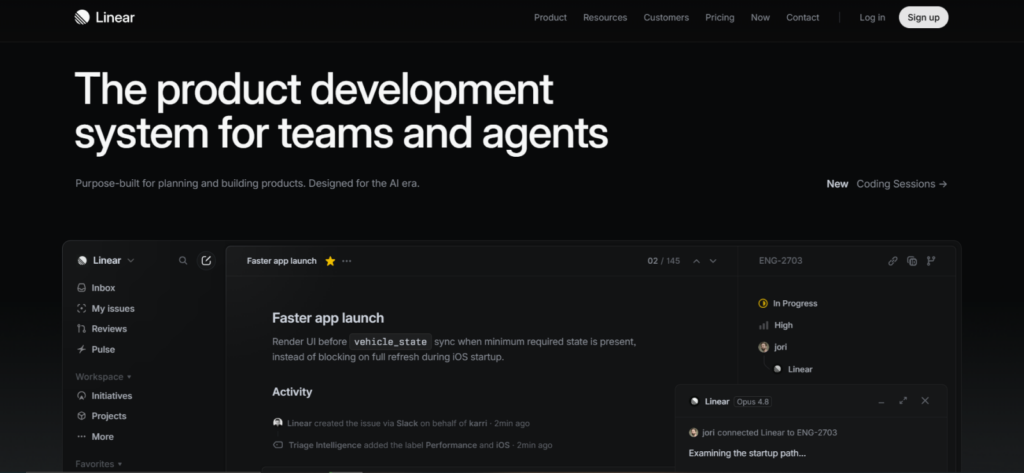
Linear gave us a quick way to turn bugs, feature requests, and development tasks into trackable work without completing a lengthy setup form.
We reviewed it across five workflows: creating work items, assigning ownership, organizing work into cycles, monitoring project progress, and connecting GitHub activity. Linear required only two fields: a title and a status, to create a new item, which made it easier to record work before adding details such as priority, estimates, labels, or deadlines.
During our review, the keyboard shortcuts and templates helped speed up repeated entries. Linear also supports several ways to add work, including the desktop and web applications, email, templates, direct browser links, and its API. Therefore, teams can capture requests from the source where they first appear instead of transferring them manually later.
The cycle view was useful for organizing work into fixed planning periods. We could configure cycles lasting from one to eight weeks, which provided enough flexibility for short development periods as well as longer delivery schedules.
Its GitHub integration added another practical layer. Once a pull request or commit was linked to a work item, Linear could update its status according to the development stage. Review comments, checks, and pull-request activity could also remain connected across both platforms, which reduced the need to repeat the same updates in separate systems.
Linear Pricing
- Free
- Basic: $10/user/month, billed annually
- Business: $16/user/month, billed annually
- Enterprise: Custom pricing
The free plan supports unlimited members, two teams, 250 active issues, and the agent platform.
Linear Compatibility
Linear supports browsers, Windows, macOS, iOS, and Android.
Linear Pros
- Fast issue creation and navigation.
- Clear cycles, projects, milestones, and roadmaps.
- Strong GitHub and GitLab workflows.
- Free plan supports unlimited members.
Linear Cons
- The Free plan is limited to two teams and 250 work items.
- Private teams and advanced reporting require the Business plan.
- Larger organizations may need time to establish shared workflows and naming standards.
Verdict
Linear is a strong option for product and engineering teams that want to record development work quickly and keep it connected with project plans and GitHub activity. Its focused interface is particularly useful for teams that prefer short setup forms and automated status updates.
5. Sentry — Best for Debugging and Production Monitoring
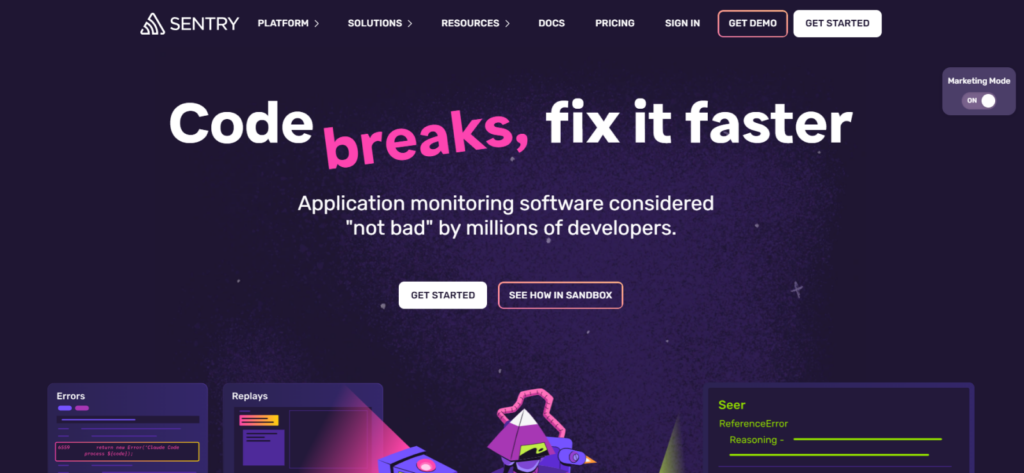
Sentry, another option amongst the tools to increase developer productivity, gave us a clear workflow for moving from a production error to the information needed to investigate it.
We reviewed it across five common tasks: capturing an error, identifying the affected release, checking what happened before the failure, assigning the problem to the appropriate team, and configuring an alert. Instead of showing only an error message, Sentry brought the event count, affected users, code location, application activity, and release information into one view.
This was particularly useful when the same error occurred more than once. Sentry grouped related events into one record and allowed us to review how frequently the problem appeared and how many users it affected without working through every occurrence separately.
The supporting context also made the investigation easier to follow. The stack trace showed where the error occurred, while breadcrumbs displayed the sequence of requests, console messages, and other actions leading up to it. When tracing and release tracking were enabled, we could also connect the error with the wider application process and the version in which it appeared.
Moreover, Sentry’s AI-based detection can identify software problems across five different categories: HTTP, database, runtime performance, security, and code health. This gives teams another way to find patterns that may not appear through standard error rules alone.
Sentry Pricing
- Developer: Free
- Team: $26/month
- Business: $80/month
- Enterprise: Custom pricing
The Developer plan includes 5,000 errors per month, while the Team and Business plans include 50,000 errors, 5 GB of logs, 5 million spans, and 50 session replays. Paid plans also support unlimited users, while additional usage can be purchased according to application volume.
Sentry Compatibility
Sentry provides a web dashboard and SDKs for common frontend, backend, mobile, desktop, game, and AI application environments.
Sentry Pros
- Captures errors in real time.
- Connects issues with releases, traces, and application context.
- Supports several development stacks.
- Provides alerts, ownership, dashboards, and integrations.
- Free plan is useful for smaller projects.
Sentry Cons
- Higher application volumes may require additional event allowances.
- Tracing, logs, and session replay require initial configuration.
- Advanced administration and quota controls are available on higher plans.
Verdict
Sentry is best suited to organizations that want production errors to reach development teams with enough context to begin investigating promptly. Its combined error, release, tracing, and user-impact data is particularly useful when teams need to understand both where a software problem occurred and how it affected the application.
6. Notion — Best for Technical Documentation

Notion gave us a flexible way to bring technical documentation, project notes, and internal processes into one shared workspace.
We reviewed it across four workflows: creating reusable documentation templates, organizing technical pages by owner and review date, locating information through search, and sharing project context with both technical and non-technical teams.
The database functions were especially useful for documentation that needed regular maintenance. Instead of storing a runbook or architecture decision as a standalone page, we could assign an owner, add a status, set a review date, and connect it with the relevant project. This made it easier to identify which documents were current and which ones needed attention.
Templates also helped standardize repeated documentation. We used the same structure for onboarding guides, meeting notes, decision records, and operational procedures, which reduced the time required to create each page from the beginning.
However, Notion’s flexibility can make larger workspaces difficult to navigate when teams use different page names, categories, and folder structures. During our review, the workspace became easier to manage only after we introduced consistent naming rules, page owners, and review dates.
Notion Pricing
- Free
- Plus: $10/member/month, billed annually
- Business: $20/member/month, billed annually
- Enterprise: Custom pricing
The Free plan provides seven days of page history, Plus provides 30 days, Business provides 90 days, and Enterprise offers unlimited history.
Notion Compatibility
Notion supports web, Windows, macOS, iOS, and Android.
Notion Pros
- Combines documents, wikis, and databases.
- Supports reusable templates and structured properties.
- Makes technical knowledge accessible to wider teams.
- Integrates with GitHub, Jira, Slack, Linear, and Google Drive.
Notion Cons
- Large workspaces can become difficult to navigate without clear naming standards.
- Advanced permissions and integrations require higher plans.
- Code-heavy documentation may still require a separate Git-based documentation platform.
Verdict
Notion is a practical choice when technical and operational knowledge is spread across multiple files and communication channels. It is particularly useful for onboarding, decision records, internal processes, and project documentation that needs to be understood beyond the engineering team.
7. Jira — Best for Complex Engineering Teams
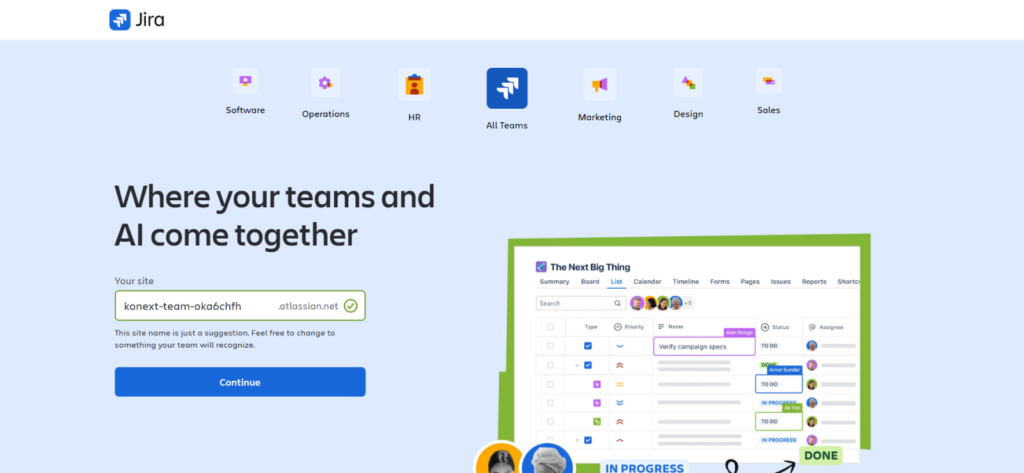
Jira supports backlogs, boards, sprints, workflows, reports, dashboards, permissions, automation, and cross-team planning. Its extensive configuration options make it suitable for engineering organizations with several teams, issue types, approval stages, and reporting requirements.
For our review, we examined backlog management, sprint planning, workflow customization, role permissions, automation, dependencies, and cross-team visibility. We noticed its main strength to be the level of control it provided.
The workflow builder was particularly useful for organizations that follow more than a basic “to do, in progress, and done” process. Teams can add review stages, approval requirements, automated actions, and access rules according to their internal procedures. As a result, Jira can support engineering work that also involves security, compliance, support, or release-management teams.
Jira’s automation allowances also show how the platform scales. The Free plan includes 100 rule runs per month, while Standard increases this to 1,700. Premium provides 1,000 monthly rule runs for each paid user, meaning a 200-user account can access up to 200,000 pooled runs per month.
However, the same level of flexibility requires careful setup. During our review, workflows became harder to follow when projects used too many statuses, custom fields, and separate rules. Therefore, organizations should establish shared naming and workflow standards before expanding Jira across several teams.
Jira Pricing
- Free: For up to 10 users
- Standard: $7.91/user/month
- Premium: $14.54/user/month
- Enterprise: Custom pricing
Standard adds roles, permissions, 250 GB of storage, and wider support. Premium adds cross-team planning, approval processes, unlimited storage, and a 99.9% uptime SLA.
Jira Compatibility
Jira Cloud works through browsers and mobile applications for iOS and Android. Jira Data Center is available for organizations that require a self-managed environment.
Jira Pros
- Supports detailed and customizable workflows.
- Provides backlogs, boards, timelines, reports, and dashboards.
- Includes roles and permission controls.
- Scales across several teams and departments.
- Offers a large integration marketplace.
- Provides cloud and self-managed options.
Jira Cons
- Detailed configurations require a dedicated administrator.
- Too many custom fields and statuses can make workflows harder to follow.
- Cross-project planning and advanced approvals require the Premium plan.
- Marketplace applications can increase the total software cost.
Verdict
Jira is best for engineering organizations that need detailed workflows, permissions, dependencies, and reporting across multiple teams. Its flexibility is particularly useful when software delivery connects with compliance, service management, security, or formal approval processes.
8. Cold Turkey — Best for Blocking Distractions

Cold Turkey gave us a direct way to protect focused work by blocking websites and desktop applications for a defined period.
During our review, we examined six controls: custom block lists, website exceptions, application blocking, recurring schedules, timed allowances, and locked sessions. The exception settings were especially useful because teams could restrict common distractions while keeping repositories, technical documentation, cloud platforms, and other required resources available.
The locking options provided the clearest difference from a standard browser extension. Unlock delays can be set anywhere from one minute to 40 days, while schedule, restart, and password-based controls make it harder to end a focus session early. This made Cold Turkey practical for coding, review, and documentation periods that required fewer interruptions.
However, block lists worked best when they were tested before being locked, since an overlooked website or application could also restrict access to a legitimate work resource.
Cold Turkey Pricing
- Blocker Free: Includes a 7-day trial for all pro features
- Blocker Pro: $45 one-time payment
One license can be used on the buyer’s personally owned Windows and macOS computers. Students can also request a 20% discount.
Cold Turkey Compatibility
Cold Turkey supports Windows and macOS.
Cold Turkey Pros
- Blocks websites and desktop applications.
- Supports schedules, allowances, and locked sessions.
- Allows exceptions for required work resources.
- Stores statistics locally.
- Pro uses a lifetime purchase rather than a subscription.
Cold Turkey Cons
- Mobile and Linux versions are currently outside its supported platforms.
- Pro is required for schedules and application blocking.
- Its main purpose is individual focus rather than team workflow management.
Verdict
Cold Turkey is a strong choice when known websites or applications regularly interrupt deep work. It is most useful for scheduled coding, review, testing, and documentation sessions where a clear boundary helps you remain focused.
Final Verdict
When it comes to the best productivity tools for software developers, no single application improves every part of software development because each tool supports a different workflow.
Cursor and GitHub Copilot help with coding, Linear and Jira organize engineering work, Sentry supports production debugging, Notion centralizes technical knowledge, and Cold Turkey protects focused work periods. TimeBee fits project-time visibility, billing, capacity planning, and the analysis of coding and non-coding work.
Therefore, you should begin with your most important workflow requirement and test the shortlisted application with actual projects. Track the time saved, steps removed, correction effort, adoption rate, and developer feedback. The best software developer productivity tools support useful outcomes while keeping administration and oversight proportionate to the team’s needs.
FAQs
What features should I look for in software developer productivity tools?
The best software developer productivity tools should integrate easily with your existing tech stack, automate repetitive tasks, reduce context switching, and support real-time collaboration. Look for features such as Git integration, AI-assisted coding, time tracking, task management, code search, documentation, workflow automation, and cross-platform support. During our testing, tools that were fast and required minimal manual effort consistently delivered the biggest productivity gains for both individual developers and engineering teams.
What is the 40/20/40 rule in software engineering?
The 40/20/40 rule suggests allocating approximately 40% of a software project to analysis and design, 20% to coding, and 40% to testing. It is a planning guideline rather than a fixed requirement. The exact allocation depends on the project’s complexity, risk, maturity, and quality requirements. Its main lesson is that writing code represents only one part of producing dependable software.
How can development teams measure productivity accurately?
To measure developer productivity accurately, teams should begin with project outcomes rather than isolated activity. This means looking at whether work is delivered on time, software remains reliable, blockers are resolved efficiently, and developers can collaborate without unnecessary friction. Using productivity tools for developers is yet another important approach, as tools like TimeBee can turn work patterns into measurable data.
Is time tracking useful for software developers?
Yes. Time tracking can help developers and managers understand how work is divided across coding, reviews, meetings, documentation, incidents, client communication, and support. It is especially useful for project costing, billing, workload planning, and identifying frequent context switching. However, the records become more meaningful when developers can review and correct them and when hours are considered alongside delivery quality and project outcomes.
Do developer monitoring tools reduce employee trust?
Monitoring tools can support trust when the organization clearly explains what is collected, why it is needed, who can access it, and how employees can review the records. The ICO recommends transparent, fair, proportionate monitoring and the least intrusive method that can achieve the stated purpose. Discussing the process with employees before implementation also helps organizations configure the system around real work requirements.
What is the difference between developer activity and productivity?
Developer activity refers to visible actions such as commits, tickets, tracked hours, reviews, deployments, or keystrokes. Developer productivity considers whether those activities contribute to useful, reliable software through a sustainable workflow. For example, a developer may produce fewer commits while completing a valuable architectural change or preventing future defects through review. Activity figures are therefore most useful as supporting context within a broader assessment of quality, collaboration, delivery, and developer experience.
TimeBee: Give Leaders a Clearer View of Development Work
Try TimeBee Now



Jacob Tyler
Member since July 2, 2026
Jacob Tyler
Member since July 2, 2026
Jacob Tyler is a B2B technology journalist specializing in workplace software, employee monitoring platforms, productivity technology, HR systems, data privacy, and the changing role of technology in modern organizations.
He holds an MSc in Information Systems from the University of Manchester. His professional qualifications include the CompTIA Data+ certification.
With more than 10 years of experience covering B2B software and digital transformation, Jacob focuses on translating complex product capabilities into clear guidance for business readers.
His work examines how software functions in practice, which operational problems it is designed to address, what data it collects, and what organizations should consider before implementation.
Through his writing, Jacob helps HR leaders, operations teams, founders, managers, and IT decision-makers understand workplace technology and make informed purchasing decisions.