

7 Best Productivity Apps for Freelance Writers: Thoroughly Tested and Compared
By Jacob Tyler
July 14, 2026 16 min readYou open your laptop thinking you will be finished with your new writing assignment by noon, but before you know it, the real workday begins, breaking your flow.
You find yourself looking at a Slack message, an email, a client’s urgent request, and other tasks. And the assignment that has a tight deadline sits somewhere forgotten.
That is exactly the part about freelance writing that many do not talk about. When you are working as a freelance writer, you are not just writing but also working through many other tasks that are rarely accounted for.
However, the best freelance writer productivity apps are the ones that can protect your working hours, and we have found 7 such solutions for you today.
Know the Best Productivity Software for Freelance Writers At a Glance
- Todoist helps freelance writers manage assignments, client tasks, revision reminders, invoice follow-ups, and recurring deadlines.
- Freedom protects focused writing sessions by blocking distracting websites and apps.
- TimeBee gives freelance writers visibility into billable hours, non-billable work, task-level time breakdown, and project profitability.
- Feedly lets writers monitor client niches, competitor blogs, trade publications, and recurring research sources in one place.
- Otter.ai turns client calls and SME conversations into searchable transcripts with summaries.
- TextExpander speeds up repeated client communication through reusable snippets and fill-in templates.
- FreshBooks helps freelance writers manage admin work like invoices, estimates, expenses, payment tracking, and basic billing records.
How We Chose the Best Productivity Tools for Freelance Writers
The list you will find below is not built around general popularity, which is why tools like Google Docs, Hemingway Editor, Grammarly, and Notion are not mentioned. Instead, we have chosen each app based on how well it can improve actual freelance writing productivity.
To ensure that only reliable tools make it to the final list, we took the following factors into consideration.
One Clear Productivity Niche – 35%
We assessed whether the app we tested solved a specific productivity problem or not. Since we did not want all seven tools to target the same concern, we removed any apps that were similar, with slight differences.
Freelance Writer Fit – 25%
We also made sure that each app chosen supports a real writing-business workflow, from client work to research. For example, while Freedom supported deep-work sessions, TextExpander automated repeated communication.
Time-Saving Value – 25%
We also looked for tools that saved time in a specific way, such as reducing unpaid work, admin time, context switching, distraction, or workflow friction.
Compatibility – 15%
Freelance writers often work across laptops, browsers, phones, email clients, calendars, and client platforms. Therefore, we prioritized tools that work across the platforms writers commonly use.
Comparison Table: Best Freelance Writer Productivity Apps
| App Name | Pricing | Compatibility | Best For | Limitation |
| Todoist | Beginner: Free, Pro: $5/month | Web, desktop, mobile | Managing follow-ups and recurring deadlines | Sync and reminders become less reliable under heavier use |
| Freedom | Free: $0, Premium Yearly: $3.33/month | Mac, Windows, iOS, Android, Chromebook, Chrome | Blocking distracting sites during writing sessions | Setup needs careful configuration |
| TimeBee | Free Trial: $0 for 14 days, Paid Plans: Custom pricing | Desktop, web browser, browser extension, kiosk, mobile | Tracking billable and non-billable work hours | Too detailed for writers who only need a basic timer |
| Feedly | Free: $0, Pro: $8/month | Web, iOS, Android | Monitoring recurring research sources | Dashboard becomes noisy with too many broad feeds |
| Otter.ai | Basic: Free, Pro: $8.33/month | Web, Mac, Windows, iOS, Android | Turning calls into searchable notes | Transcripts require manual checking |
| TextExpander | Individual: $4.16/month, Business: $10.41/month | Mac, Windows, Chrome, iPhone, iPad | Reusing repeated client communication | Formatting does not always transfer cleanly |
| FreshBooks | Lite: $2.30/month, Plus: $4.30/month | Web, iOS, Android | Managing invoices and client billing | Interface takes time to learn |
Best Freelance Writer Productivity Tools: 7 Thoroughly Vetted Picks
After testing tools across distinct freelance workflows, these are the best productivity tools for freelance writers we ended up with.
1. Todoist – Best for Assignment Planning
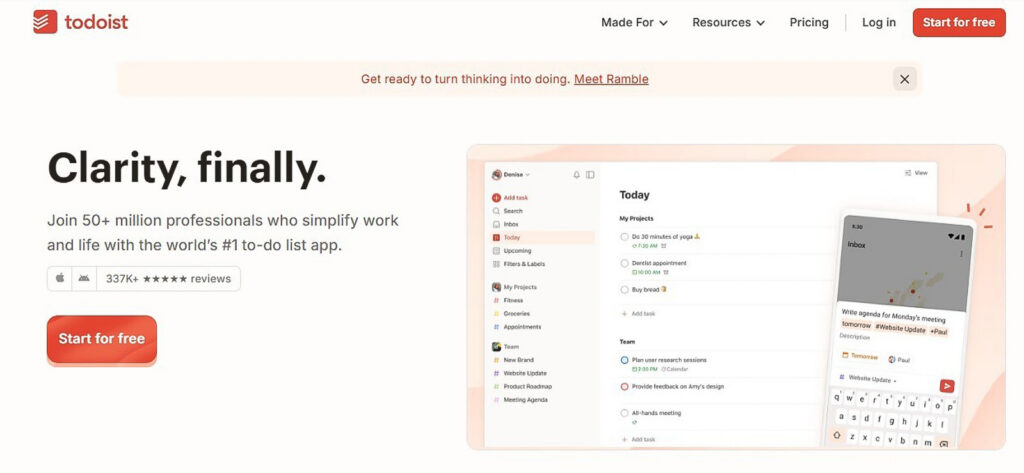
Freelance writers who are looking for an easy way to manage assignments, client tasks, revision reminders, invoice follow-ups, and recurring deadlines can use Todoist.
When we tested the app, we noticed we could easily capture work without breaking the writing flow. For example, when a task came, Todoist handled the entry using natural-language scheduling and quick keyboard input.
However, Todoist is not flawless. It works best when you use it as a task and deadline manager rather than as a single freelance operations dashboard.
We came to this conclusion quickly when, upon adding multiple client projects, subtasks, labels, and reminders, the system became prone to sync delays and inconsistent notifications.
Therefore, freelance writers can make the most of the app by creating only one project per client.
Key Productivity Features of Todoist
Task Capture
Todoist’s task capture worked best when we used it for low-friction task entry. Moreover, its natural-language input made it easy to add deadlines without manually selecting dates each time.
However, this feature is not reliable under heavier usage, as we have noticed that relying on Todoist as the sole place for important client records can be risky.
Recurring Tasks and Deadline Reminders
We tested recurring reminders for weekly blog drafts, monthly invoice checks, pitch follow-ups, newsletter deadlines, and revision windows. The results showed that the app is clearly helpful since it reduced the need to remember routine client obligations.
The feature also worked well when we created separate projects for each client and used labels for task types such as “draft,” “revision,” “invoice,” “pitch,” “research,” and “waiting.”
Client-Facing Project Visibility
Todoist also shows simple project progress for checklist-style client work. We could easily mark everything done and get a view of how far along the project is.
Still, remember that Todoist can only support basic transparency, since it is not a full client portal.
Todoist Pricing
- Beginner: Free,
- Pro: $5 per month,
- Business: $8 per month.
Todoist Compatibility
Todoist works across web, desktop, and mobile platforms.
Todoist Pros
- Fast to use during active writing sessions.
- Strong natural-language scheduling for deadlines and recurring tasks.
- Good for recurring freelance work, including weekly assignments, newsletters, revisions, and admin reminders.
- Works across desktop, web, phone, and tablet.
- Free plan has practical value for solo freelance writers.
Todoist Cons
- Limited functionality for large-scale projects and extensive client pipelines.
- Calendar integration is not strong enough for calendar-first writing workflows.
- Reminder behavior and sync become less reliable under heavier use.
- Email and notification volume can become counterproductive.
Verdict
Todoist fits freelance writers who keep losing track of follow-ups and recurring deadlines. It is helpful once the setup is in place, but writers who want a tool that feels effortless from the start should opt for a simpler option.
2. Freedom – Best for Blocking Distractions

If you find yourself losing productive hours to social media, news sites, messaging apps, and random browsing, Freedom can help you create focused writing sessions by setting a block.
In terms of its real-life usability, when we tried blocking distracting websites and apps through Freedom, the block worked fine.
However, as with most blockers, Freedom is not a perfect enforcement tool since it needs proper adjustments to become useful across devices.
We believe that it is best to use the app by creating a specific blocklist for everything, like writing, research, etc., rather than using one broad blocklist for all tasks.
Key Productivity Features of Freedom
Website and App Blocking
Freedom’s website and app blocking worked best when we used it for clear distraction categories. For example, blocking social media, video platforms, news sites, and shopping sites during drafting sessions helped keep attention on the document.
Scheduled Focus Sessions
Freedom’s scheduled sessions were helpful for turning focus into a routine. We tested fixed writing windows, such as morning drafting blocks and evening shutdown blocks, and the app worked better when sessions started automatically.
But note that if the session timing does not match your real workflow, it becomes annoying instead of helpful.
Cross-Device Blocking
Freedom’s cross-device blocking is one of its most useful productivity features because distractions do not stay on one screen. For the best result, though, it is recommended that you set up cross-device blocking very carefully, particularly on mobile.
Freedom Pricing
- Free: $0,
- Premium Yearly: $3.33/month,
- Forever: $99.50 for life.
Freedom Compatibility
Freedom works on Mac, Windows, iOS, Android, Chromebook, and Chrome. However, full internet blocking, website blocking, and app blocking are only included on Mac, Windows, iOS, and Android.
Freedom Pros
- Useful for reducing time spent on social media, news sites, video platforms, and other time sinks.
- Supports scheduled focus sessions and recurring writing blocks.
- Works across multiple devices.
- Focus music and ambiance are included for added focus.
Freedom Cons
- Blocking becomes inconsistent when sessions and permissions are not configured properly.
- Windows and Android workflows feel less smooth than the core desktop experience.
- The app can feel clunky during initial setup.
- Free sessions are too limited for longer writing blocks, and pop-ups with upgrade prompts can become distracting.
Verdict
If focusing while writing is a concern that you want to tackle, Freedom can be a helpful tool to include in your stack. Nonetheless, to use it to its full potential, you need to first understand what takes your attention away.
3. TimeBee – Best for Billable Time Tracking
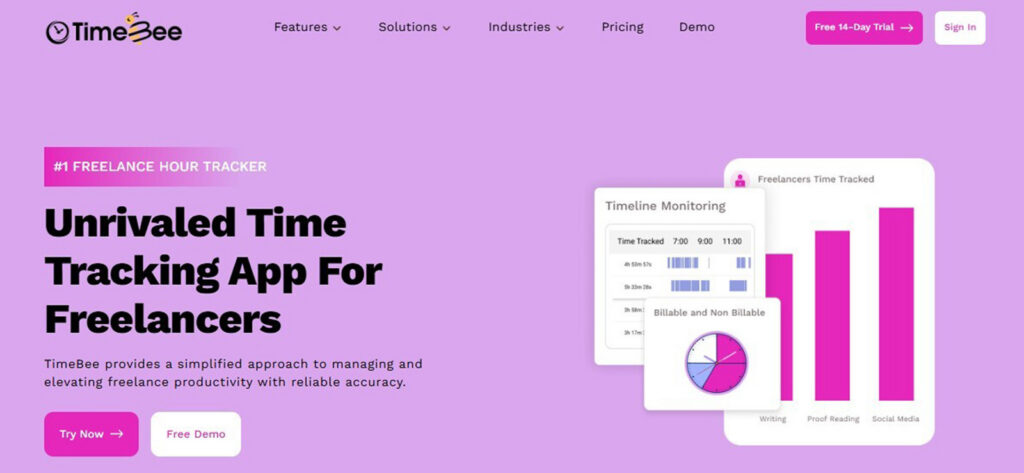
TimeBee is a reliable option for freelance writers who want to understand where their billable and non-billable hours are actually going.
When we tried TimeBee for its time tracking, billable/non-billable distinction, activity visibility, and client billing, we found its functionality useful.
Not only did it separate work by projects and tasks, but it also allowed time tracking for specific activities like research, drafting, editing, revisions, communication, and admin. That made it easier to see which parts of a project were taking the most time.
However, we could not help but notice that TimeBee is more detailed than a basic timer. Its dashboards, activity reports, screenshots, web and app monitoring, and productivity insights can at times be unnecessary for writers who just want a start/stop functionality.
Key Productivity Features of TimeBee
Billable and Non-Billable Time Tracking
TimeBee’s billable and non-billable tracking is one of its most relevant features for freelance writers. By allowing users to log their time in specific projects and their associated tasks, it helps separate billable time from non-billable time.
When used consistently, the feature gave us a clearer view of the day’s activity, which can reduce the need to manually maintain timesheets.
Activity Reports
TimeBee’s activity reports provided visibility into how work time is spent during the day.
Given that productivity issues are not always obvious, the activity logs can, therefore, help freelance writers identify unproductive patterns.
Screenshots and Work Visibility
TimeBee’s web, app, screenshot, and screen-monitoring features give freelance writers and their clients detailed logs of what happens during tracked work hours.
Not only that, but if a client specifically requests proof of work and visibility, the features are useful.
Still, we need to mention that for many solo freelance writers, screenshots are not necessary for everyday productivity tracking.
Timesheets and Client Reports
TimeBee’s timesheets and reports make it easier to summarize work completed across clients and projects. Moreover, when using the app, the functionality that stood out was its ability to turn recorded client hours into concise billing summaries.
The main limitation, however, is that reports only stay useful if tracking is consistent.
TimeBee Pricing
- Free Trial: 14 days,
- Paid Plans: Custom pricing.
TimeBee Compatibility
TimeBee works across desktop, web browser, browser extension, kiosk, and mobile setups, which gives freelance writers flexibility to track work from any platform.
Moreover, since it also integrates with other apps, freelance writers can easily connect time tracking with existing work systems instead of managing everything separately.
TimeBee Pros
- Provides detailed billable and non-billable time visibility by supporting both an automatic timer and manual entries.
- Tracks work across desktop, web browser, browser extension, kiosk, and mobile setups for added flexibility.
- Supports integrations with other apps, which helps connect time tracking with existing project tools and workflow systems.
- Provides reports and dashboards that make it easier to review productivity patterns and identify distracting work habits.
- Real-time updates, a user-friendly dashboard, consistently performing features, and reports make using the system easier.
TimeBee Cons
- Screen monitoring and screenshot features are not necessary for every freelance writer.
- The app requires careful configuration across project and task labels to produce useful data.
- Advanced visibility features such as app ratings, productivity reports, activity tracking, and outsourcing-client options are better suited to teams or agency workflows.
TimeBee Verdict
TimeBee works best for freelance writers who need more than a timer to understand where their work hours are going. It fits writers who want clearer visibility into billable work, unpaid admin, revisions, task-level effort, and project profitability.
TimeBee: Your Freelance Writing Hours Are Worth Tracking
Learn More
4. Feedly – Best for Research Monitoring

Feedly is useful for freelance writers who regularly write across client niches and need one place to monitor industry updates, competitor blogs, trade publications, newsletters, and content ideas.
When using the app, it became evident after a while that its biggest productivity gain comes from not having to manually visit a website repeatedly.
That is because the app allows users to create separate folders for different writing niches so they can find all relevant sources in one place.
Note that only when we added high-value sources within these folders did Feedly make research scanning quicker and more focused. However, adding too many broad feeds made the dashboard noisy and harder to navigate.
Key Productivity Features of Feedly
Source Monitoring
Feedly’s source monitoring required the feeds to be organized by client niche. Once done, instead of starting research from scratch every time, we could open one folder and see recent updates from selected publications and industry sources.
But a recurring pattern we noticed is that the feature saved time only when the source list was selective.
Topic Tracking and Content Ideas
Feedly is helpful for spotting content angles before they become obvious. By checking niche feeds regularly, we could identify repeated themes, new industry discussions, competitor topics, and article ideas that would have taken longer to find manually.
Save-for-Later and Research Boards
Feedly’s save-for-later workflow helps when freelance writers have found useful articles but are not ready to use them immediately. We noticed that the practice made it easier to collect potential sources for future client work.
Still, Feedly should not replace a full research archive.
Feedly Pricing
- Free: $0,
- Pro: $8/month,
- Pro+: $12/month.
Feedly Compatibility
Feedly works through a web interface and also offers iOS and Android apps. Moreover, it syncs reading activity across devices, so sources added on one device remain available on the others.
Feedly Pros
- Useful for monitoring client niches and recurring industry sources.
- Reduces the need to manually check multiple websites.
- RSS search and feed discovery make source setup easier.
- Can reduce dependence on social media for research.
- Save-for-later and boards help collect future source material.
Feedly Cons
- The interface is not always intuitive during heavier source management.
- Mobile reading feels less convenient than desktop research work.
- Slow loading can interrupt quick source scanning.
- Ads and feed interruptions reduce the cleanliness of the research flow.
Verdict
Feedly makes sense for freelance writers who constantly return to the same industry sources for client work. Still, for a smooth experience with the app, you need to keep the feed list tight; otherwise, it can turn into another crowded research tab.
5. Otter.ai – Best for Call Notes
Otter.ai is an app best used by freelance writers whose raw material comes from conversations.
That includes interview-led articles, case studies, ghostwriting projects, client discovery calls, podcast repurposing, expert roundups, and B2B content based on expert input.
While testing Otter.ai, we found that its value is in helping users get from “I have a 45-minute recording” to “I know where the useful parts are.”
And that distinction matters here because the first productivity win is not publishing the transcript as is; instead, it is being able to search the conversation and build a usable outline faster.
Regardless, Otter.ai still needs careful handling, since most transcripts require proper cleanup, and summaries are better used for direction than for final accuracy.
Key Productivity Features of Otter.ai
Live Transcription
Otter.ai’s live transcription allows users to stay focused on the conversation instead of typing every important point manually.
However, upon testing, we found that the transcript was not clean and contained errors in phrasing, punctuation, names, acronyms, and technical terms.
The issue also became more visible when speakers talked quickly, interrupted one another, used niche terminology, or had different accents.
Searchable Transcripts
Search is where Otter.ai becomes genuinely productive for freelance writers. Instead of replaying an entire recording to find one detail, we could search for specific names, topics, pain points, objections, metrics, and phrases.
The limitation is that search depends on transcription accuracy because if Otter mishears a term, search may not surface the right moment.
Meeting Integrations
Otter.ai supports Zoom, Google Meet, and Microsoft Teams workflows, which makes it practical for remote freelance calls.
Overall, for writers, this is convenient because the app can join and capture conversations without a separate recording setup.
Otter.ai Pricing
- Basic: Free,
- Pro: $8.33/month on annual billing,
- Business: $19.99/month on annual billing.
Otter.ai Compatibility
Otter.ai works on the web, Mac, Windows, iOS, and Android. It also supports Zoom, Microsoft Teams, and Google Meet.
Otter.ai Pros
- Useful for client calls, expert interviews, podcast repurposing, and case study research.
- Searchable transcripts make quote and topic retrieval faster.
- Speaker identification helps organize multi-person calls.
- Useful for writers who need to stay present during interviews instead of typing notes live.
Otter.ai Cons
- Technical terms, acronyms, names, punctuation, and accented speech require extra checking.
- AI summaries are not accurate enough to replace full transcript review.
- Exporting and downloading transcripts can become slow for high-volume interview work.
- Basic plan limits are restrictive for regular freelance interview workflows.
Verdict
You should choose Otter.ai if you work with transcripts, have long conversations, need to collect meeting minutes, etc. As is evident from the discussion, while it is helpful for finding key moments, it should not be treated as a publication-ready transcript.
6. TextExpander – Best for Reusable Communication
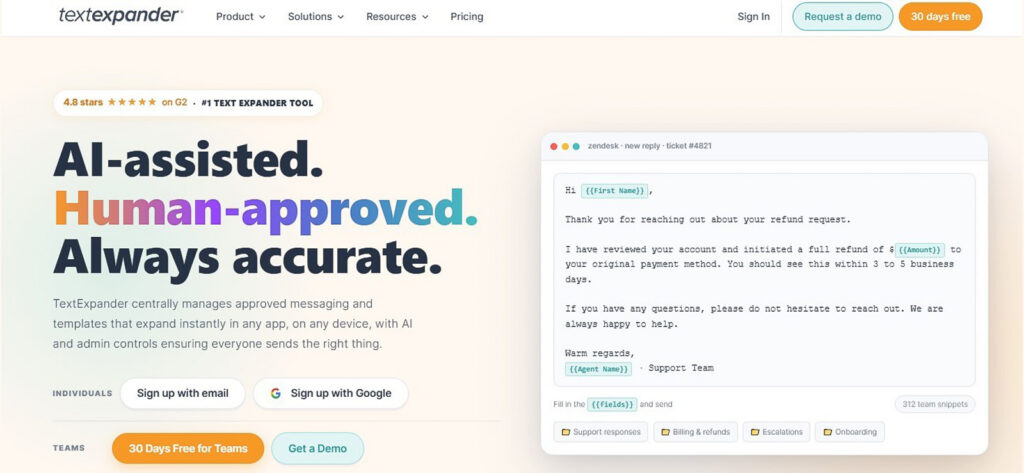
TextExpander is a productivity tool for freelance writers who spend too much time rewriting the same client messages, pitch templates, project updates, and invoice reminders.
We believe TextExpander’s strongest feature is its ability to turn repeated communication into reusable and editable snippets.
For example, when using the app, instead of typing a full delivery email, we created a shortcut that expanded into a complete handoff note with space for the client name, project title, document link, and next step.
However, we noticed that cursor placement, formatting, and browser extension behavior require testing, as a snippet that works well in Gmail may not behave the same way in a client portal.
Key Productivity Features of TextExpander
Fill-In Templates
Fill-in templates were the most useful feature for messages that need both speed and personalization. The app allowed us to reuse a snippet by just filling in fields for client names, article titles, invoice dates, project links, word counts, and revision deadlines.
The main issue, however, is that fill-in templates require more setup than basic snippets. During testing, they were worth it for high-frequency messages but unnecessary for one-off replies.
Cross-App Text Expansion
TextExpander is also useful because it addresses the freelance writers’ need to type in many different places.
Upon testing snippets across email, browser fields, client forms, document comments, internal notes, CMS boxes, and project tools, we found that its cross-app behavior differed depending on the platform.
TextExpander Pricing
- Individual: $4.16/month on bi-annual billing,
- Business: $10.41/month on bi-annual billing,
- Growth: $13.54/month on bi-annual billing.
TextExpander Compatibility
TextExpander works with Mac, Windows, Chrome, iPhone, and iPad.
TextExpander Pros
- Saves time on repetitive client communication and reduces typing load.
- Useful for pitches, follow-ups, delivery notes, onboarding replies, and invoice reminders.
- Fill-in templates preserve personalization.
- Useful for writers who manage several clients with similar communication patterns.
TextExpander Cons
- Poorly written snippets make client messages sound stiff and unnatural.
- Outdated snippets create risk when rates, deadlines, links, or policies change.
- Formatting does not always transfer cleanly across apps.
Verdict
TextExpander works well for freelance writers who repeat the same client-facing messages. Use it when repeated typing slows down your client communication. However, skip it if you only need a few basic shortcuts or rarely reuse the same message structure.
7. FreshBooks – Best for Freelance Admin

FreshBooks is a viable option for freelance writers who manage direct clients and want one place for invoices, estimates, expenses, payment records, and basic accounting tasks.
Instead of letting these tasks take time away from paid writing, FreshBooks helps automate basic admin tasks.
However, note that FreshBooks is an accounting tool, which means it can feel heavier than necessary for writers who only send one or two invoices a month.
In addition to that, while testing, we noticed that payment processing, bank imports, expenses, and plan limits need close attention because problems in those areas directly affect freelance cash flow.
Key Productivity Features of FreshBooks
Invoicing and Estimates
FreshBooks performed well when we used it to create standard invoices and estimates for client writing work. Therefore, when using the app, we believe writers do not have to rebuild each invoice from scratch.
Recurring Billing and Retainers
Using FreshBooks, freelancers can also set up recurring billing for ongoing blog writing, newsletter management, content strategy, or editing packages.
That said, recurring billing should not be left completely unattended. We found that writers still need to check dates, amounts, client details, and payment settings.
Expense Tracking
Expense tracking is another feature that covers writing-related expenses such as software subscriptions, research tools, internet costs, and other services.
We found this feature particularly useful because keeping expenses inside the same system as invoices makes tax-time preparation easier.
FreshBooks Pricing
- Lite: $2.30/month on bi-annual billing,
- Plus: $4.30/month on bi-annual billing,
- Premium: $7/month on bi-annual billing.
FreshBooks Compatibility
FreshBooks works through the web and offers mobile apps for iOS and Android.
FreshBooks Pros
- Helps organize invoice status, payment history, and client billing records.
- Makes tax-time reporting easier when records are maintained consistently.
- More professional than manual invoice templates.
- Payment reminders reduce manual follow-up work.
FreshBooks Cons
- Costs increase with add-ons such as team members, advanced payments, and payroll.
- Invoice bugs and billing errors require careful checking before sending client invoices.
- Interface and workflow take time to learn for writers who only need basic invoicing.
Verdict
FreshBooks is worth considering once freelance billing becomes too frequent to manage casually. It suits writers with repeat clients, retainers, and regular expenses, but it is unnecessary if your current invoice-and-spreadsheet setup is still easy to maintain.
Final Verdict
The best productivity apps for freelance writers are the ones that solve specific problems slowing down your workflow. Therefore, your particular needs matter more than what any app offers when making a decision.
For example, if missed follow-ups are your concern, a task planner makes sense, while to calculate your billable hours more accurately, time tracking should come first.
However, none of these apps is a guaranteed way to become more productive on its own. That is because a tool can only help when it is used properly and consistently.
FAQs
What is the best way for freelance writers to reduce context switching during the workday?
Constantly jumping between tasks forces your brain to reset its focus each time, which reduces productivity. To address this, assign specific hours to specific types of work so your mind stays in one mode for longer stretches. Moreover, block distracting apps and websites during writing sessions to maintain deep focus.
How can freelance writers keep client briefs, links, sources, and notes in one place?
You should keep all client-related material in one consistent place, like briefs, draft links, outlines, and notes together. By doing so, you can easily access everything tied to a project without searching across multiple tabs or tools. Remember, the goal is to avoid scattering information and to always know where to find what you need for each assignment.
What should freelance writers automate first to save time each week?
Repeated communication should usually be automated first. That is because pitch intros, onboarding questions, delivery notes, revision policies, invoice reminders, and follow-ups often follow the same structure. Therefore, turning these into reusable templates saves time while still leaving room for personalization.
How can freelance writers stay productive when working with several clients in different time zones?
You should tie deadlines, follow-ups, and other time-bound tasks to specific time zones to prevent confusion across regions. Not only that, but you should also avoid vague deadlines like “end of day” unless the time zone is clearly confirmed. In addition, it helps to separate project work by client and track time against each project to maintain clarity.
How many productivity apps does a freelance writer actually need?
Most freelance writers only need one to three productivity tools at first. Initially, you should choose a tool that addresses the bottleneck that costs you the most time, whether that is deadlines, distractions, research, call notes, repeated replies, time tracking, or invoicing. Then, add another tool only when a specific workflow problem becomes frequent enough to justify it.
TimeBee: Know Where Your Billable Writing Hours Go
Try Out TimeBee


Jacob Tyler
Member since July 2, 2026
Jacob Tyler
Member since July 2, 2026
Jacob Tyler is a B2B technology journalist specializing in workplace software, employee monitoring platforms, productivity technology, HR systems, data privacy, and the changing role of technology in modern organizations.
He holds an MSc in Information Systems from the University of Manchester. His professional qualifications include the CompTIA Data+ certification.
With more than 10 years of experience covering B2B software and digital transformation, Jacob focuses on translating complex product capabilities into clear guidance for business readers.
His work examines how software functions in practice, which operational problems it is designed to address, what data it collects, and what organizations should consider before implementation.
Through his writing, Jacob helps HR leaders, operations teams, founders, managers, and IT decision-makers understand workplace technology and make informed purchasing decisions.